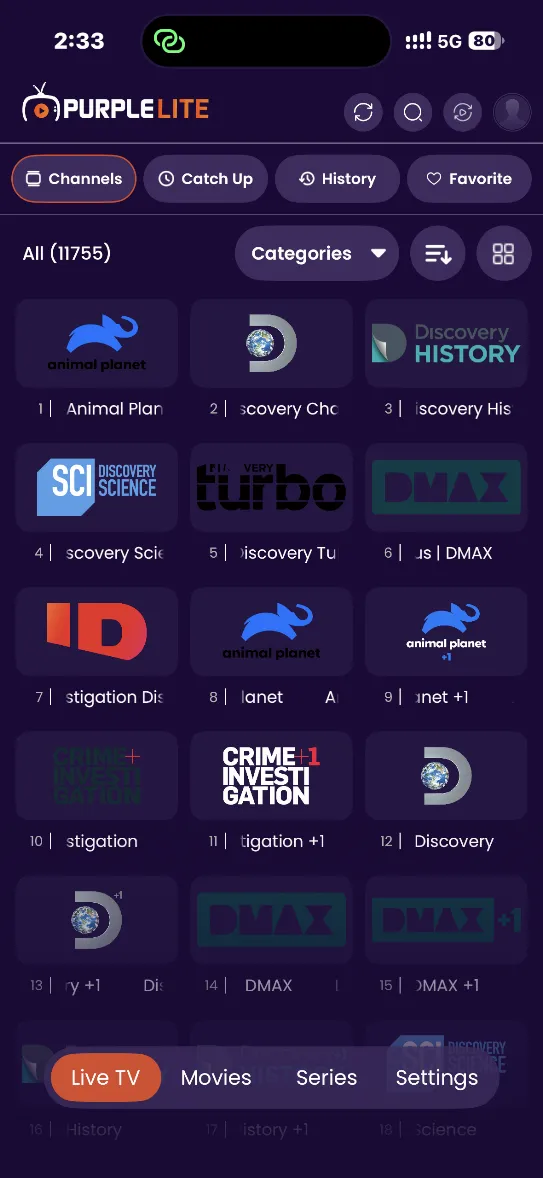
How to log in with Xstream Playlist
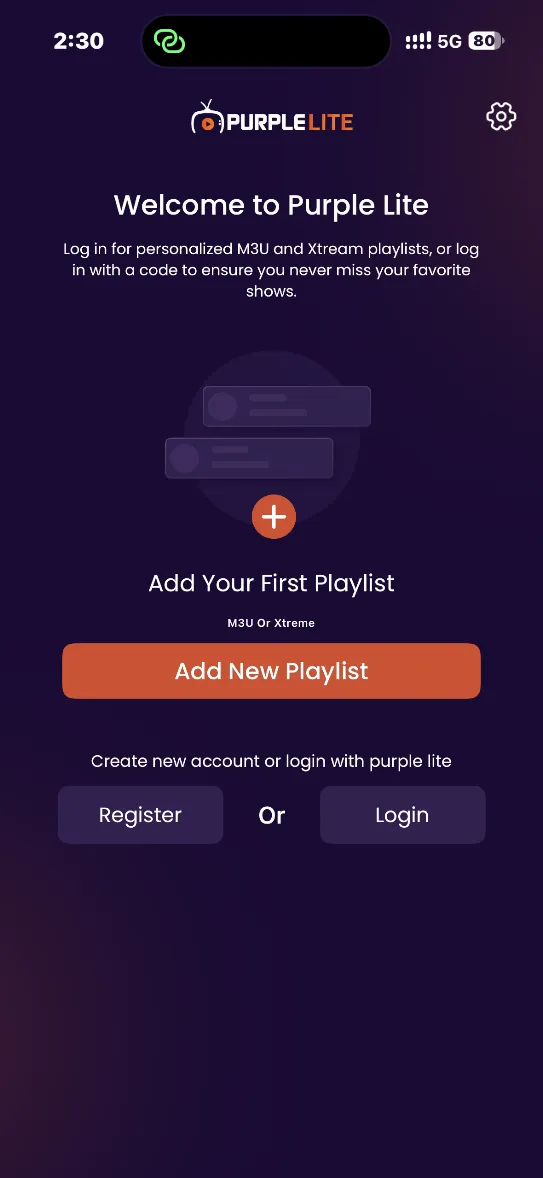
Step 1: Add New Playlist
After successfully logging in with your Purple Lite account, you will be redirected to the Welcome to Purple Lite screen.
Tap the Add New Playlist button to proceed with the Xtream Playlist login process.
Step 2: Log In With Xtream Playlist
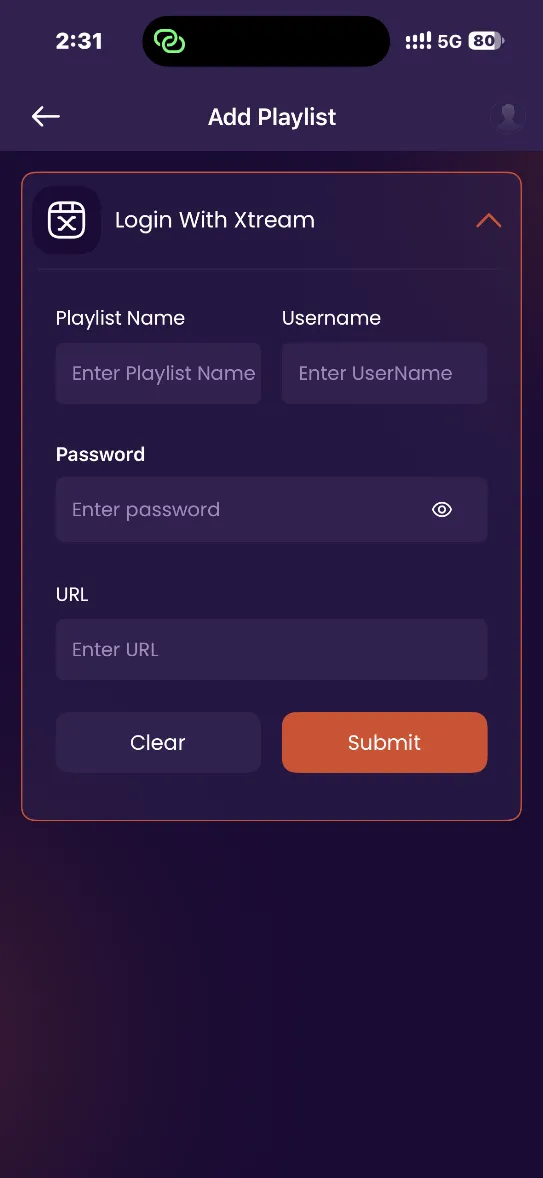
On the Add Playlist screen, select Log In With Xtream.
Enter the following details provided by your IPTV service provider:
- Playlist Name: Enter a name for your playlist.
- Username: Enter your Xtream username.
- Password: Enter your Xtream password.
- URL: Enter the server URL provided by your IPTV service provider.
After entering all required details, tap Submit to proceed.
Step 3: Select Xtream Playlist
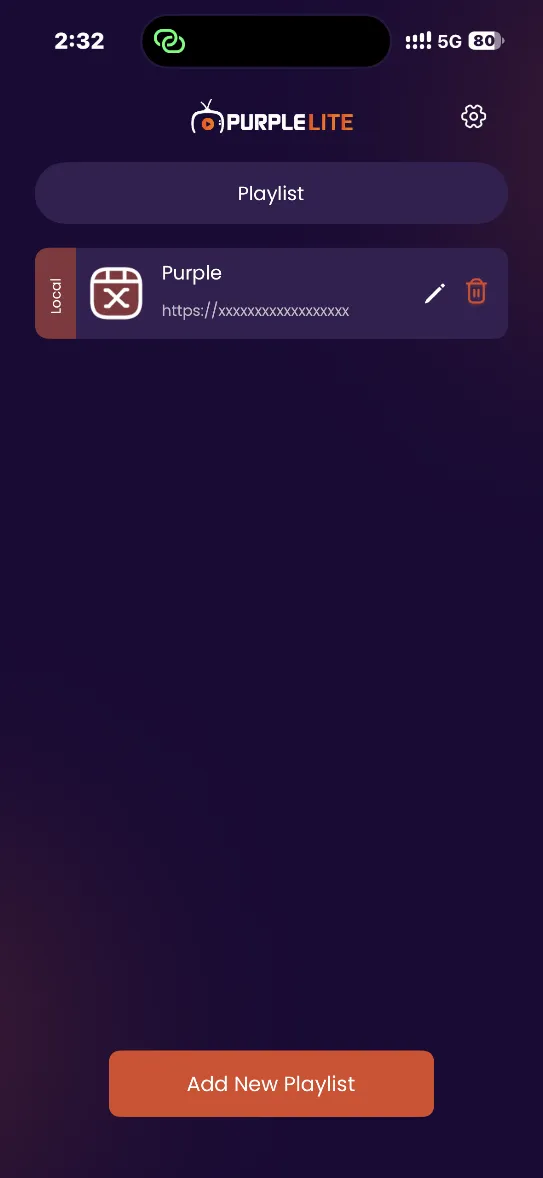
After successfully adding your Xtream Playlist, you will be directed to the Playlist screen.
Your added playlist will appear in the list. Tap on the Playlist Name to proceed.
Step 4: Load Playlist Data
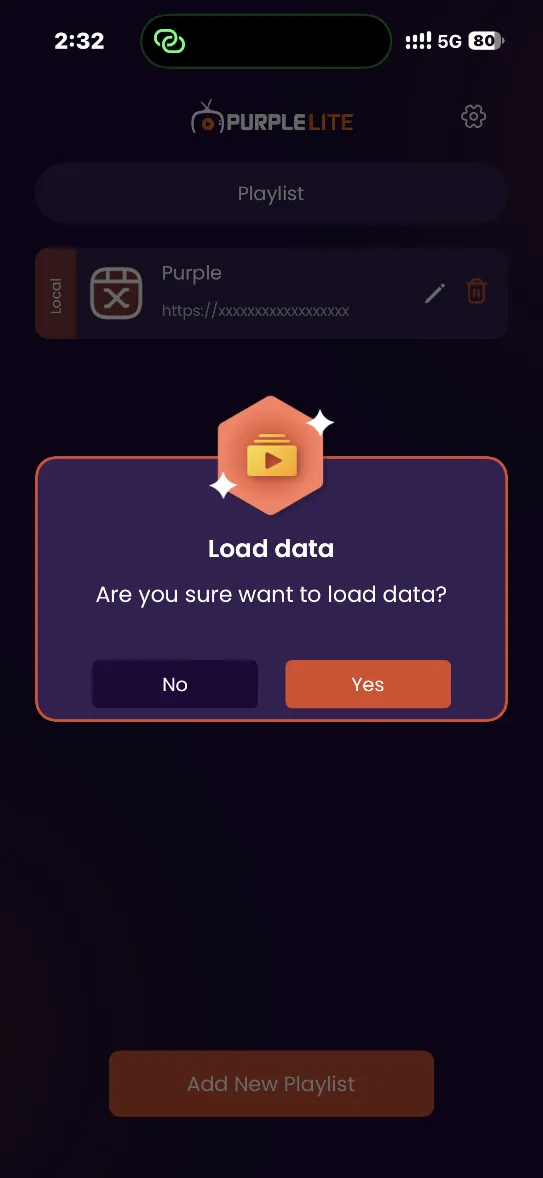
After selecting your Xtream Playlist, a Load Data confirmation pop-up will appear on the screen.
Tap the Yes button to confirm and load your playlist data.
Step 5: Fetching Playlist Data
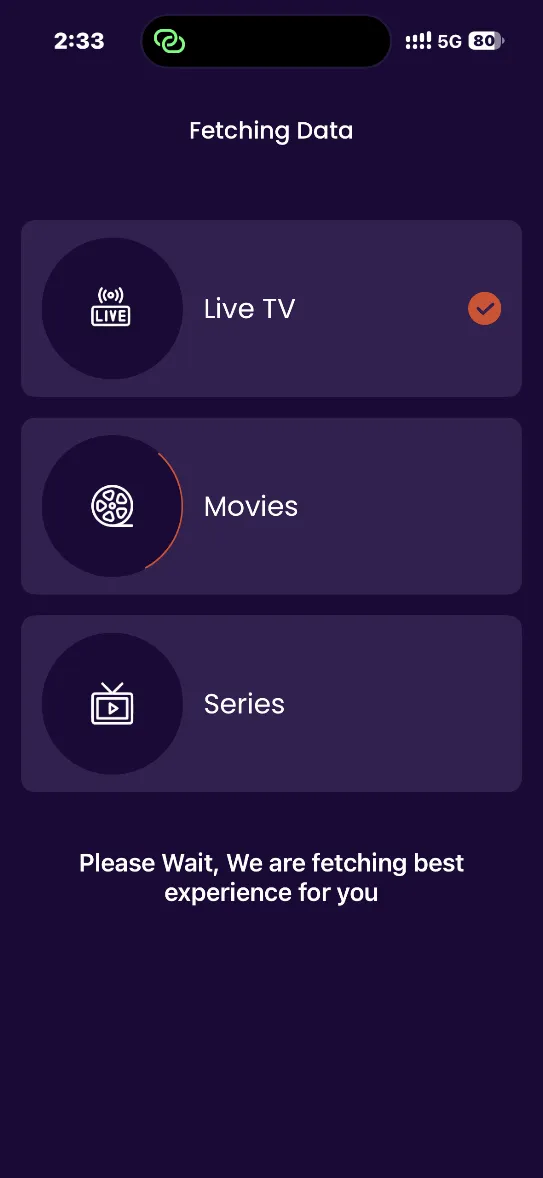
After tapping Yes, the app will start fetching your Xtream Playlist data, including live TV, movies, and series.
Please wait until the data loading process is completed.
Step 6: Skip Data Loading
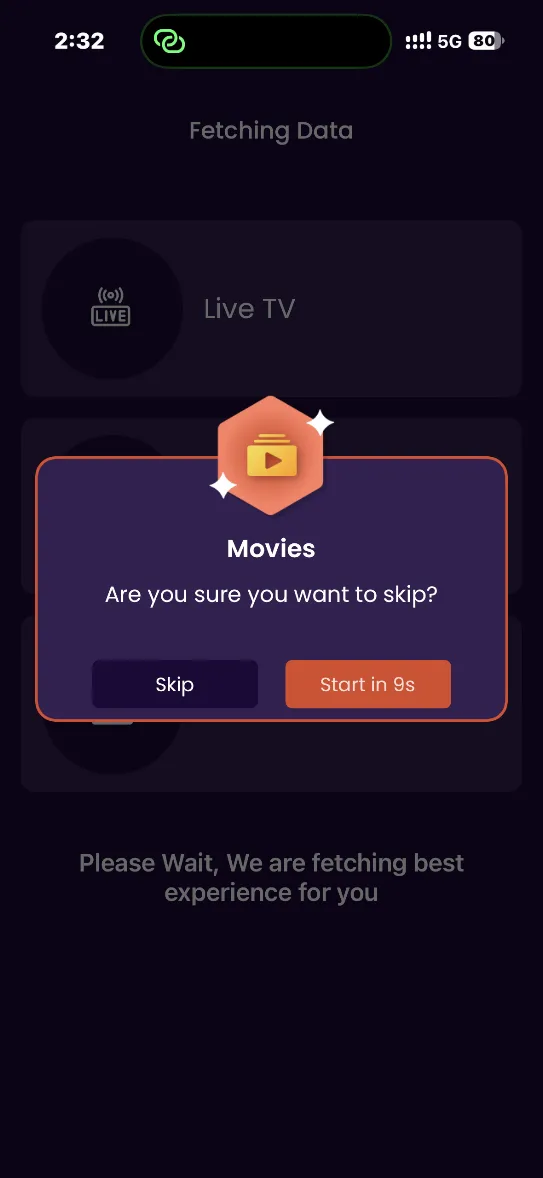
During the data fetching process, a confirmation pop-up may appear asking whether you want to skip loading movie data.
Tap Skip to skip the loading process, or wait for the countdown to finish to continue loading the data.
Step 7: Xtream Playlist Successfully Loaded
Once the data fetching process is completed, you will be redirected to the Purple Lite Home Screen.
Here, you can access live TV, movies, and series from your successfully loaded Xtream Playlist.