How to edit DNS
5 min
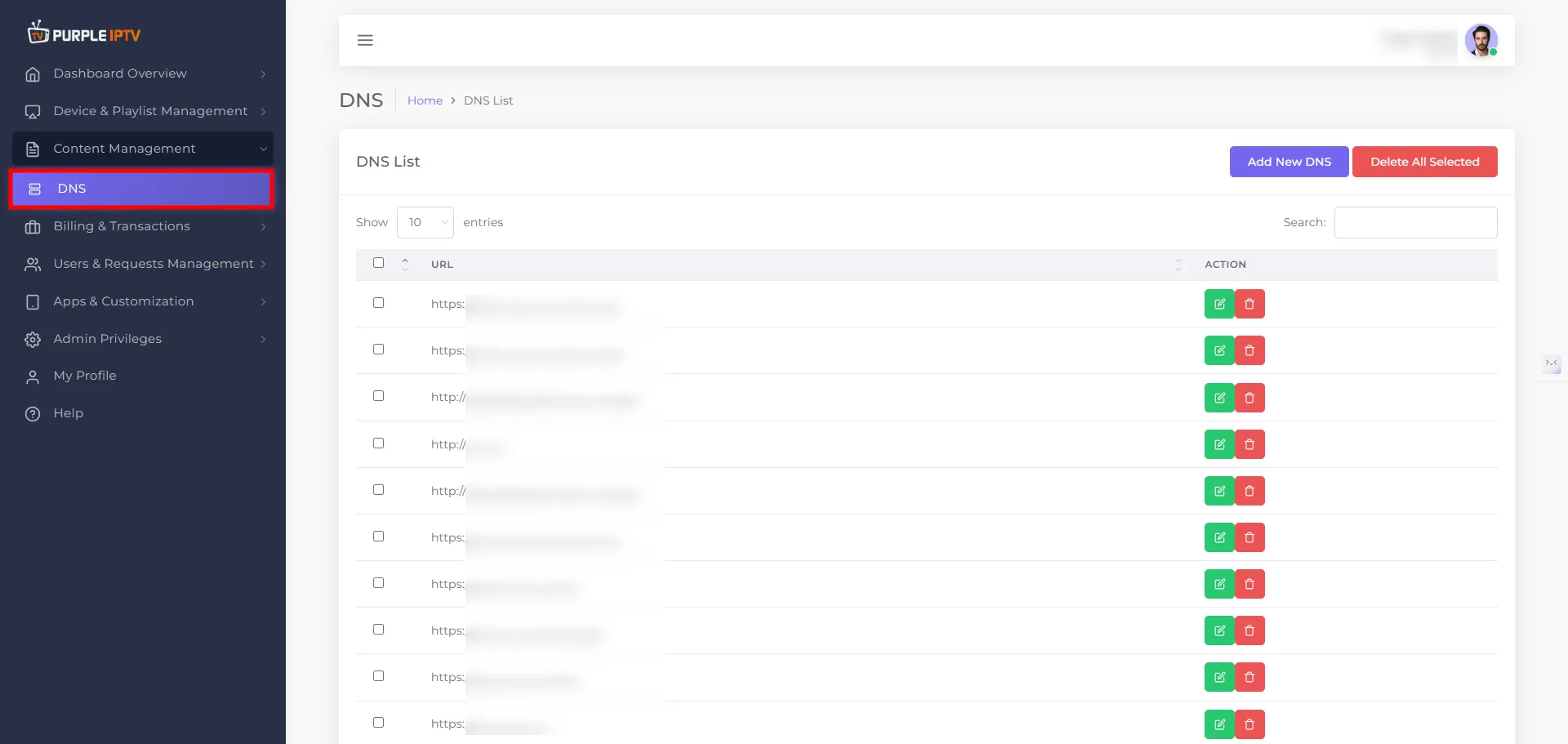
Step: 1 Go to the Content Management → DNS List
After successfully Login into Purple Admin Panel, Click on "Content Management → DNS List", as seen in the below image.
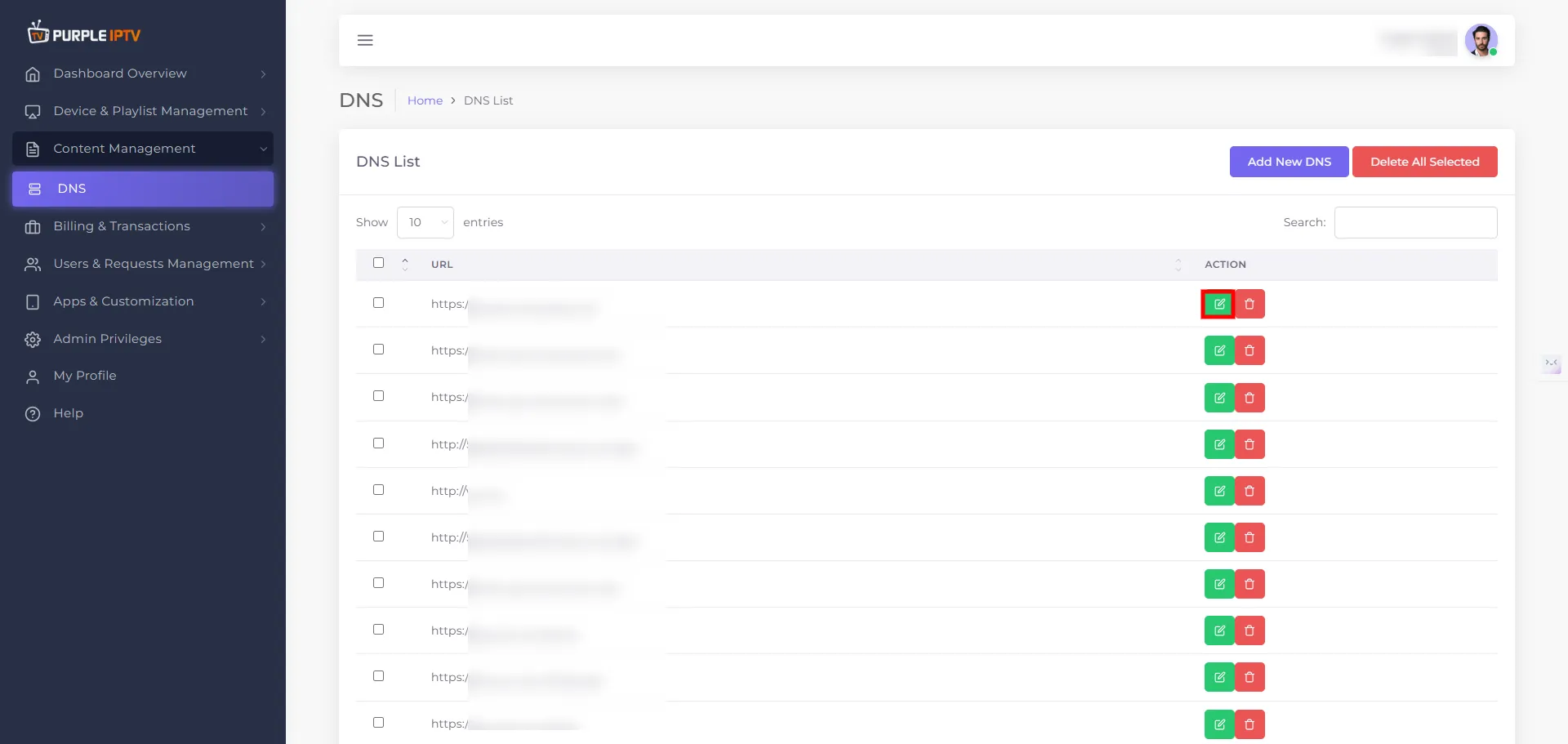
Step: 2 Edit Icon
Click on the EDIT icon ✏️, as shown in the image below, marked in red.
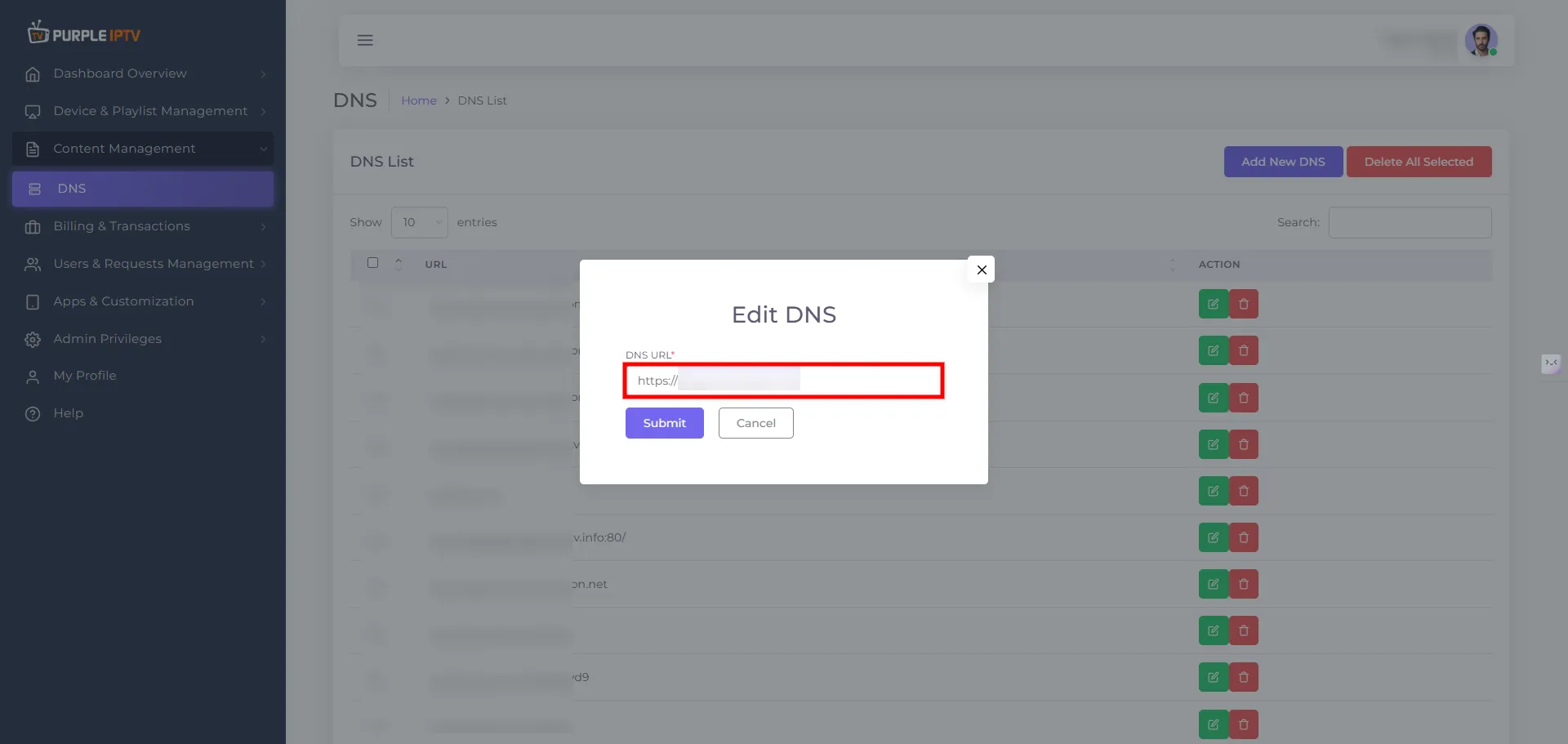
Step: 3 Edit DNS
Edit the DNS URL with the correct address to ensure proper functionality. Verify that the DNS URL you input matches the intended domain name or IP address to avoid any connectivity issues.
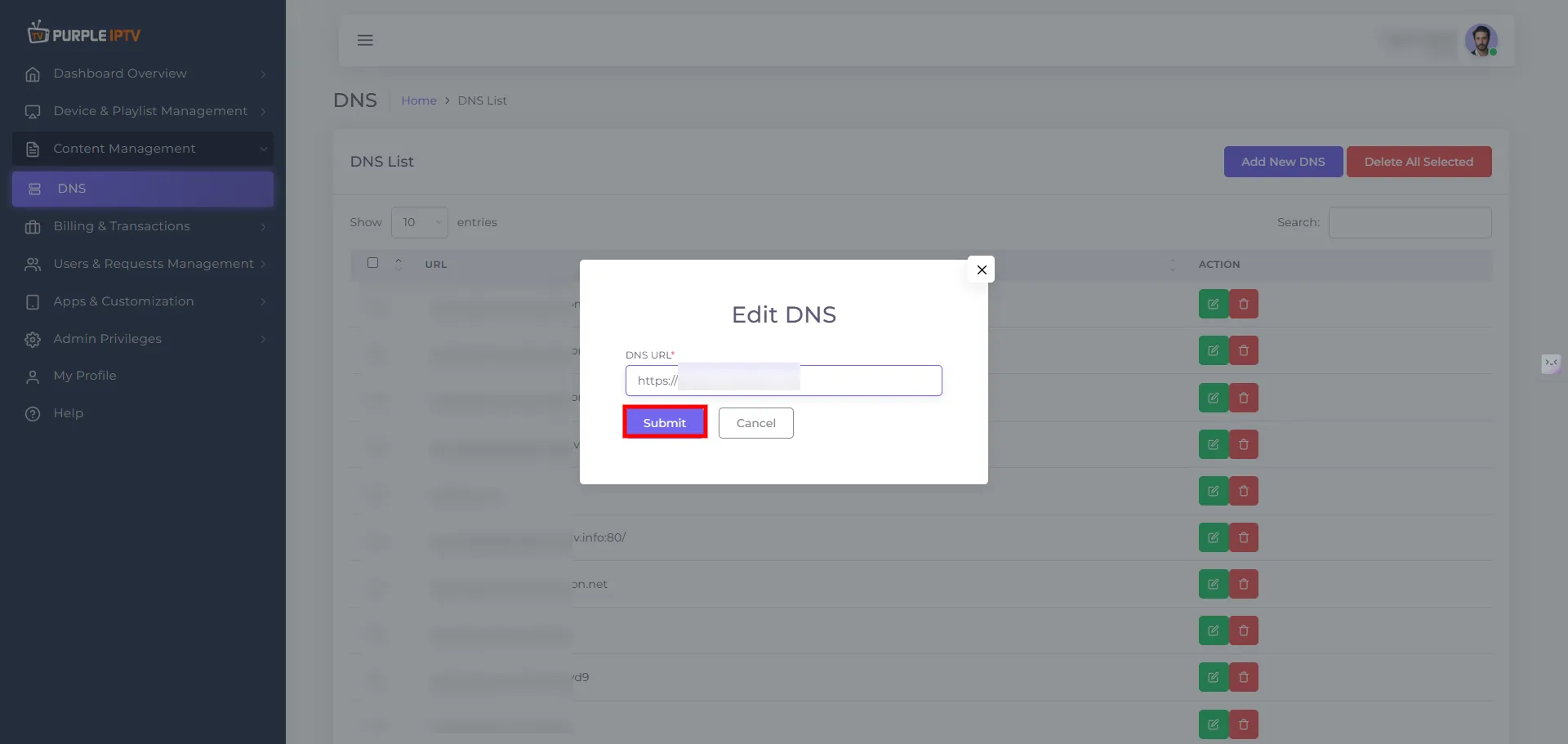
Step: 4 Submit Your Changes
Click on the "Submit" button to make the necessary changes. Your new DNS URL will be successfully updated.