How to edit coupon
6 min
Step: 1 Go to the Billing & Transactions → Coupons
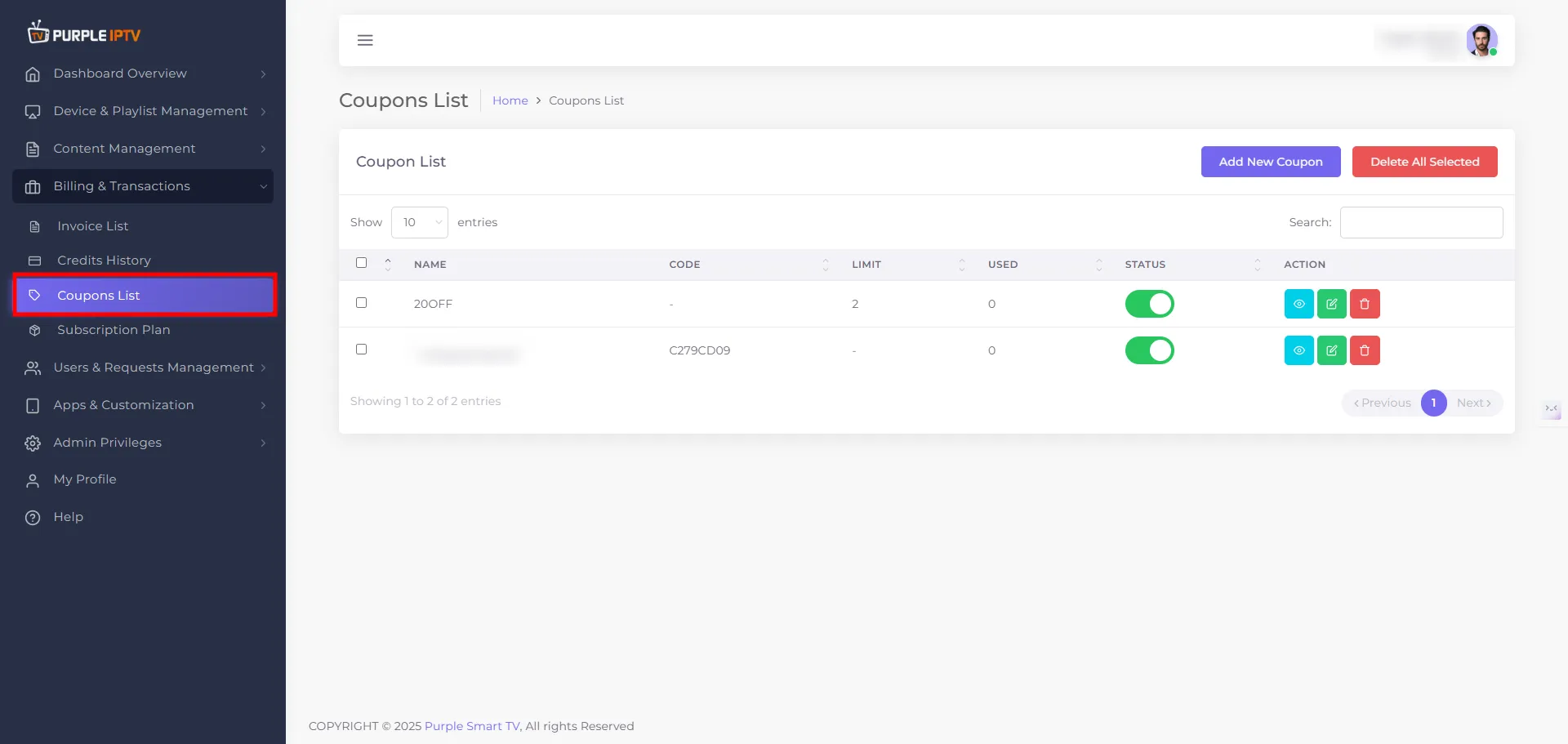
After successfully Login into Purple Admin Panel, Click on "Billing & Transactions → Coupons List section", as seen in the below image.
Step: 2 Edit Icon
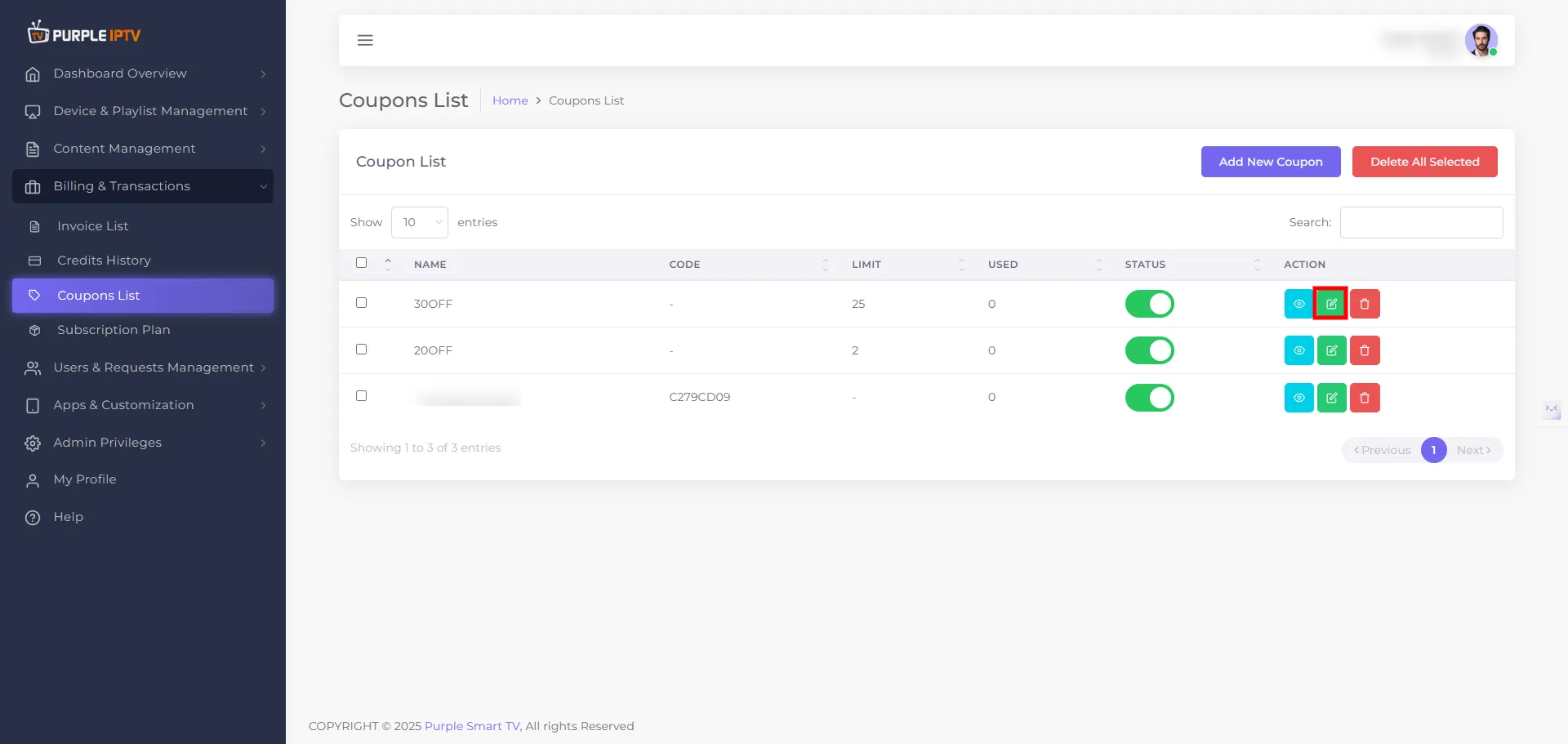
Click on the EDIT icon ✏️, as shown in the image below, marked in red.
Step: 3 Edit Coupon
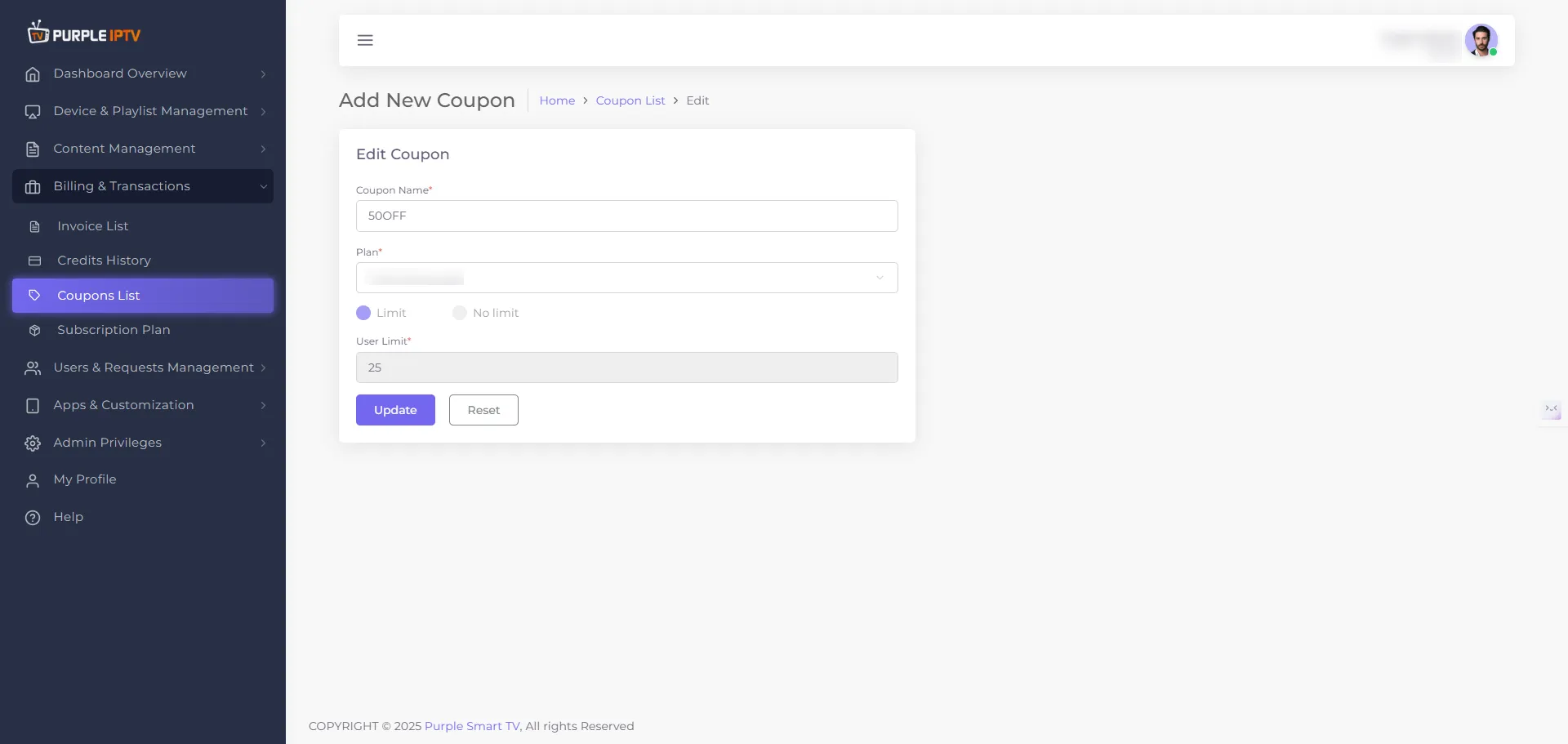
Edit Coupon -
- Coupon Name Enter or update the readable name of the coupon (for example SUMMER20, Autumn40).
- Plan A dropdown opens when you click on this field.
- From this dropdown, select the specific plan you want to apply the coupon to.
- Only the selected plan(s) will accept this coupon during payment.
Usage Limit
- If limit is ON - Set how many times the coupon can be used in total (for example 2, 5, 10, etc.).
- If limit is OFF - Set no limit, the system treats it as “no limit” and will automatically generate a code accordingly.
Note: The Usage Limit field cannot be edited or modified. However, the Name and Plans fields are editable and can be changed as needed.
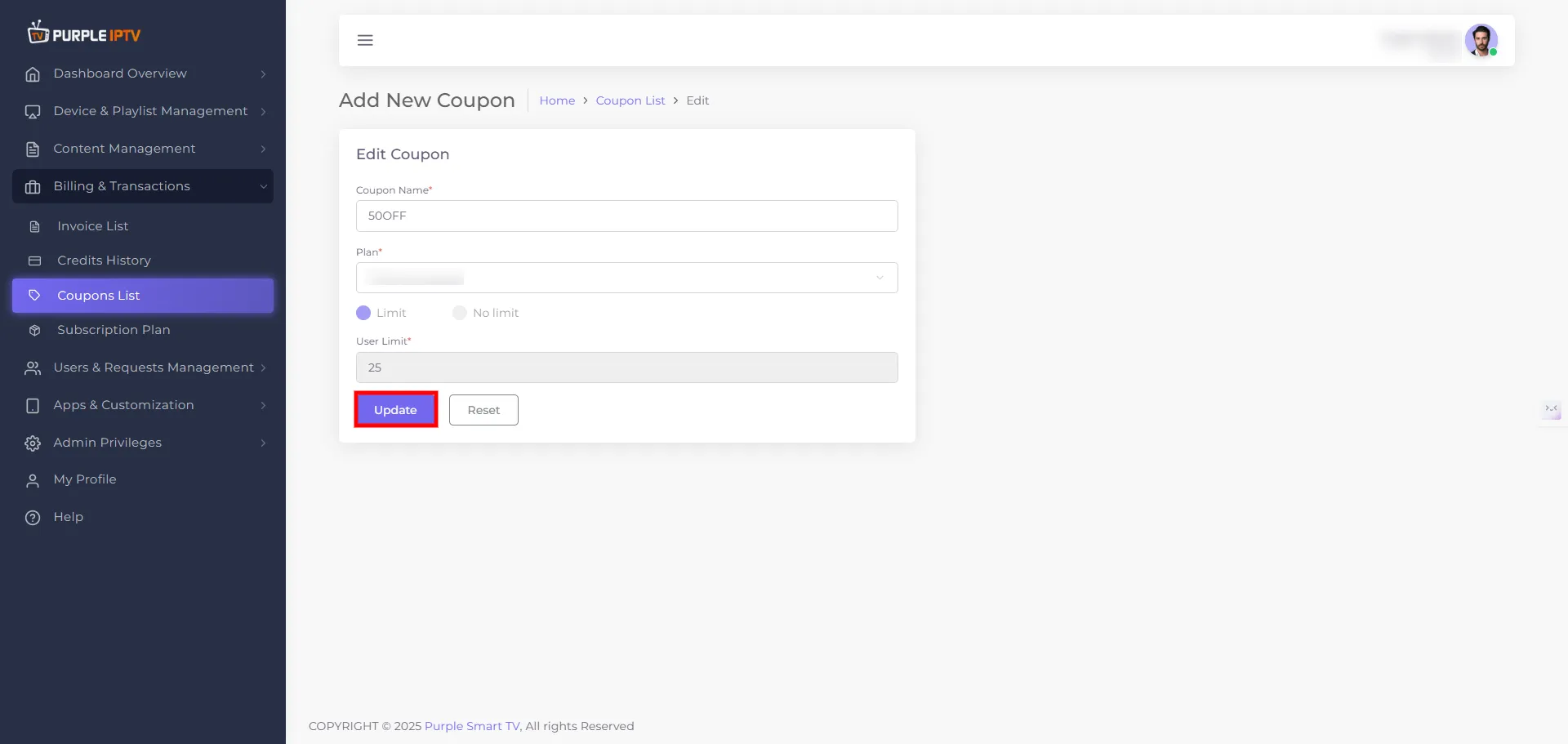
Step: 4 Update Your Changes
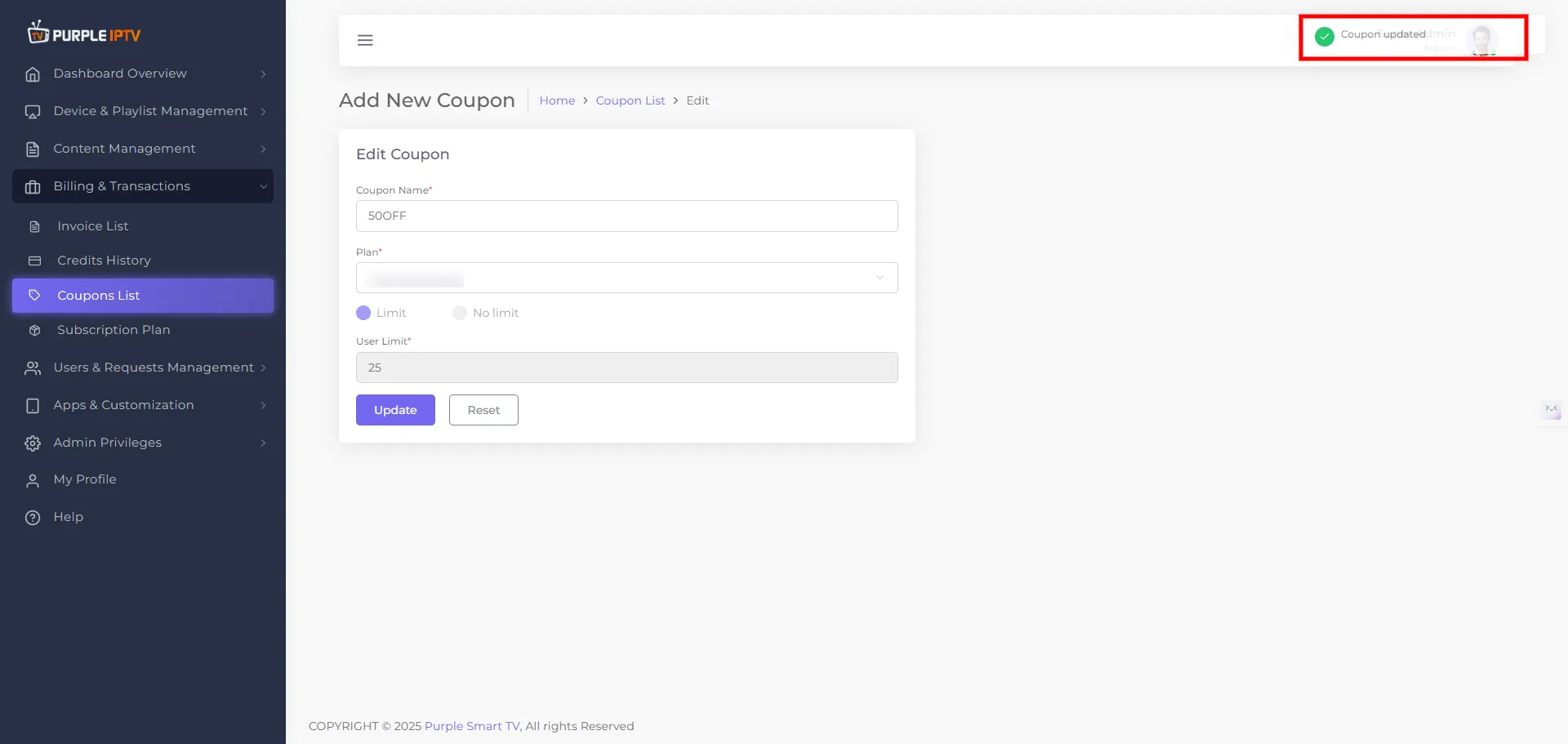
Click on the Update button to make the necessary changes. A toast message will pop up: "Coupon Updated."