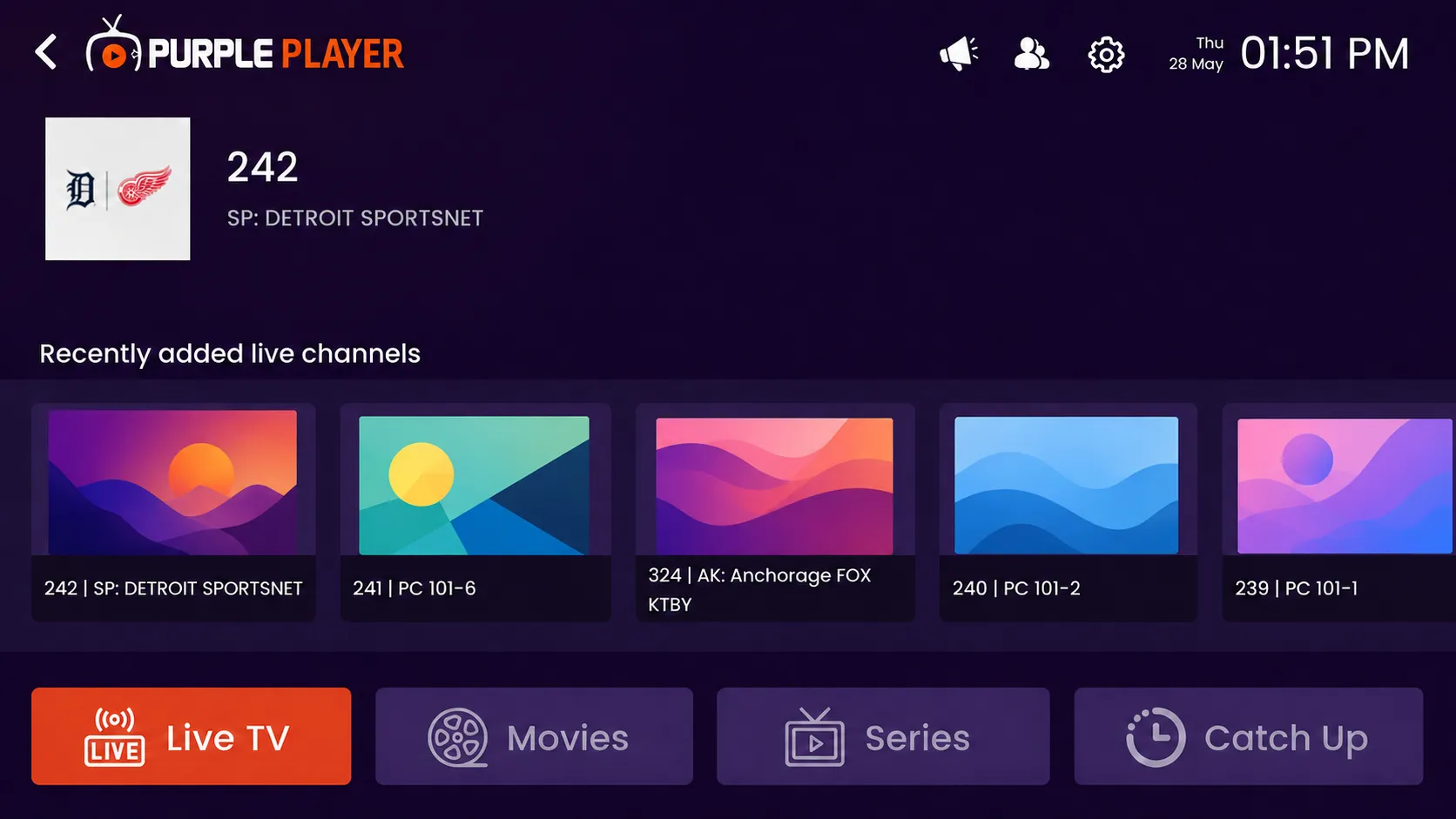
How to Add Xstreme Playlist
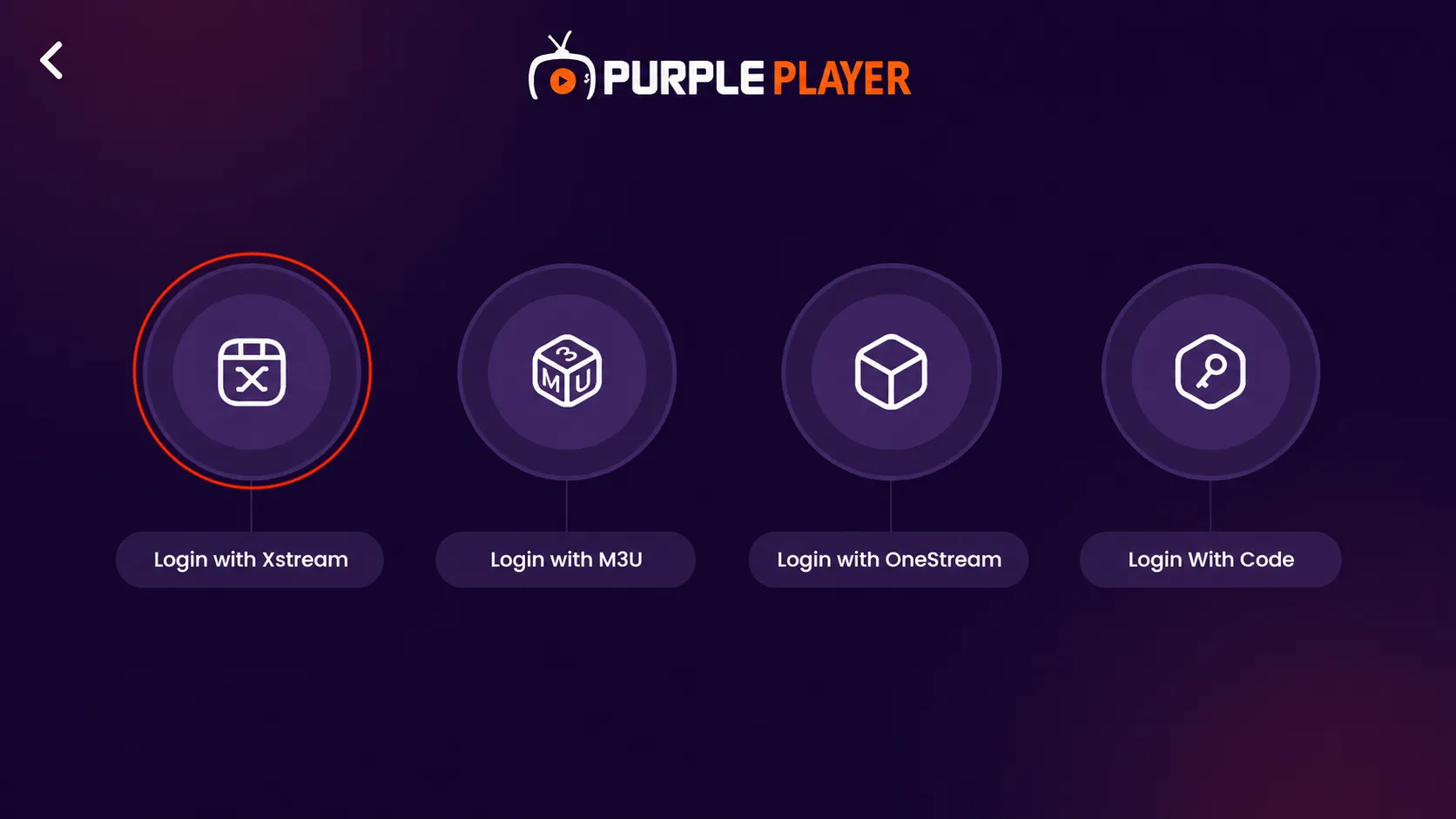
Step 1: Select Xstream Playlist
Click on "Xstream Playlist," then enter the required details to proceed.
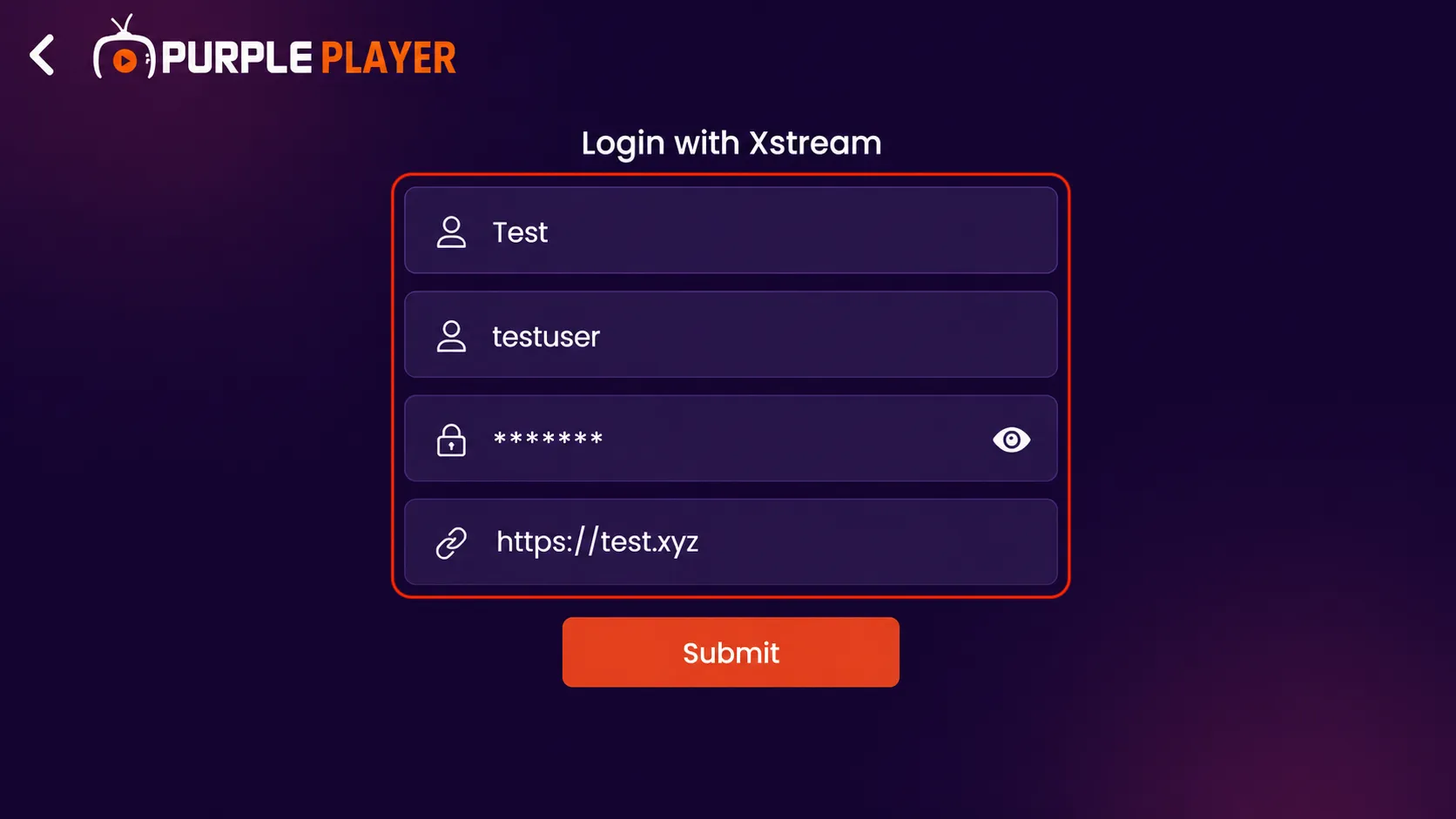
Step 2: Log in with Xstream
- Enter your playlist name in the first field to easily identify your playlist.
- Enter your Xtream username in the username field provided.
- Type your Xtream password in the password field to continue securely.
- Enter your server URL in the URL field exactly as provided by your service provider.
- Click on the “Submit” button to connect and add your Xtream playlist successfully.
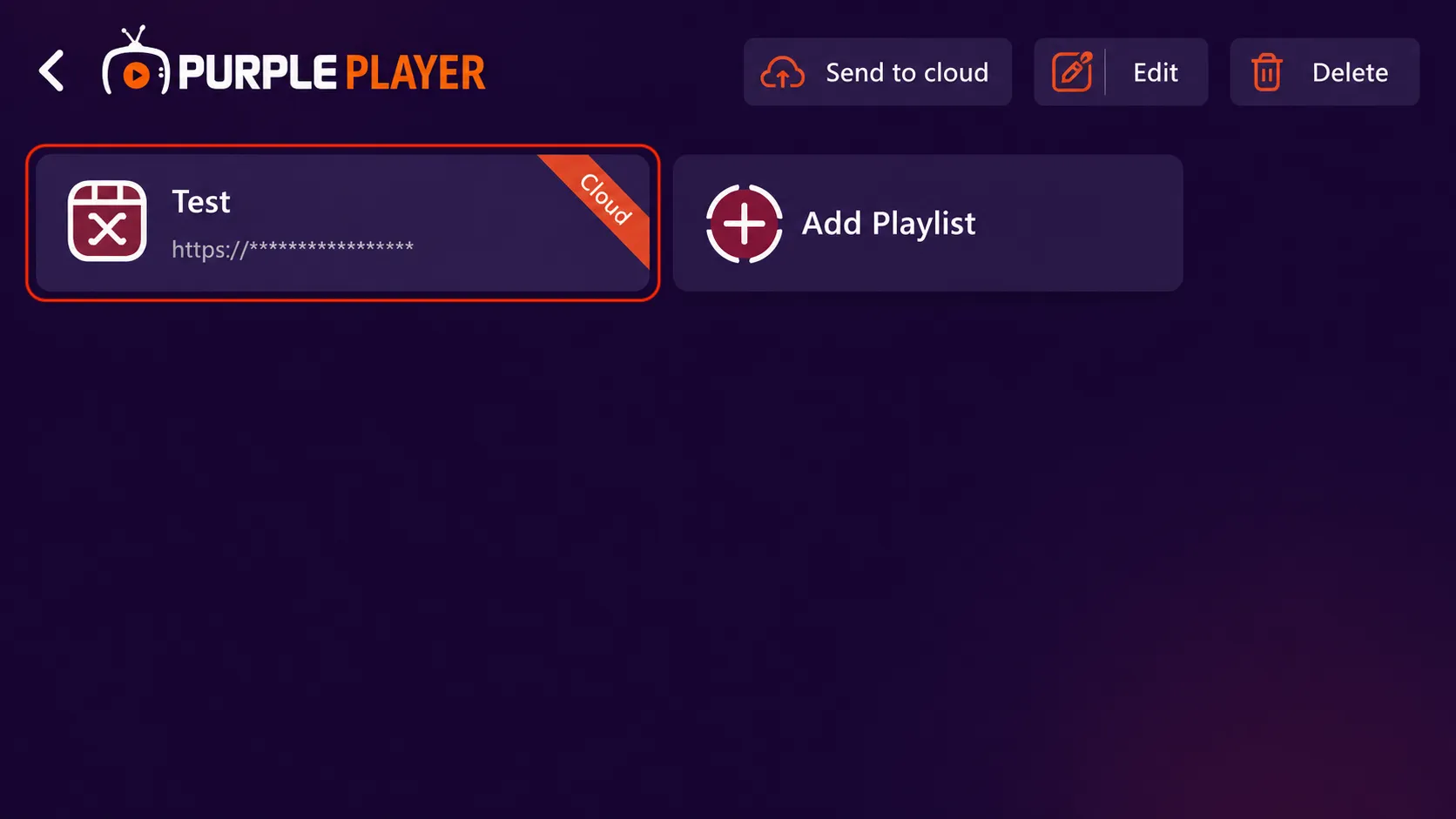
Step 3: Playlist Added Successfully
Your Xtream playlist has been added successfully and is now available on the home screen.
- Click on the added playlist to open and access your content.
- Use the “Send to cloud” option to sync your playlist with your cloud account.
- Click on “Edit” if you want to update your playlist details later.
- Click on “Delete” to remove the playlist from the app if no longer needed.
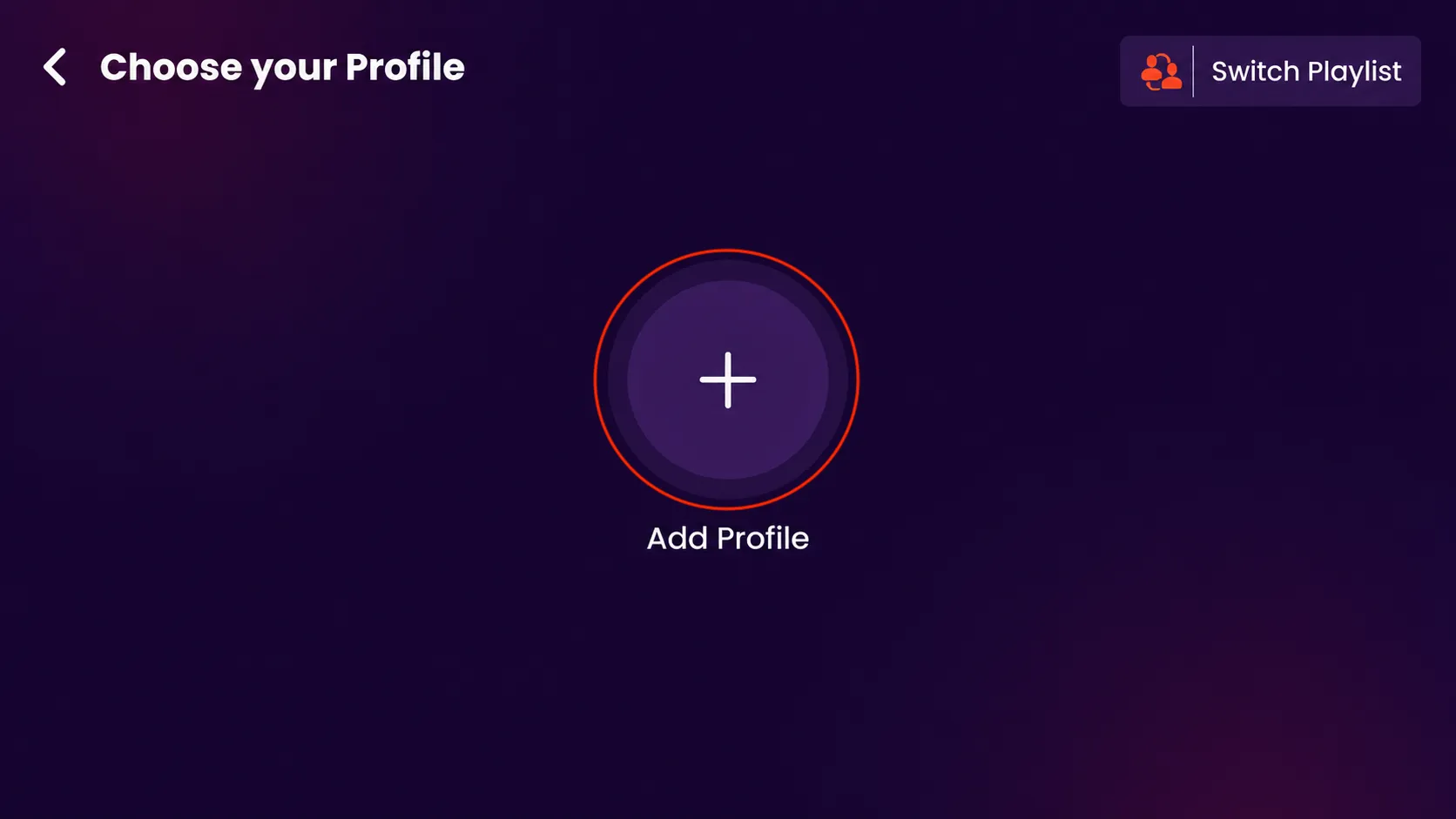
Step 4: Add New Profile
Click on the “Add Profile” option to create and set up a new user profile.
Step 5: Customize Your Profile
Click on the profile image icon to upload or change your profile picture.
Enter your preferred profile name in the name field.
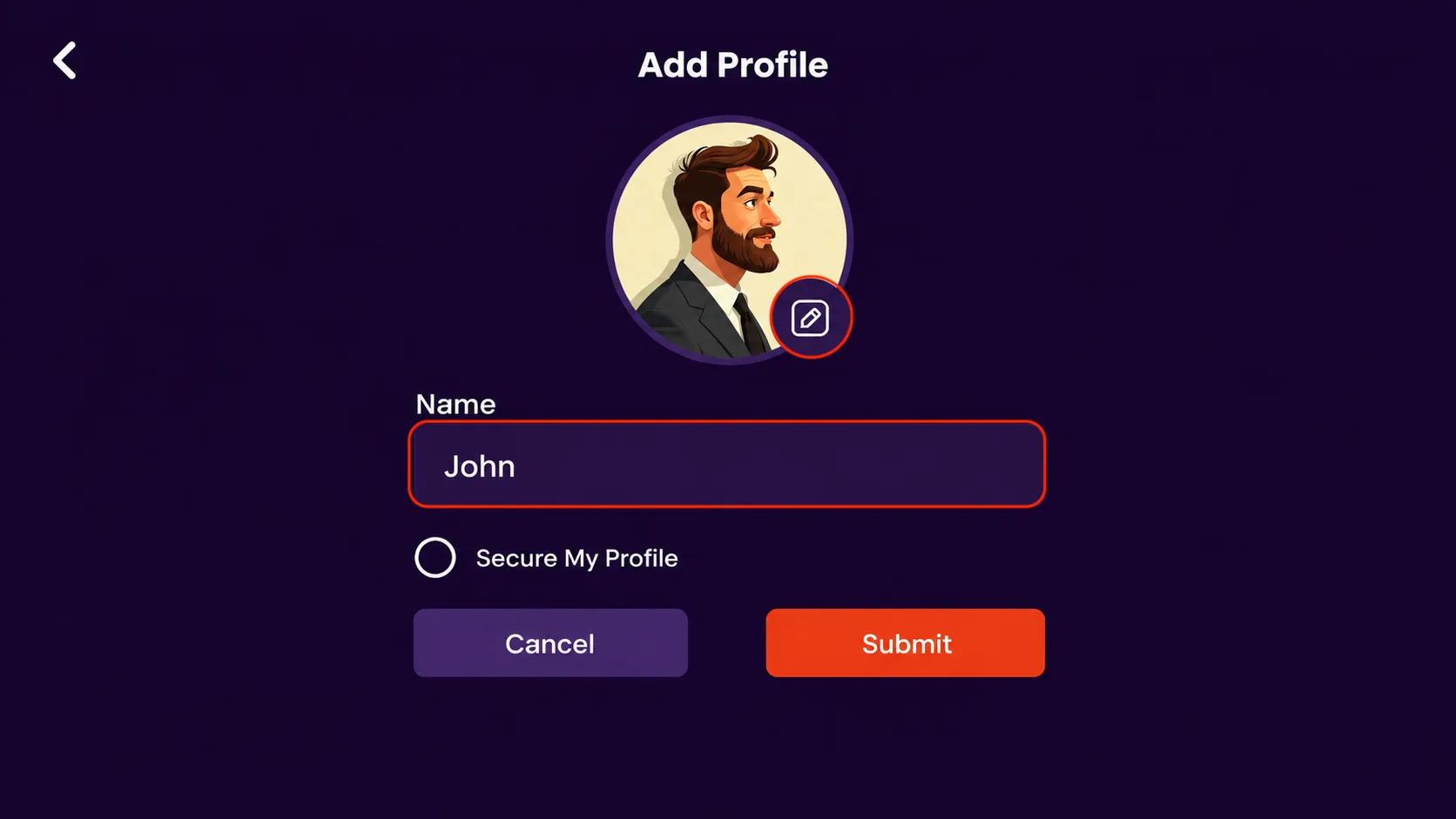
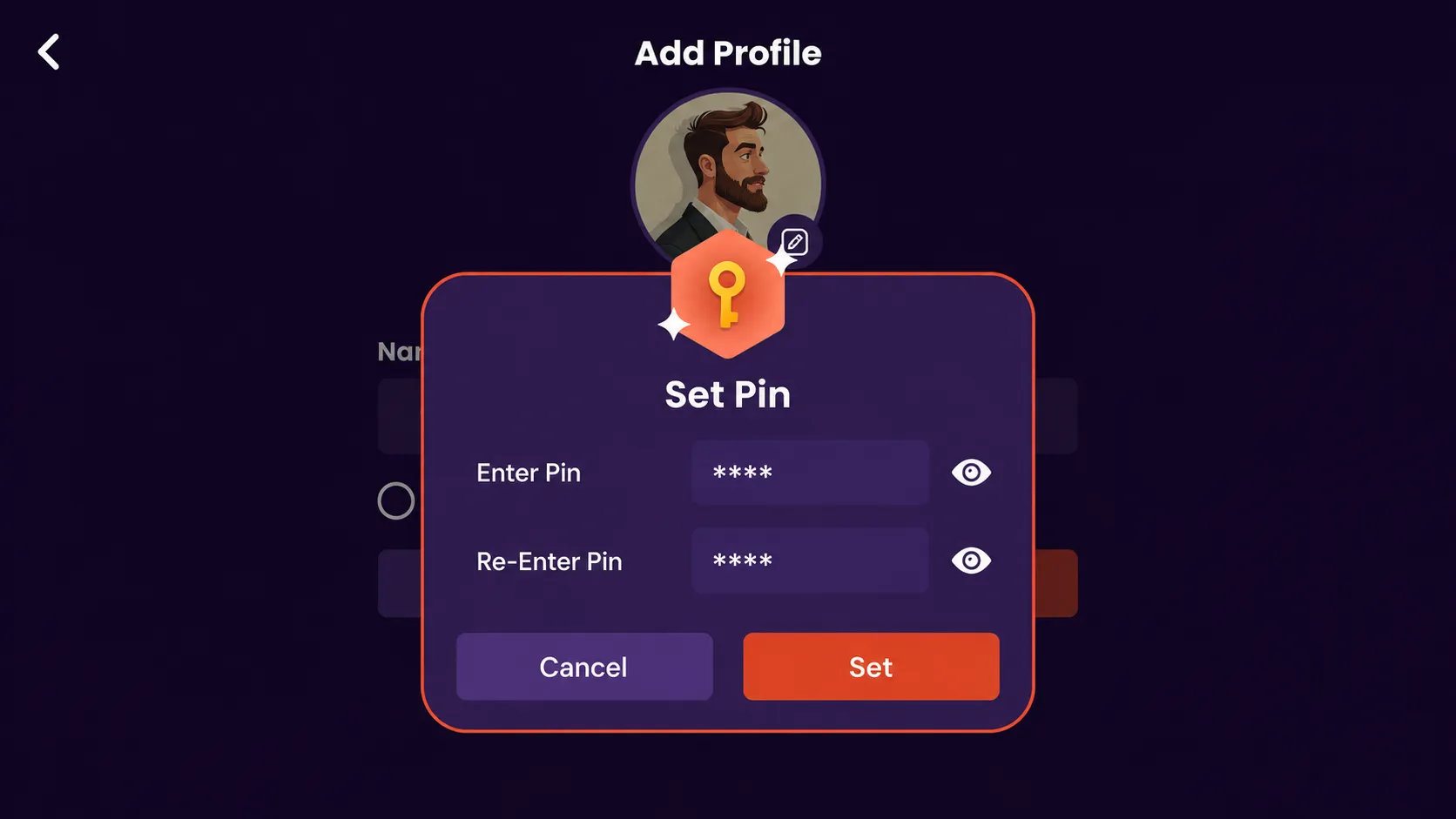
- Enable the “Secure My Profile” option to protect your profile with a PIN.
- Enter your preferred PIN in the “Enter Pin” field.
- Re-enter the same PIN in the “Re-Enter Pin” field for confirmation.
- Use the “Eye” icon to view and verify your PIN while entering it.
- Click on the “Set” button to save and activate your profile security PIN successfully.
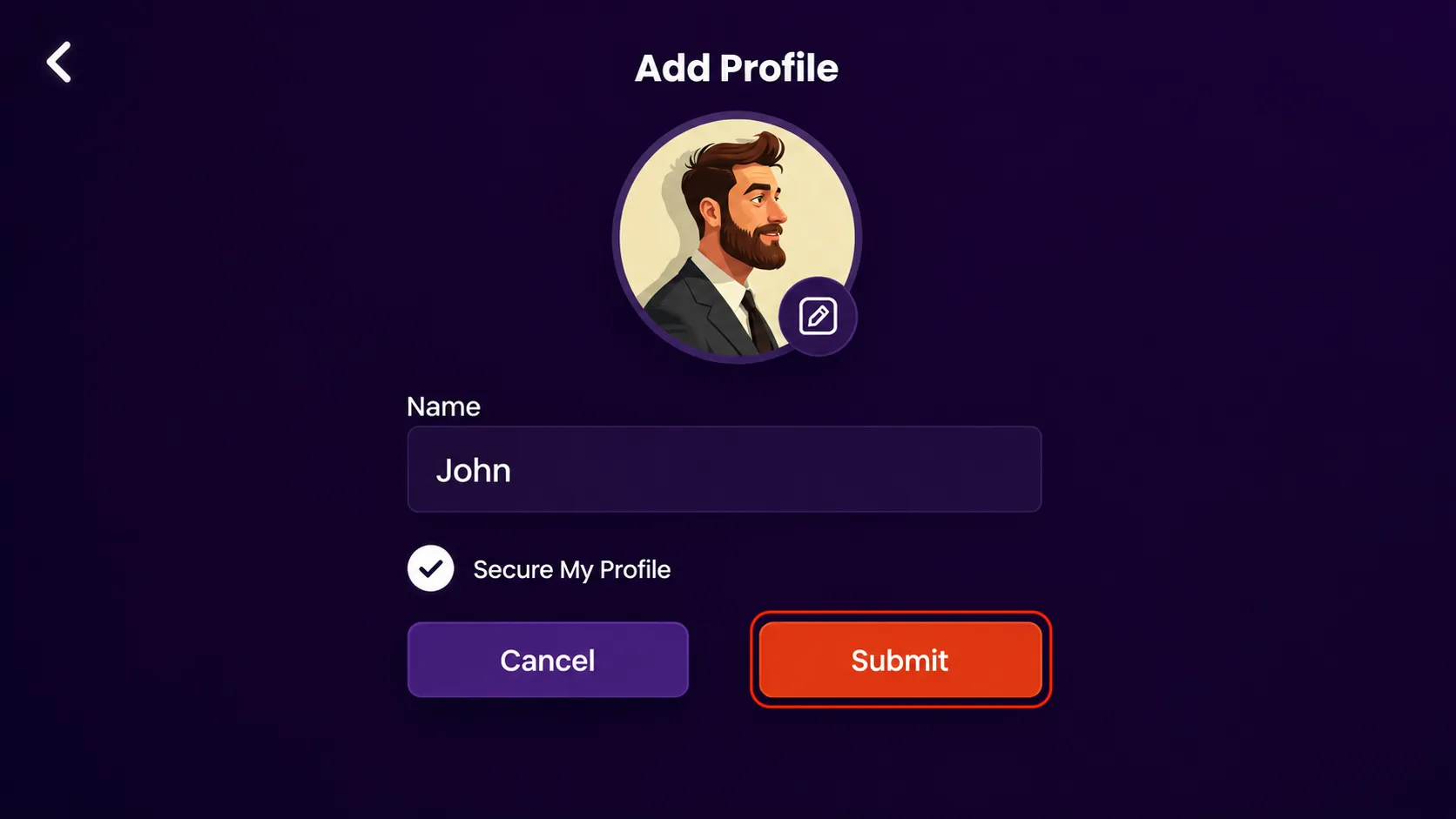
Click on the “Submit” button to save and create your profile successfully.
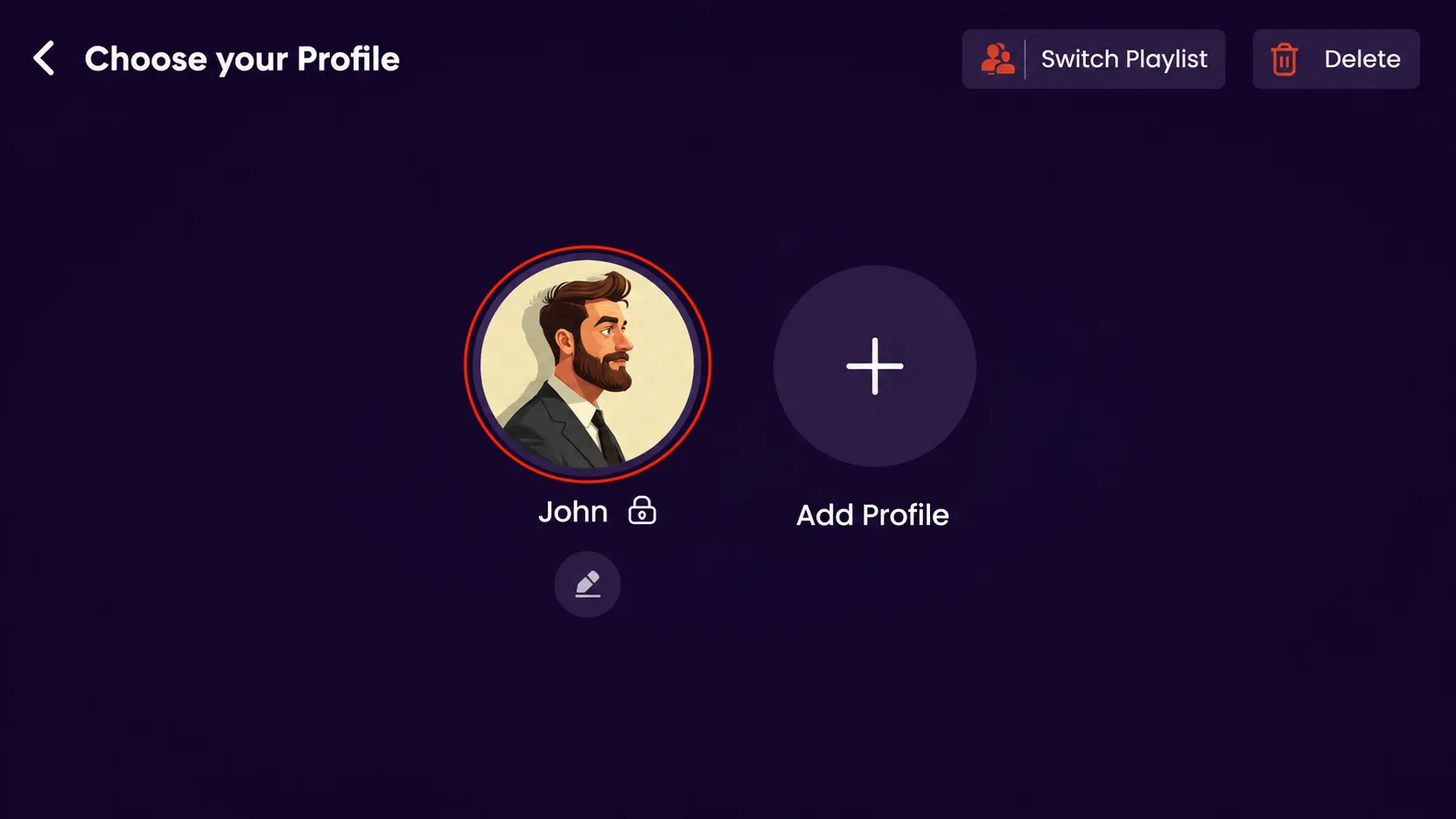
Step 6: Profile Created Successfully
Your profile has been added successfully and is now available on the profile selection screen. The lock icon indicates that your profile is protected with a security PIN.
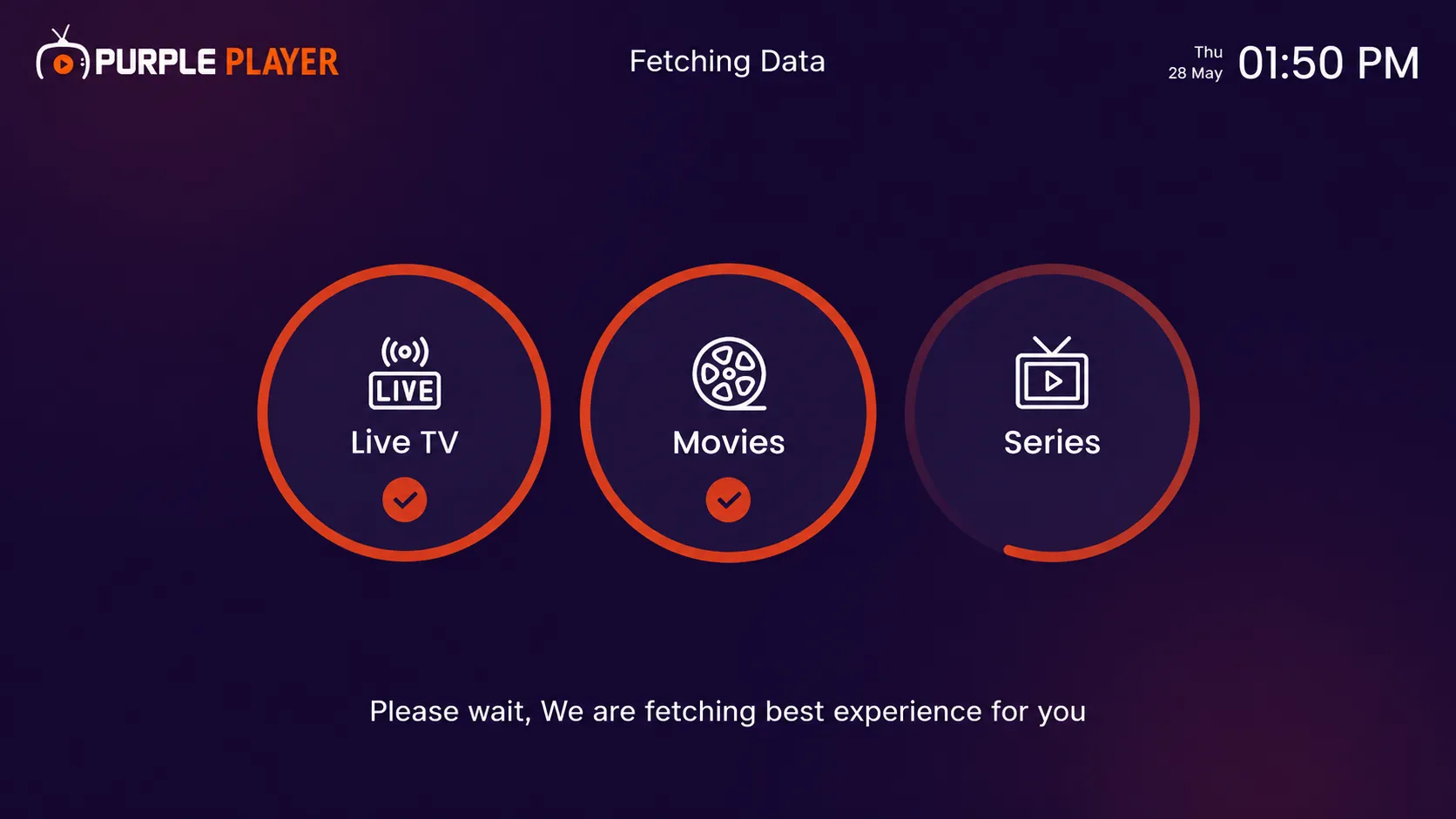
Step 7: Fetching Playlist Data
Please wait while the app is fetching and organizing your playlist content.
Step 8: Home Screen
After setup, you will be redirected to the home screen, where you can access live TV, movies, and series.