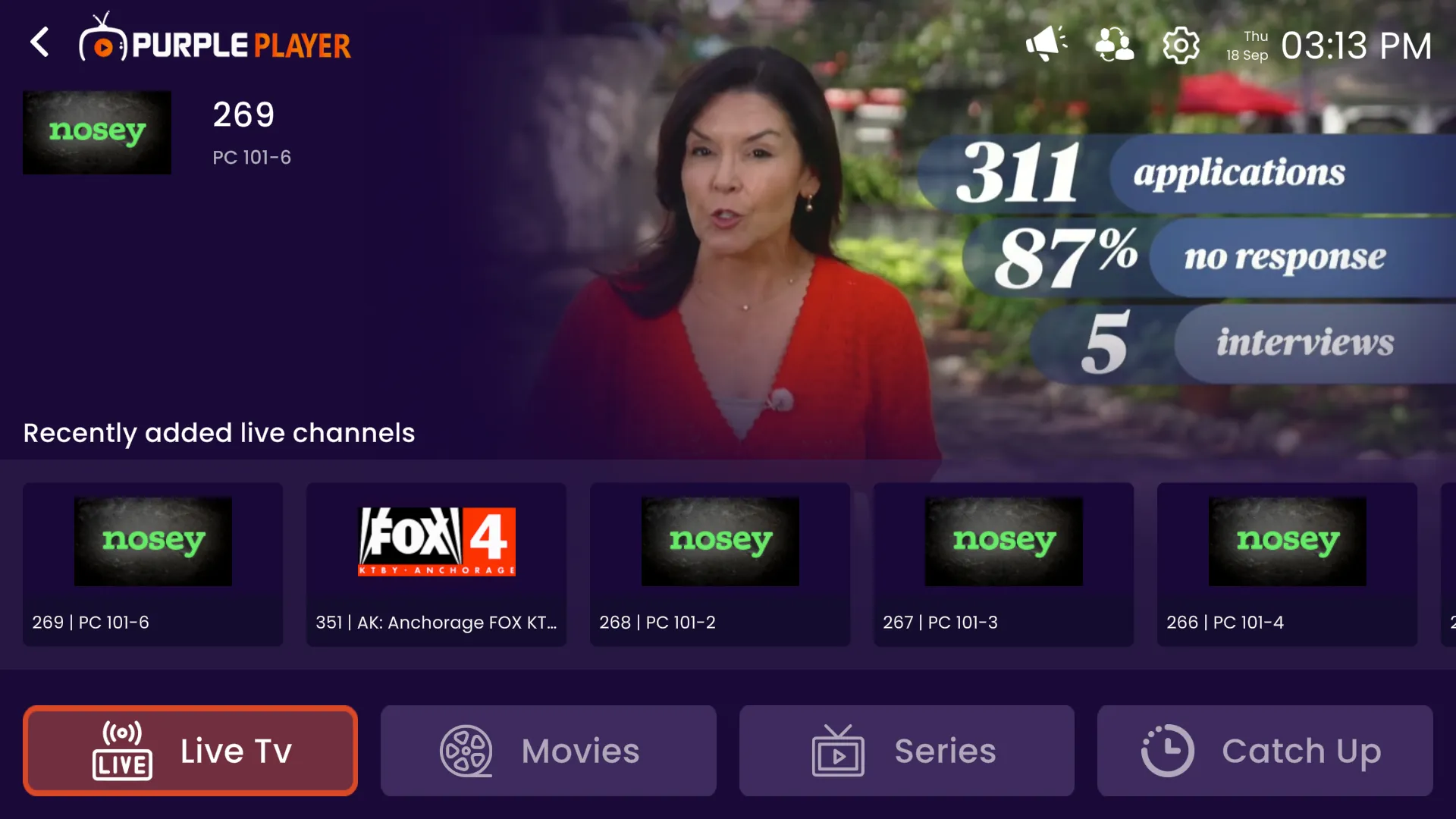
How to Activate Device in Purple macOS
Do Check Our Guide On - How to Register or Login in Admin Panel - Click Here
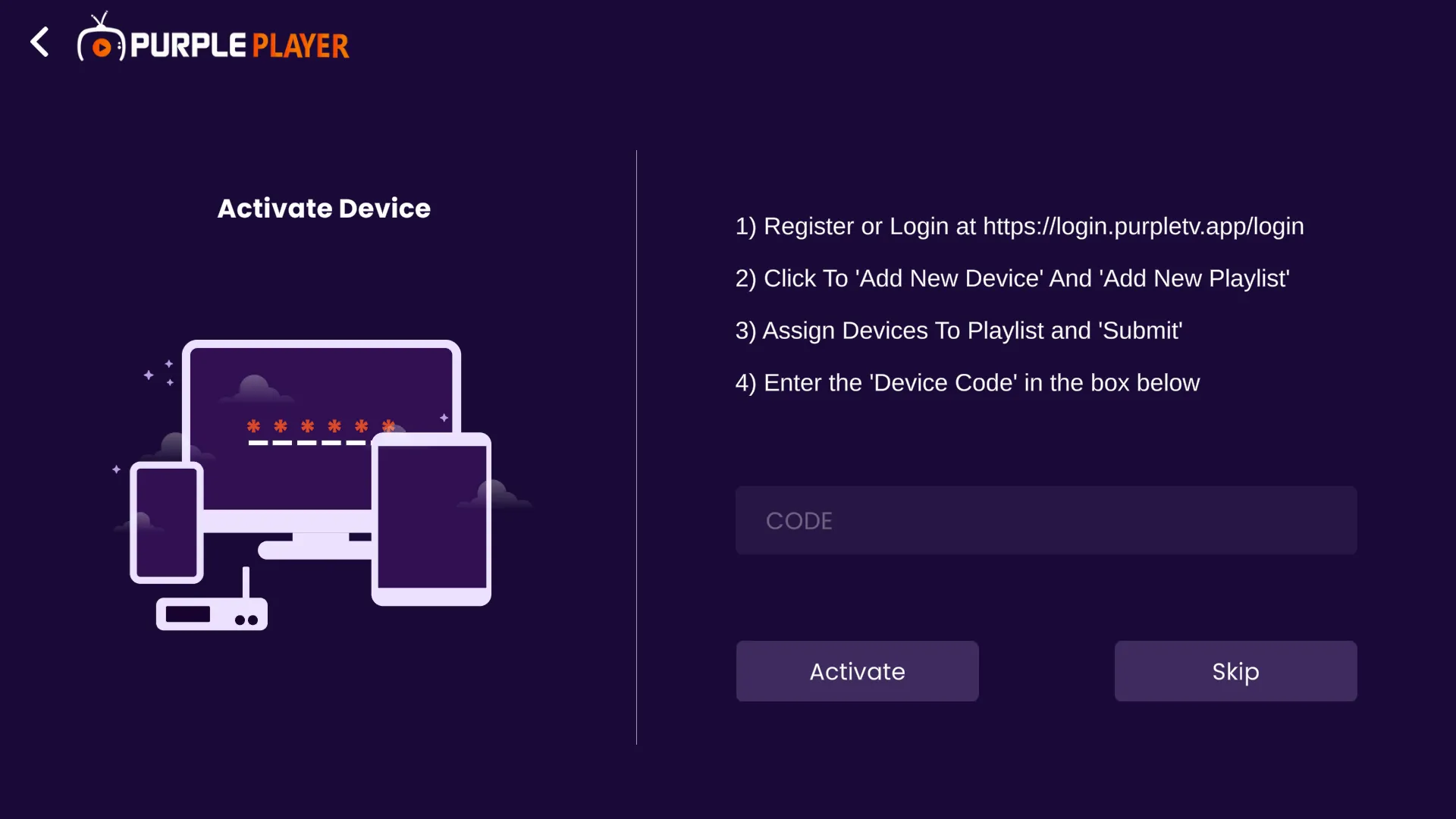
Step 1- Activate Device
Click on "Activate Device", as seen in the below image (marked in red)
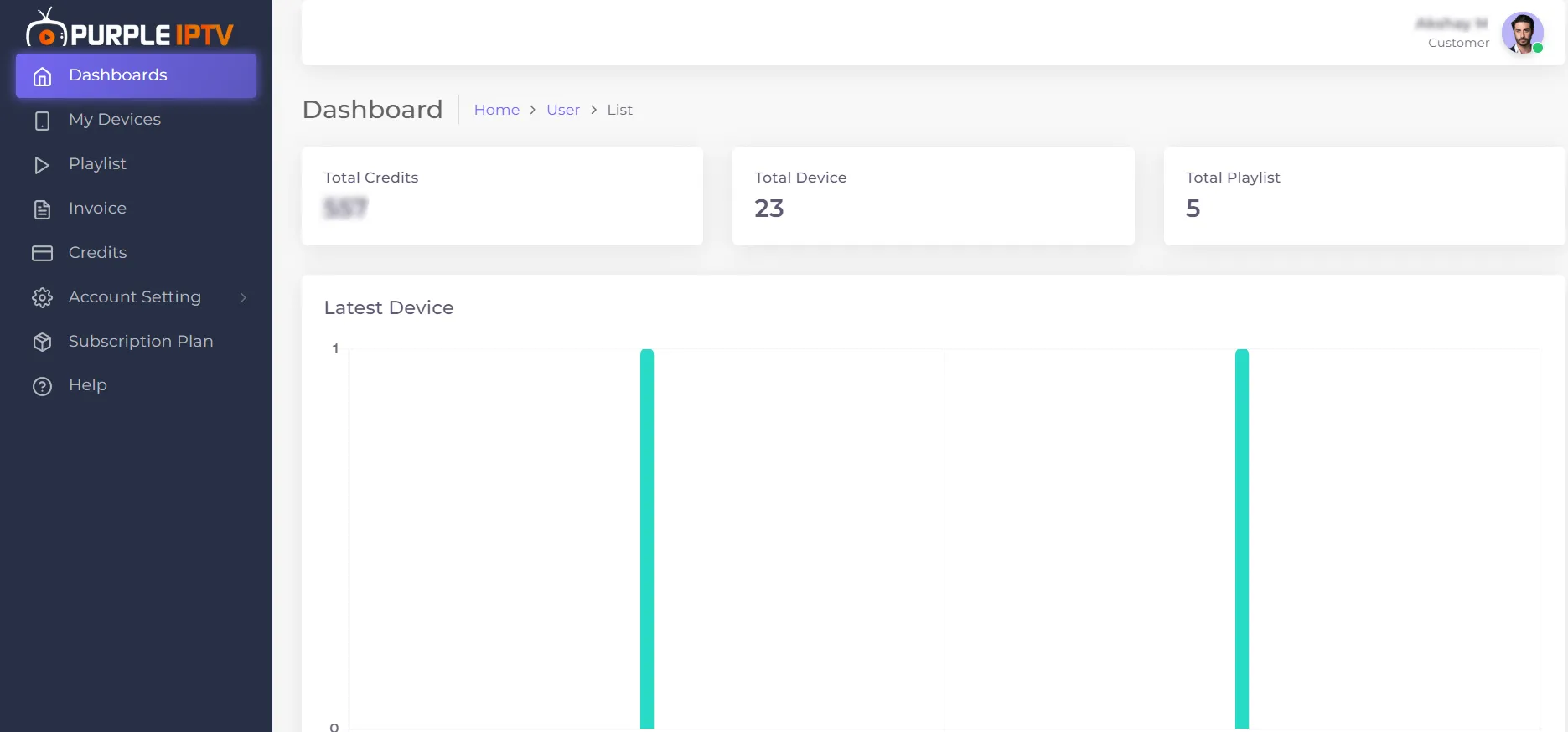
Step 2- Dashboard
After Successfully Logging in, the Purple Admin Panel "Dashboard" will be displayed.
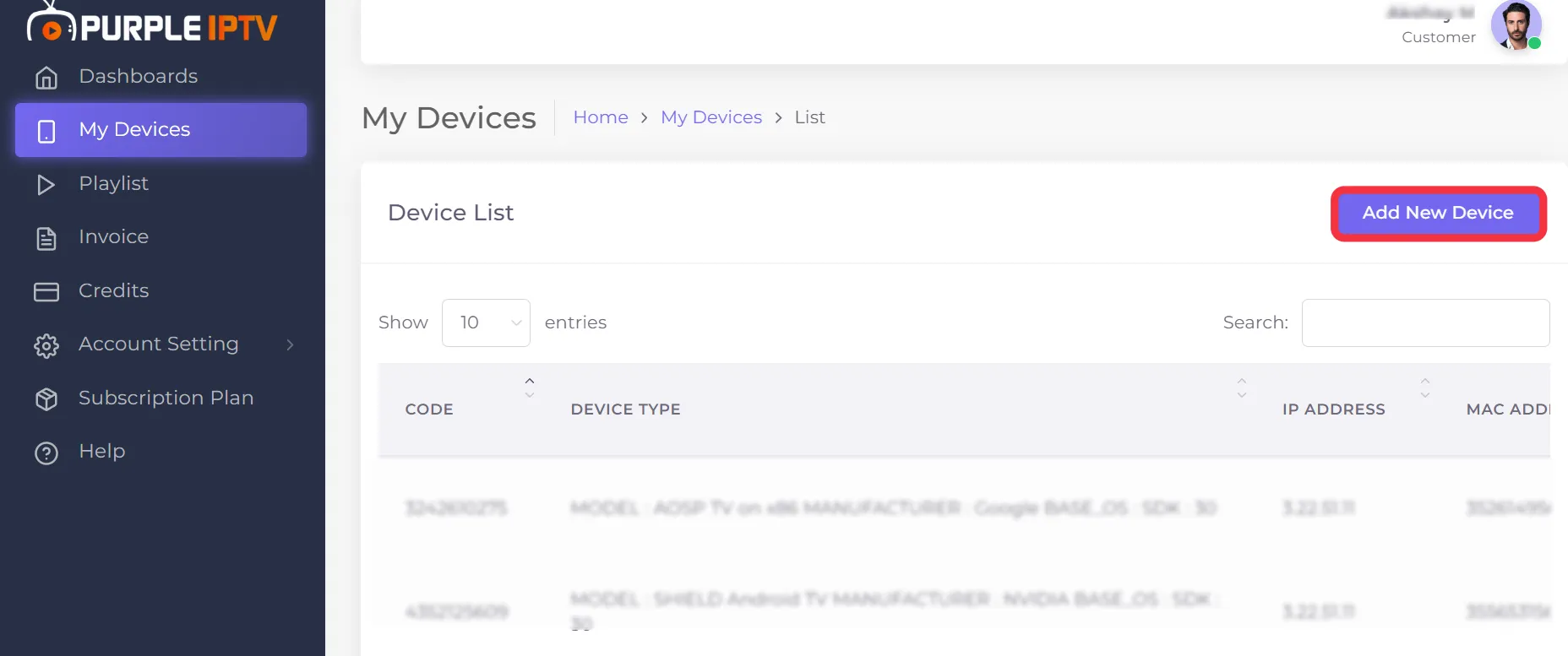
Step 3- Add New Device
Go to My Device, click on "Add New Device", as seen in the below image (marked in red)
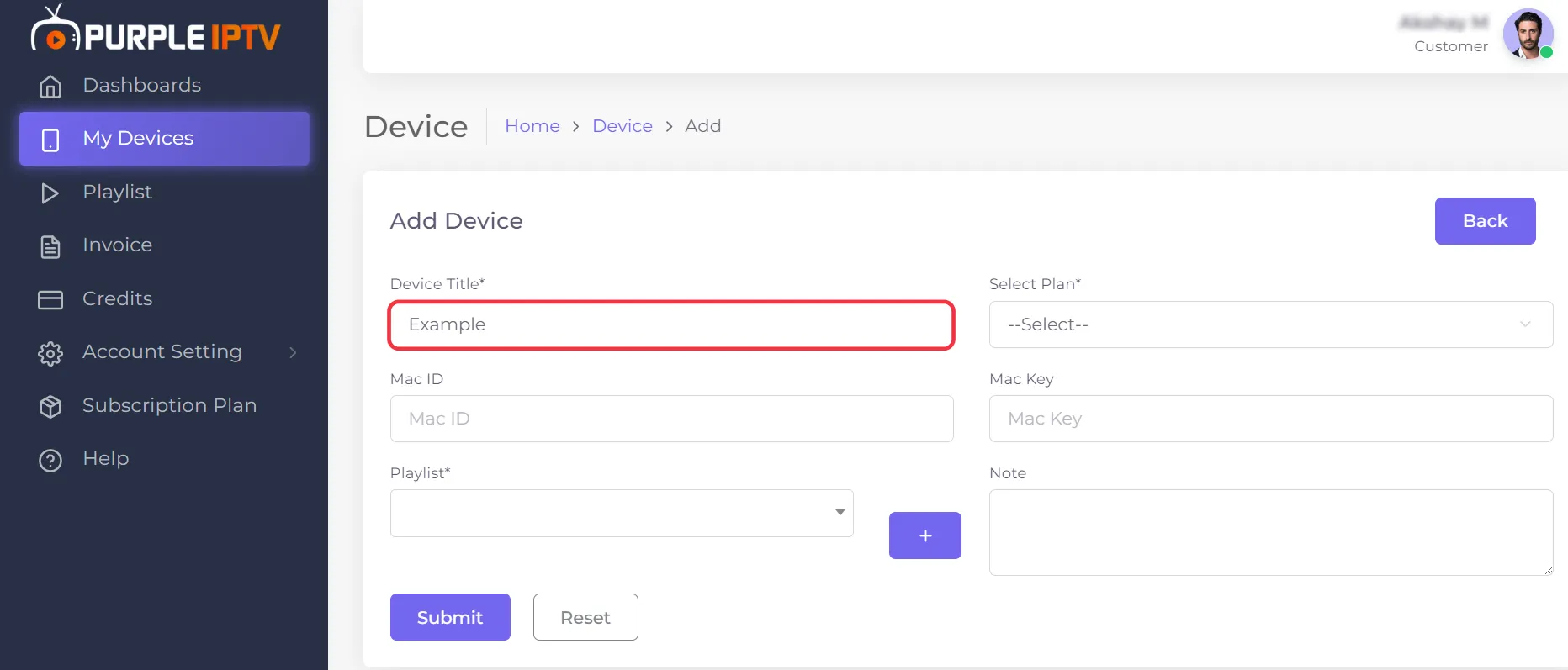
Step 4- Device Title
Type in the desired "Device Title" by clicking in the box and typing it in, as seen in the image below (marked in red)
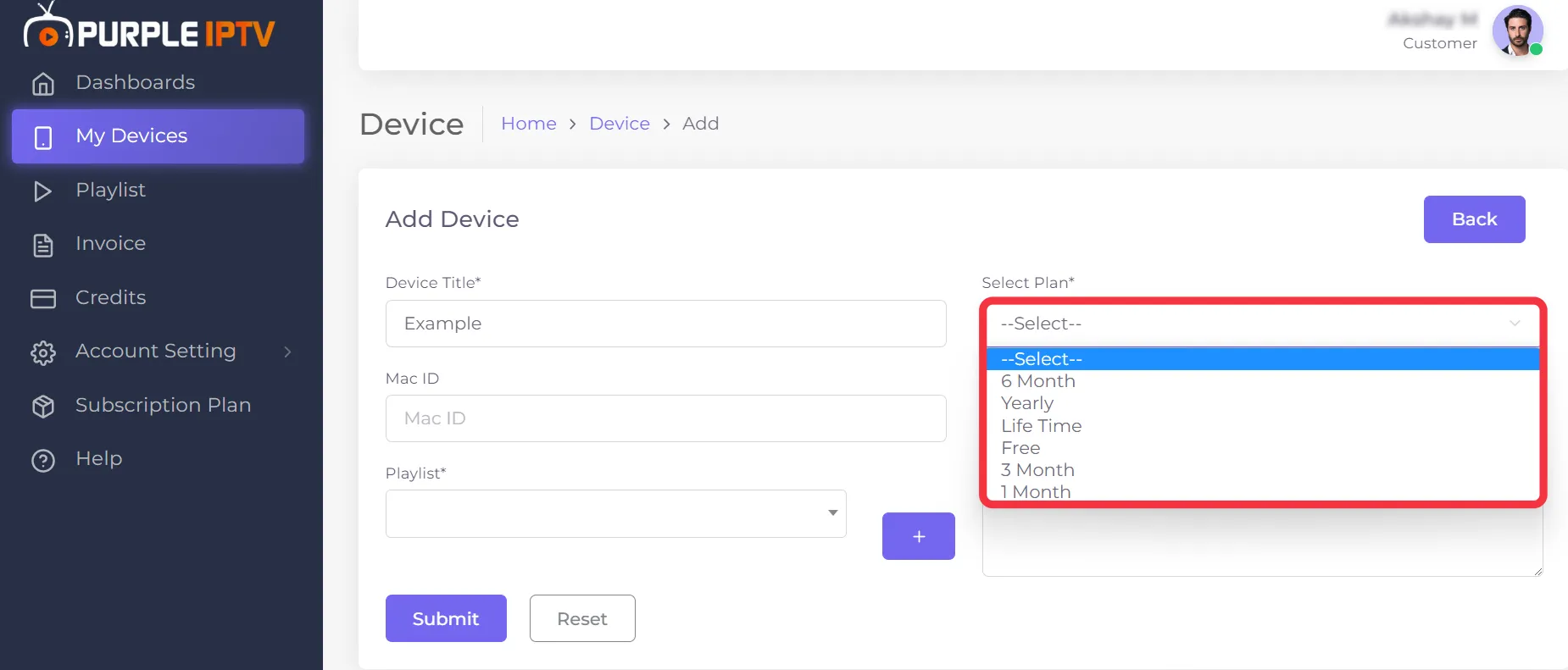
Step 5- Select Plan
Click on "Select Plan", Depending on users' preferences, users can choose from different plans from the drop-down menu, as seen in the below image (marked in red)
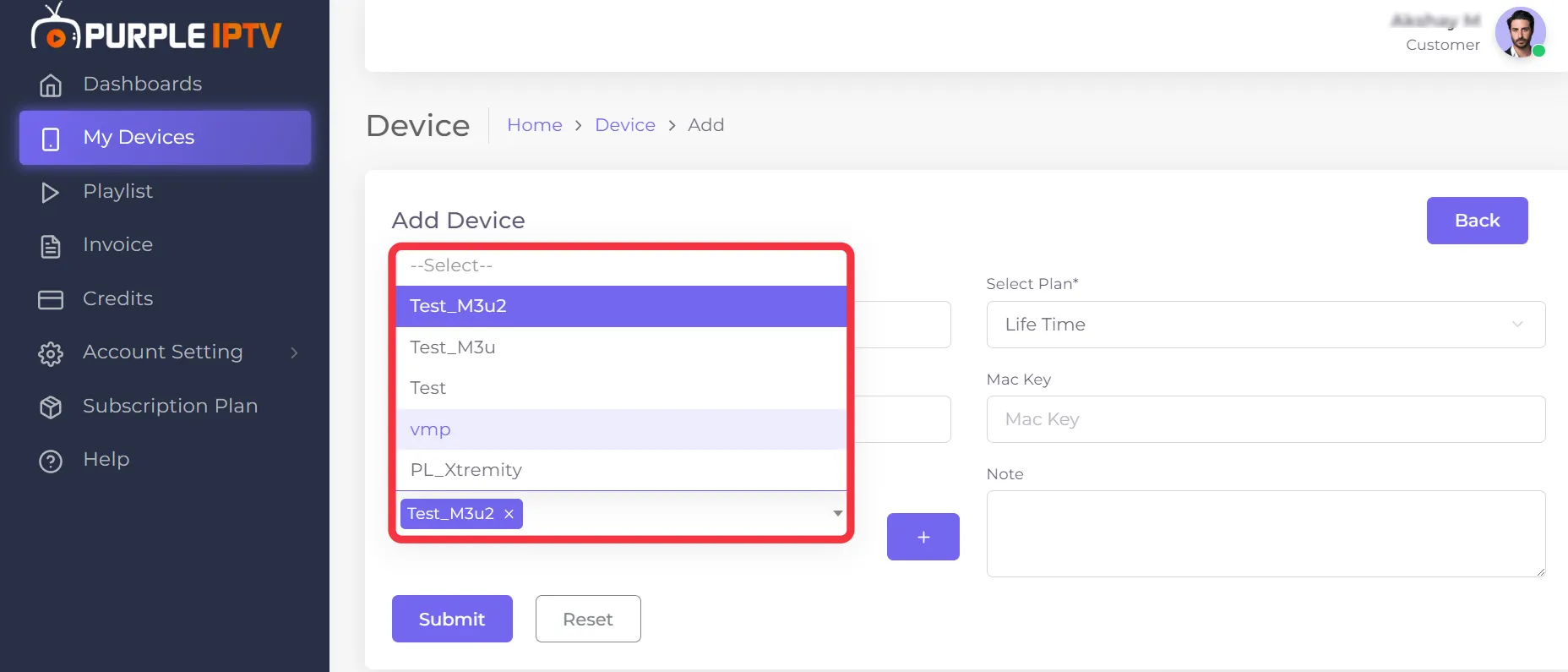
Step 6- Select Playlist
Select a playlist from the drop-down menu by clicking "Select Playlist", as seen in the below image (marked in red)
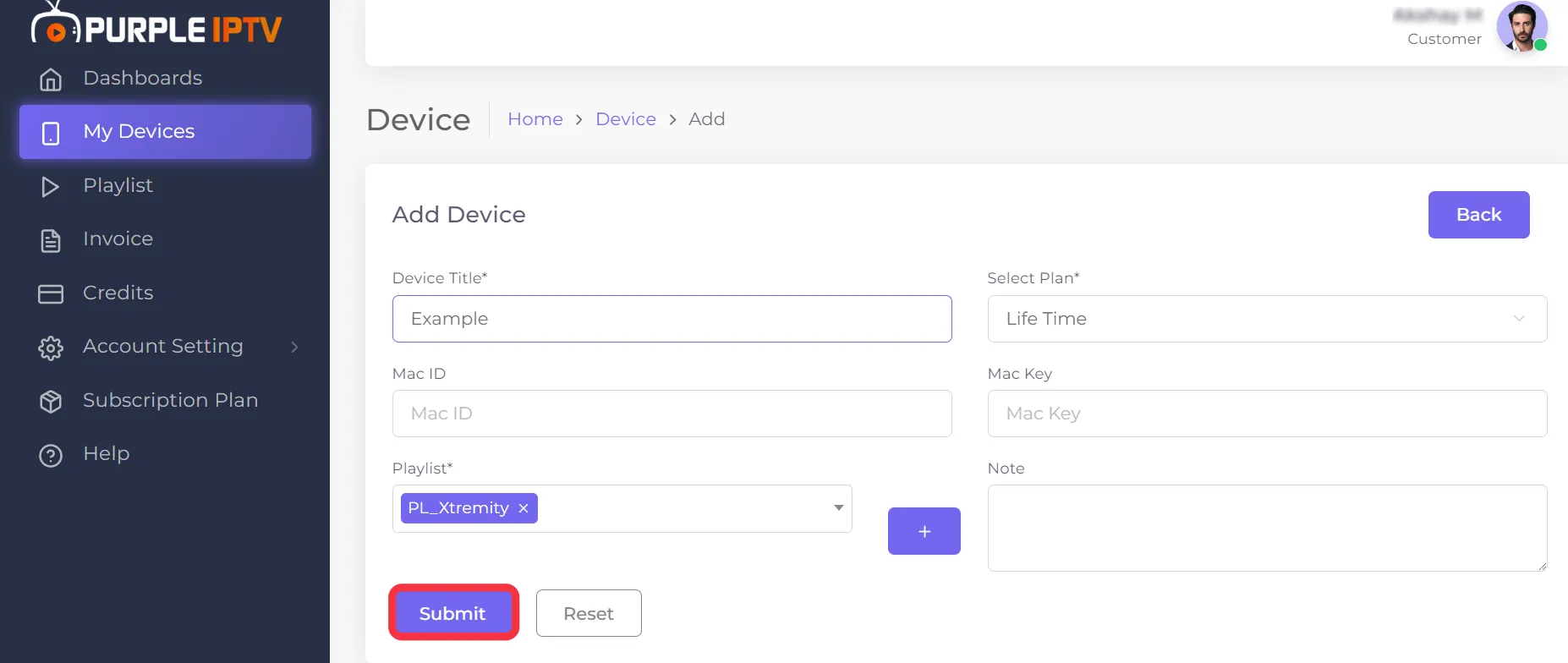
Step 7- Submit
Click on "Submit" to generate the code, as seen in the below image (marked in red)
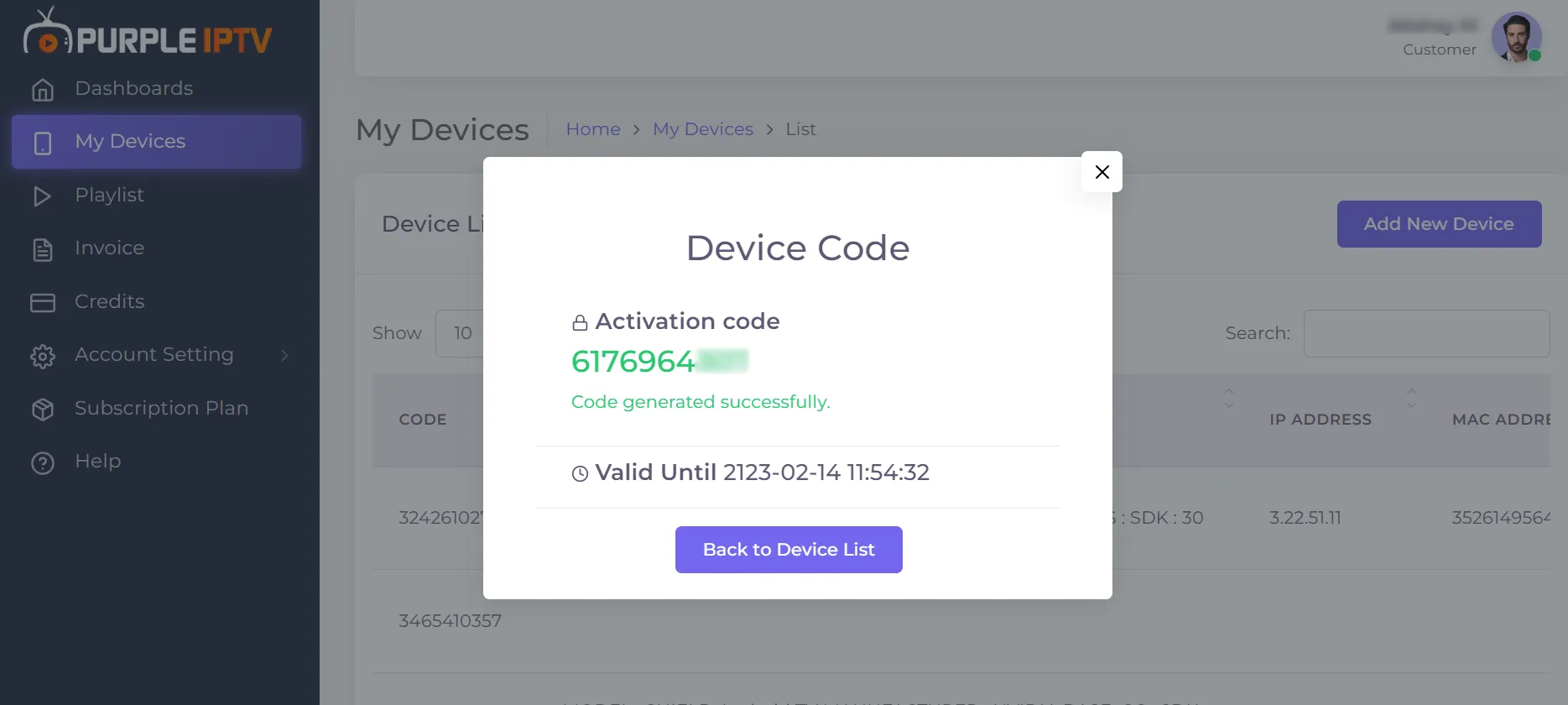
Step 8- Device Code
Once the user clicks submit, a "Device Code" will be generated.
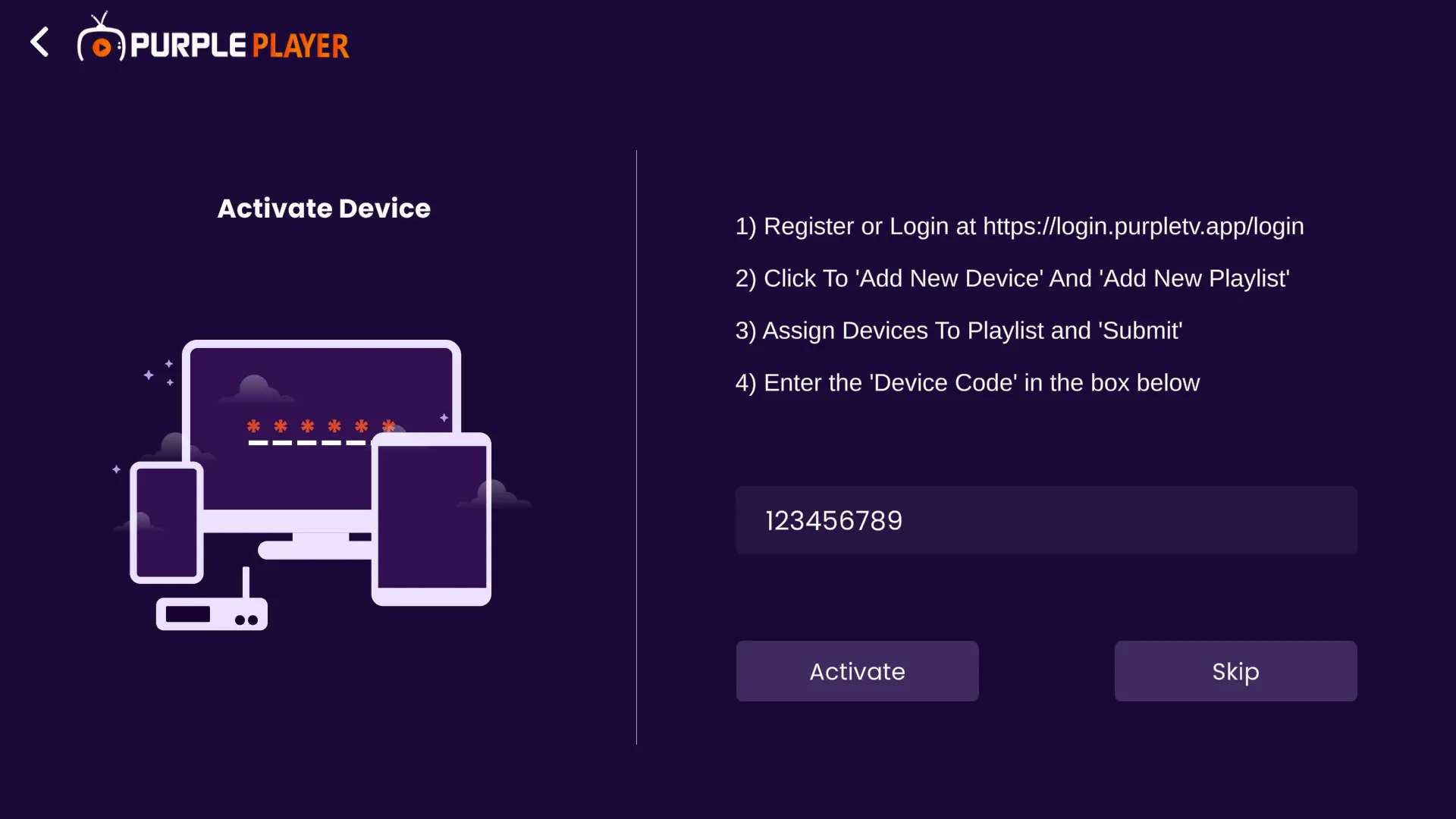
Step 9- Activate
Enter the generated Device Code in the code box, and click on "Activate", as seen in the below image (marked in red)
Home-Screen
After successfully Activating Code, User will be greeted by Purple Easy Player "Home-Screen"