How to Use Search & Favorites Features
2 min
Step 1: Access Search
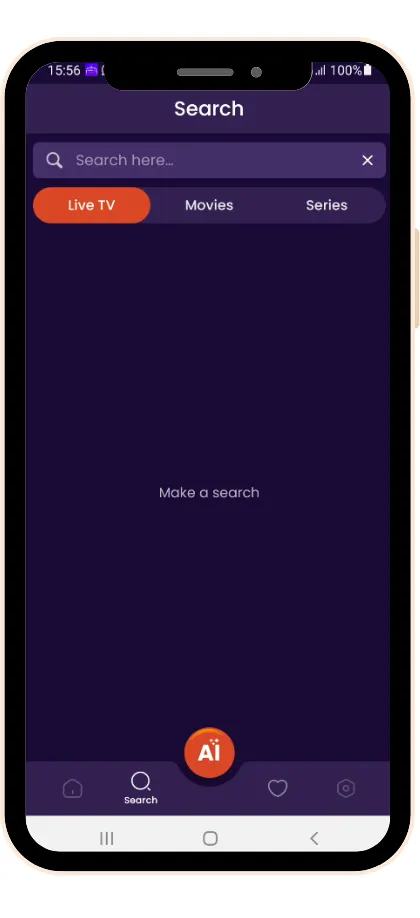
Tap the Search icon in the bottom navigation bar. Select your preferred content type from the available tabs:
- Live TV: Search for Live TV channels.
- Movies: Search for movies.
- Series: Search for TV series.
Enter the content name in the search bar to find relevant results. Tap the X icon to clear your search.
Step 2: Access Favorites
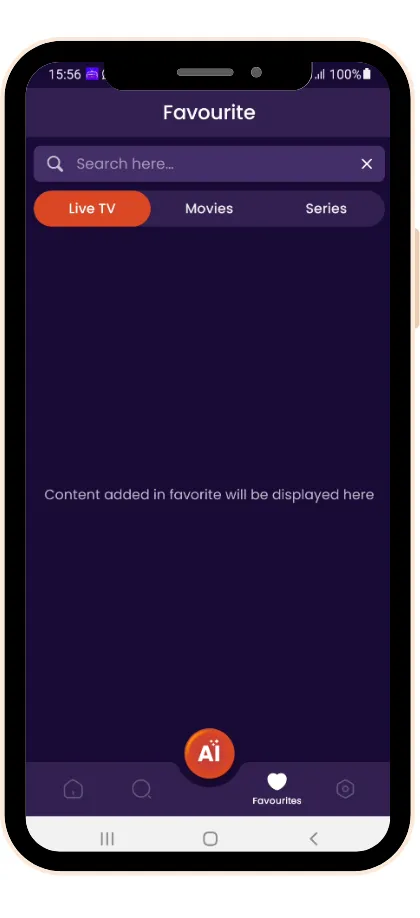
Tap the Favourites (heart) icon in the bottom navigation bar to access your saved content.
Switch between the Live TV, Movies, and Series tabs to browse your favorite content. Use the search bar to find specific content within your favorites.
If no content has been added, the screen displays “Content added to Favorites will be displayed here.”