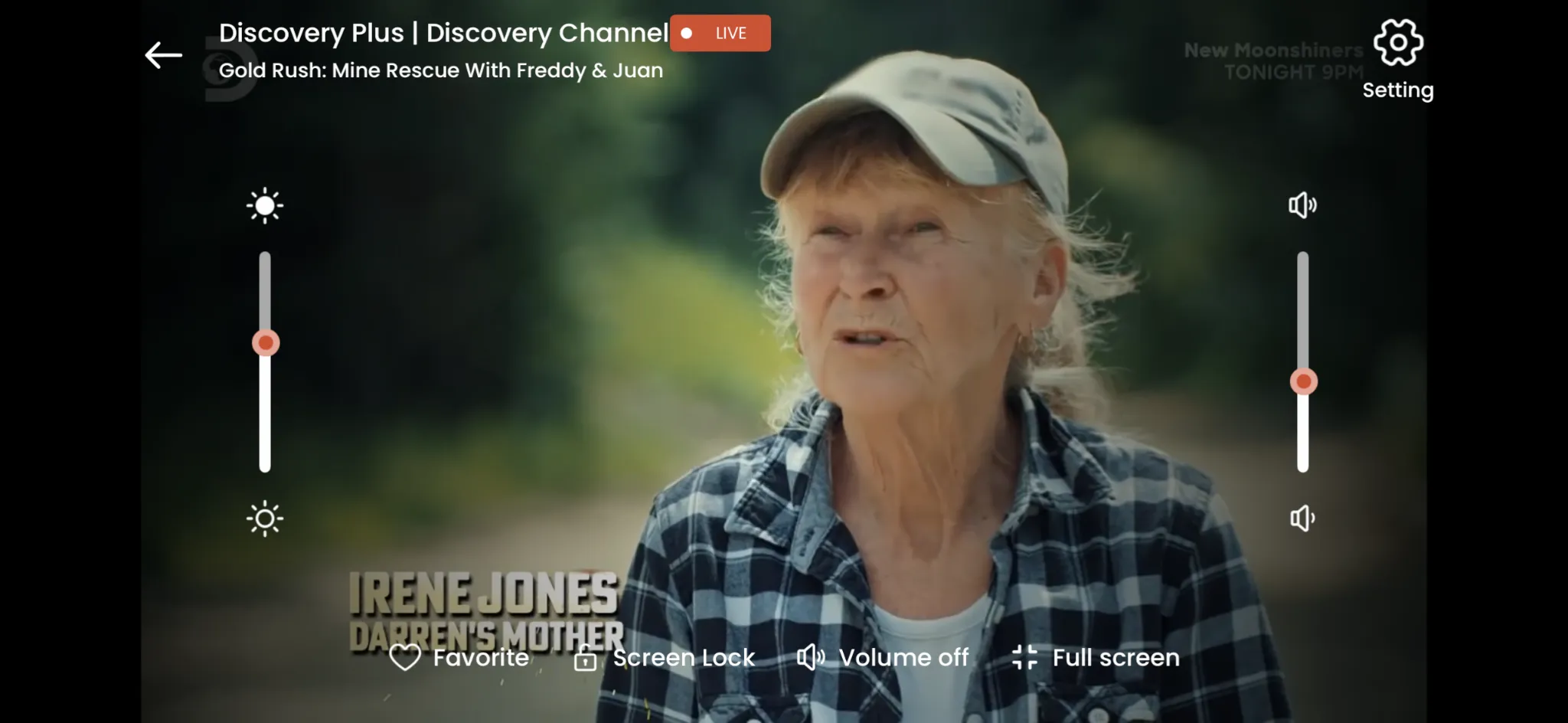
How to Use Live TV & its Features
Step 1: Live TV Dashboard
After successfully loading your playlist, you will be redirected to the Live TV screen.
Here, you can browse and watch available live TV channels. You can also access Channels, Catch Up, History, and Favorites from the top menu.
Step 2: Catch Up
On the Live TV screen, tap the Catch Up option from the top menu.
Here, you can browse the available Catch Up channels and access previously aired TV programs. Select your preferred channel to explore its available Catch Up content.
Step 3: History
On the Live TV screen, tap the History option from the top menu.
Here, you can view your recently watched Live TV channels and quickly access them again. Tap on any channel from the history list to resume watching.
Step 4: Favorites
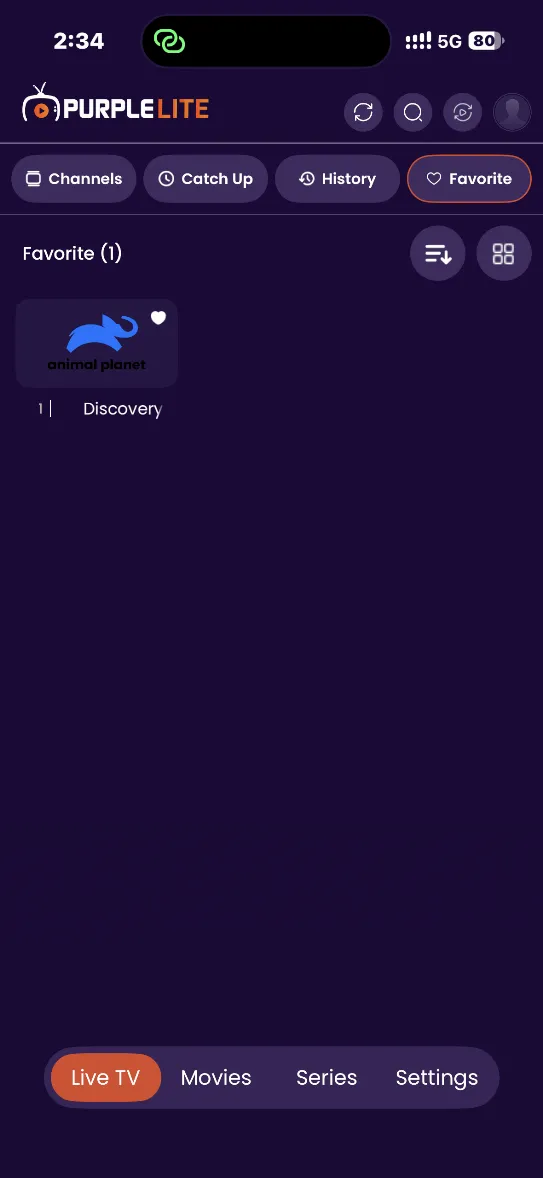
On the live TV screen, tap the Favorite option from the top menu.
Here, you can view all your favorite live TV channels that you have previously added to your favorites list. Tap on any channel to start watching it directly from your favorites.
Step 5: Live TV List View
On the Live TV screen, tap the List View icon in the top-right corner to switch from Grid View to List View. Here, you can browse Live TV channels along with their currently airing programs, scheduled times, and playback progress.
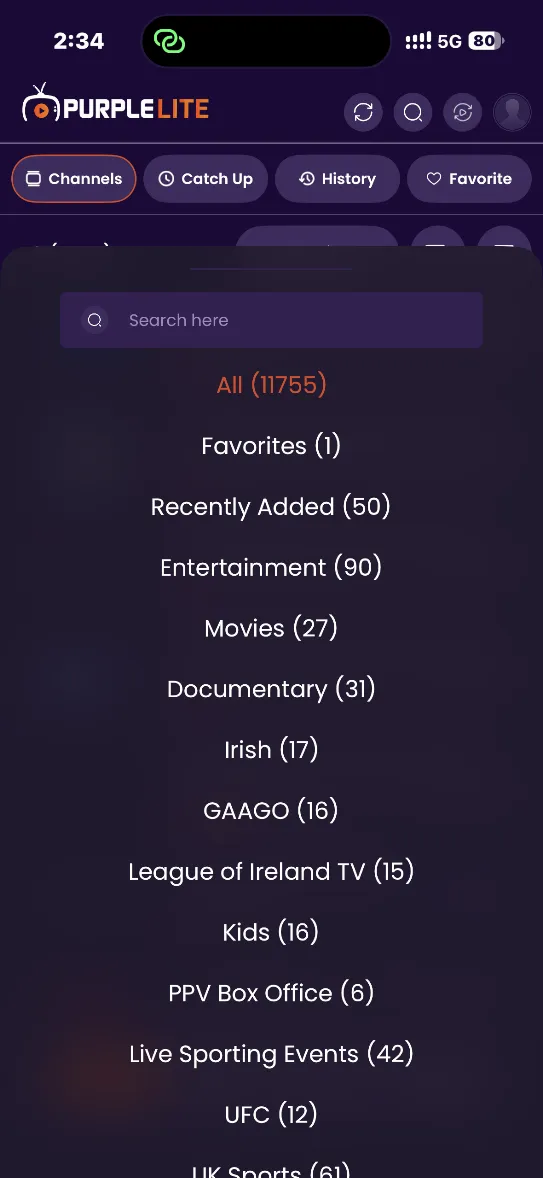
Step 6: Browse Live TV Categories
On the live TV screen, tap the Categories dropdown to view the available channel categories. Here, you can browse categories such as Favorites, Recently Added, Entertainment, Movies, Documentary, Kids, Sports, and more. Select your preferred category to filter and explore the available Live TV channels.
Step 7: Sort Live TV Channels
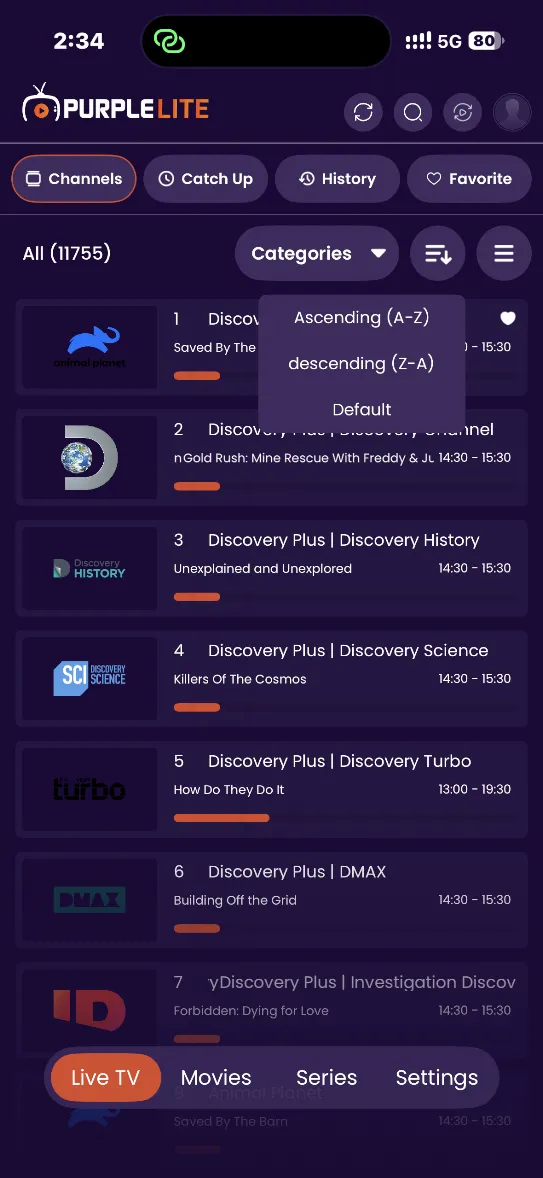
On the Live TV screen, tap the Sort icon next to the Categories dropdown to arrange your channels.
Choose your preferred sorting option:
- Ascending (A-Z): Sort channels alphabetically from A to Z.
- Descending (Z-A): Sort channels alphabetically from Z to A.
- Default: Display channels in their original order.
Tap your preferred option to apply the sorting.
Step 8: Watch Live TV & View EPG
After selecting a Live TV channel, the video player will open and start streaming your selected channel. Tap the EPG option to view the channel's program schedule, including currently airing and upcoming shows. You can also tap Channels to browse other available live TV channels or use the Today dropdown to select a different date.
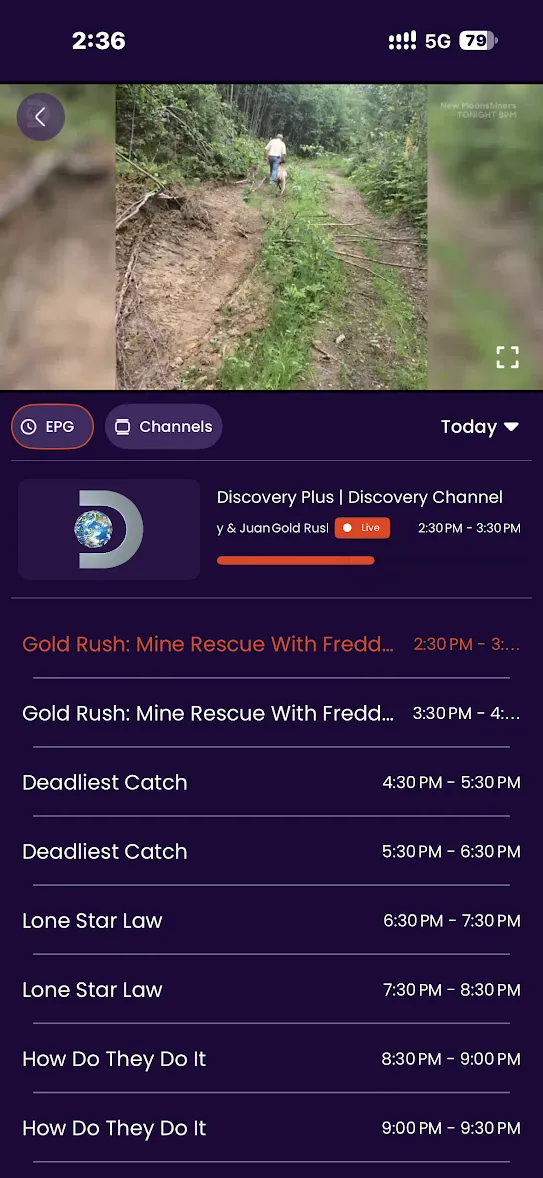
Step 9: Watch Live TV & View EPG
After selecting a Live TV channel, the video player will open and start streaming your selected channel.
Tap the EPG option to view the channel's program schedule, including currently airing and upcoming shows. You can also tap Channels to browse other available live TV channels or use the Today dropdown to select a different date.
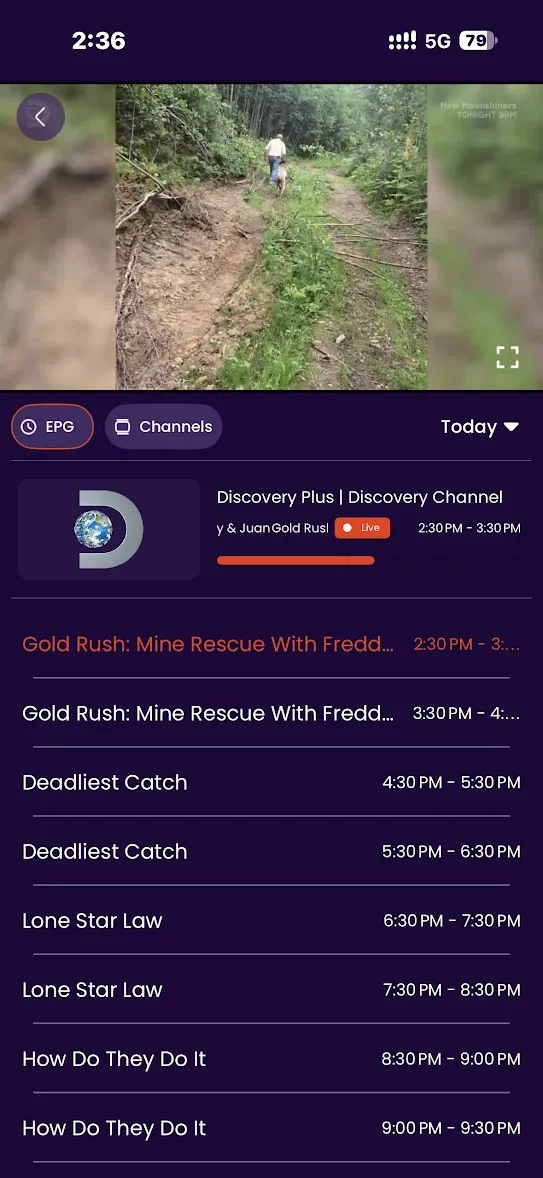
Step 10: Live TV Player Controls
While watching a live TV channel in fullscreen mode, tap the screen to access the player controls. Here, you can adjust the brightness and volume using the sliders on the left and right sides of the screen.
You can also use the following options:
- Favorite: Add the current channel to your favorites.
- Screen Lock: Lock the screen controls to prevent accidental touches.
- Volume Off: Mute or unmute the audio.
- Full Screen: Adjust the video display mode.
- Settings: Access additional player settings.