How to Login with Startup Screen
8 min
Step 1: Splash Screen
Open the Purple Player app as shown on this splash screen.

Step 2: Select Device Type
Select your device type (TV or mobile) and click the Next (>) button to continue.

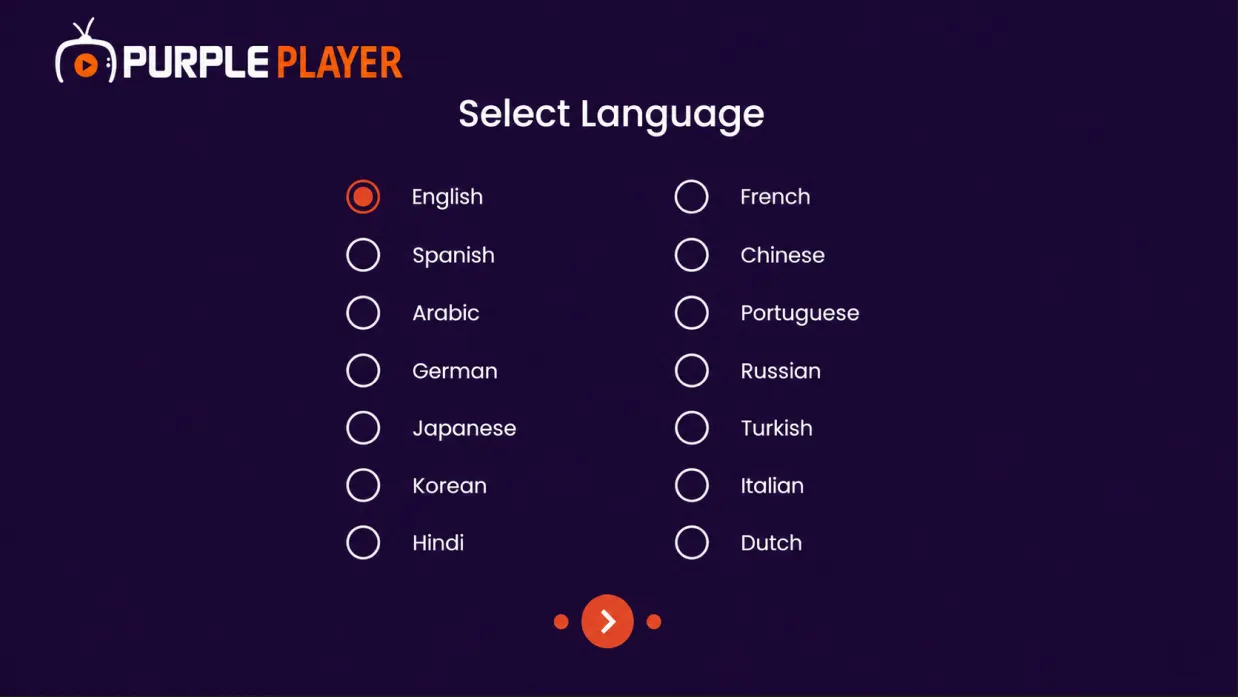
Step 3: Select Language
Select your preferred language and click the Next (>) button to continue.
Step 4: Setup Complete
Click on Explore App (>) to finish the setup and proceed to the home screen.

Step 5: Click the 'I Agree' Button
Once the box is checked, the large purple button labeled "I Agree" will become active.

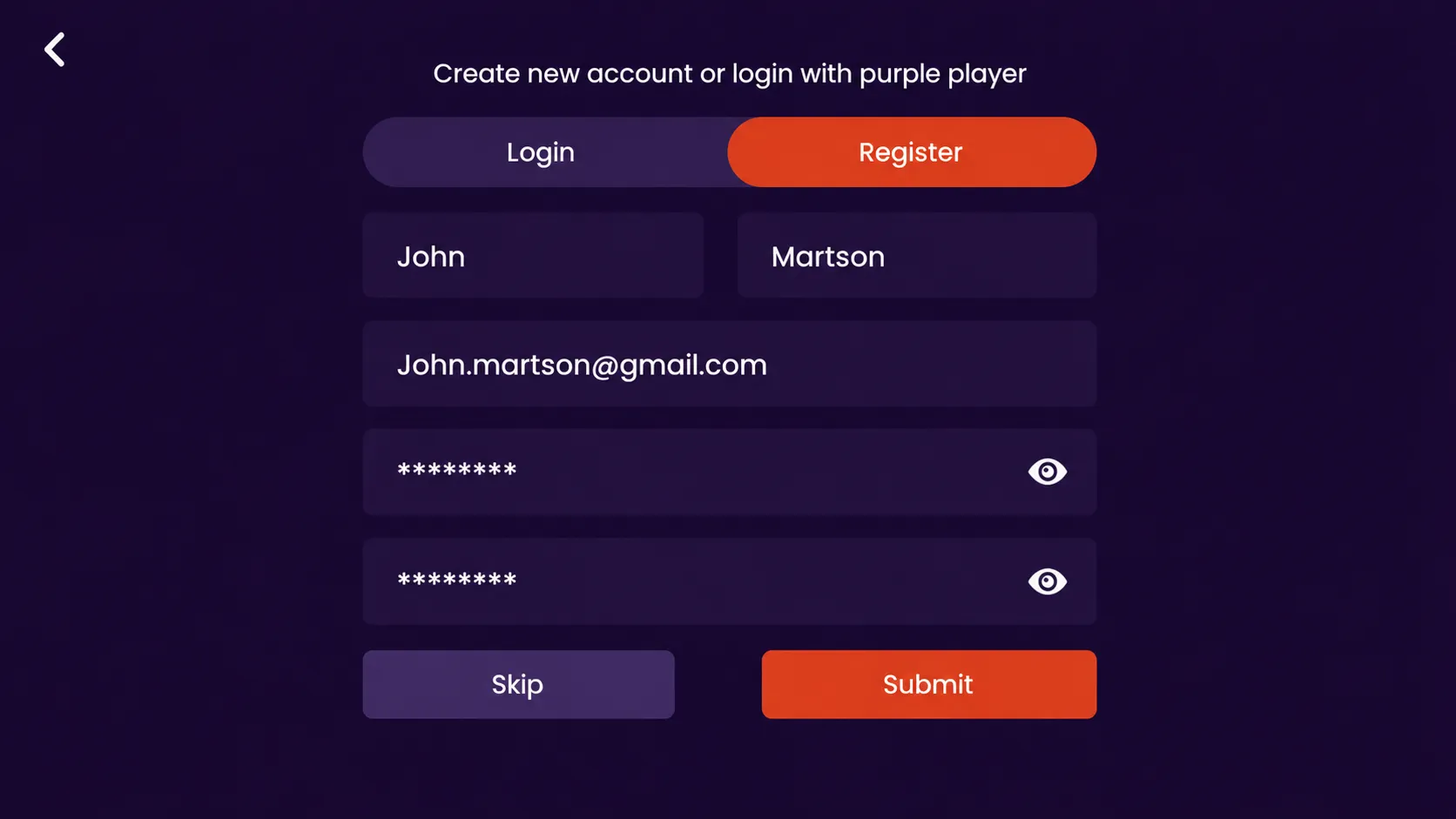
Step 6: Register your Details
- Enter your first & last name in the required fields.
- Add your valid email address for account verification and recovery.
- Create a secure password to protect your account.
- Use the “Eye” icon to view and verify your password before submitting.
- Once all details are entered correctly, click on the “Submit” button to complete your registration.
Step 7: Account Registration Successful
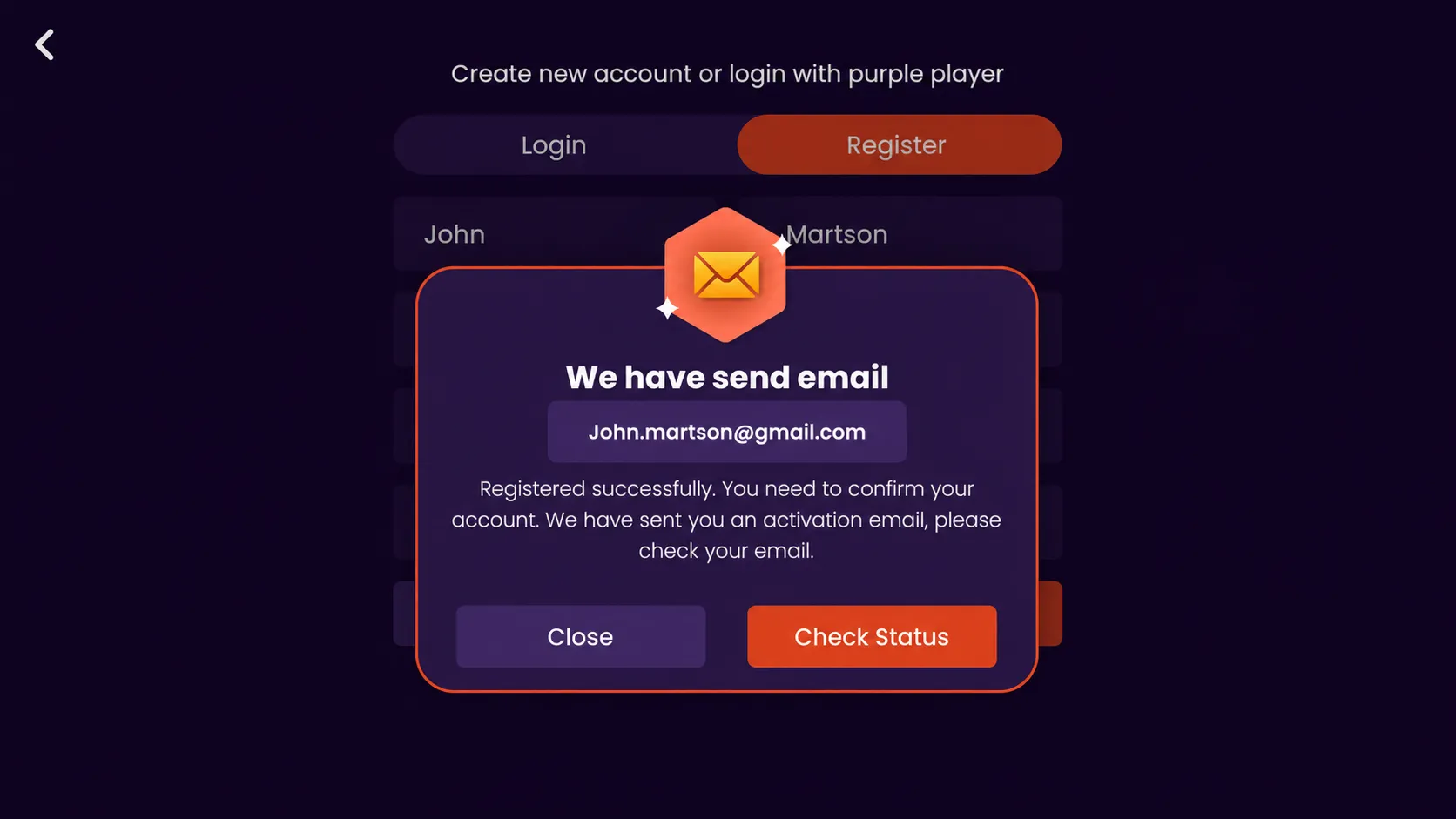
- Your account has been registered successfully.
- An activation email has been sent to your registered email address.
- Open your email inbox and verify your account to activate access.
- Click on “Check Status” after completing the email verification process.
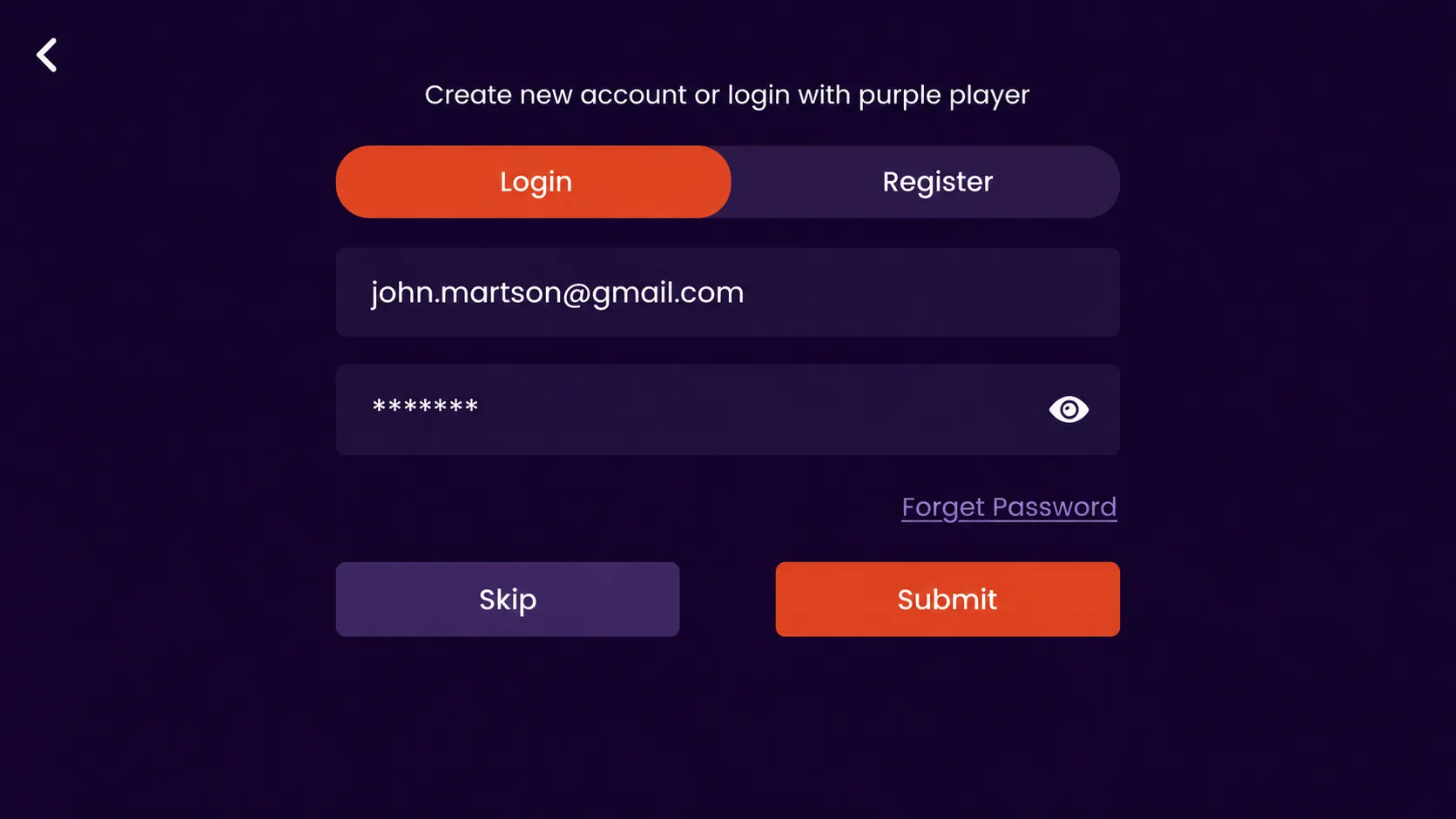
Step 8: Log in to Your Account
- Enter your registered email address in the login field.
- Type your account password securely to access your profile.
- Use the “Eye” icon to view and verify your password if needed.
- If you forgot your password, click on “Forget Password” to reset it.
- Once your credentials are entered correctly, click on the “Submit” button to log in successfully.
Note: If you click on the “Skip” button, the app will not be able to connect or sync with your other Purple Player applications and services.
Step 9: Setup Complete
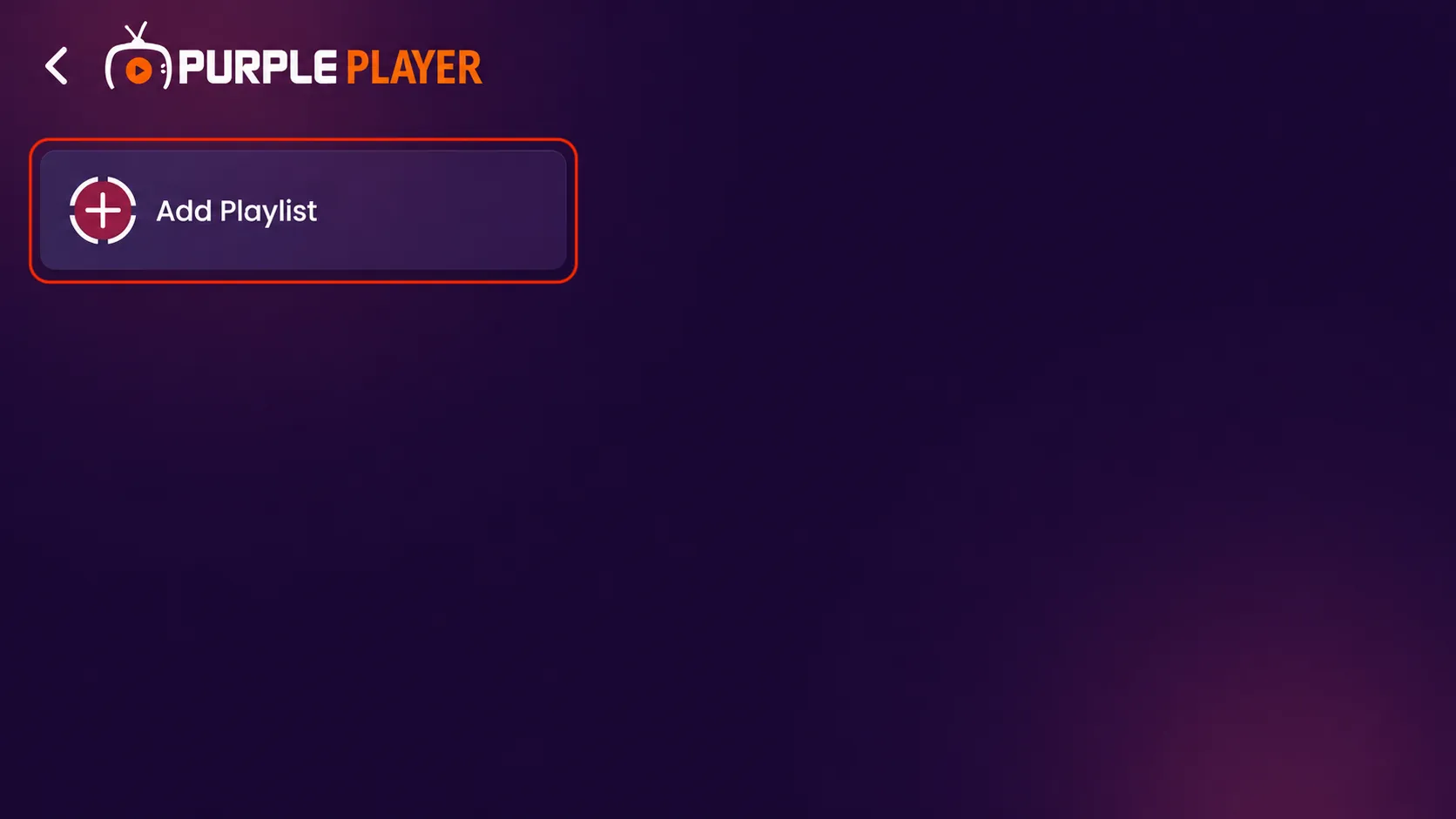
Your login process is now successful. Click on the “Add Playlist” button to start adding your playlist.