How to Use Series & Its Features
Step 1: Series Dashboard
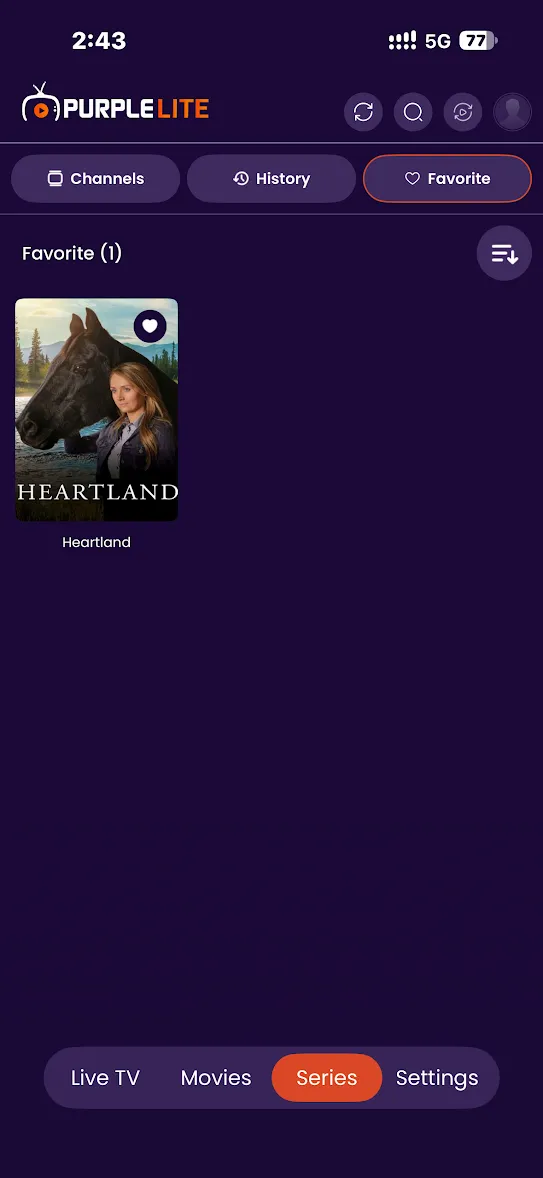
On the Purple Lite app, tap the Series option in the bottom navigation menu to access the Series section. Here, you can browse the available TV series displayed in a grid layout.
Step 2: Series Details & Episodes
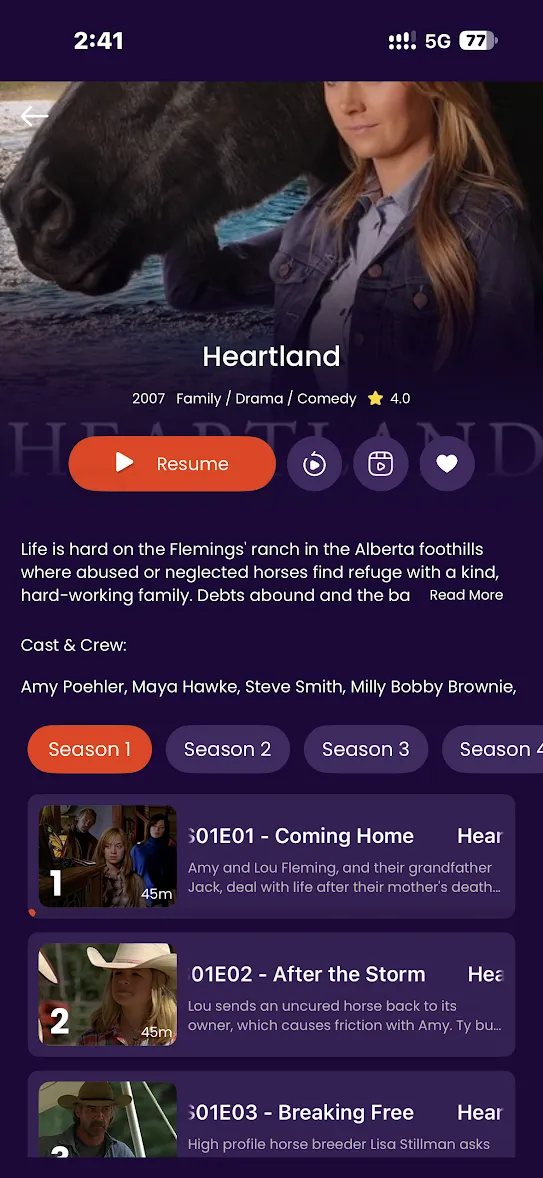
After selecting your preferred series, you will be directed to the Series Details screen.
Here, you can view the series title, release year, genre, rating, description, and cast & crew information. Tap the Season buttons to browse the available seasons and their episodes.
Step 3: Series Episode Player Controls
After selecting your preferred episode, it will start playing in fullscreen mode. Tap the screen to access the player controls, where you can play/pause, rewind, or fast-forward the episode.
Step 4: Resume Watching a Series
After watching an episode, return to the Series Details screen, where the Watch Now button will change to Resume. Tap the Resume button to continue watching the episode from where you left off.
Step 5: Series Watch History
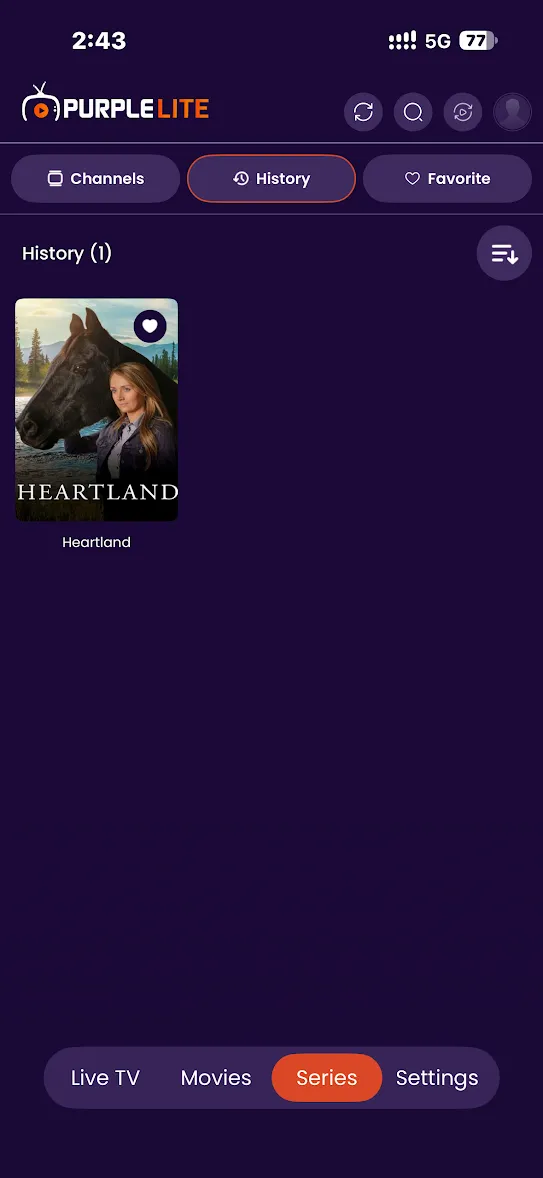
On the Series screen, tap the History option from the top menu. Here, you can view your previously watched TV series and easily access them again.
Step 6: Series Favorites
On the Series screen, tap the Favorite option from the top menu. Here, you can view all your favorite TV series that you have previously added to your favorites list.