How to Use Settings & Its Features
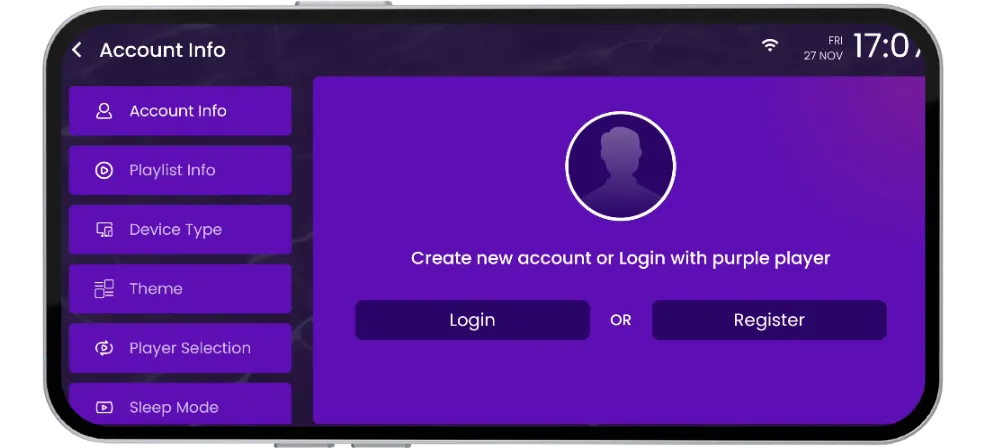
Step 1: Access Account Information
Select Settings from the Home dashboard and navigate to Account Info. Select Login to access your existing Purple Player account or Register to create a new account.
Step 2: View Playlist Information
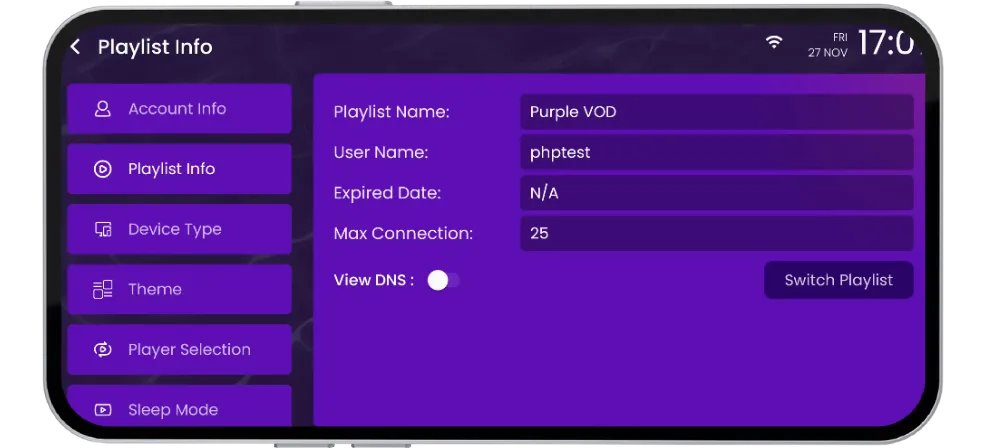
Select Playlist Info from the Settings menu to view the following information:
- Playlist Name: Name of your current playlist.
- User Name: Username associated with your playlist.
- Expired Date: Expiration date of your playlist.
- Max Connections: Maximum number of supported connections.
- View DNS: Enable or disable DNS information visibility.
- Switch Playlist: Switch to another available playlist.
Step 3: Select Device Type
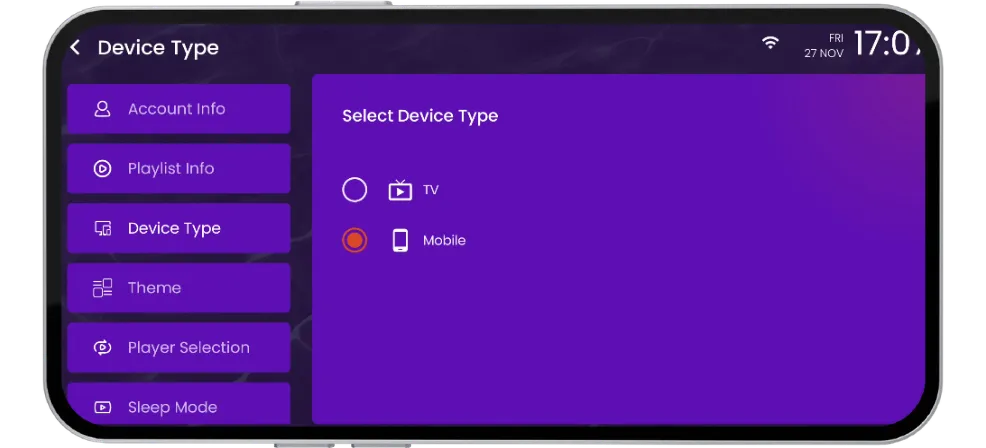
Select Device Type from the Settings menu and choose your preferred device type from the available options: TV or Mobile.
Step 4: Configure Player Settings
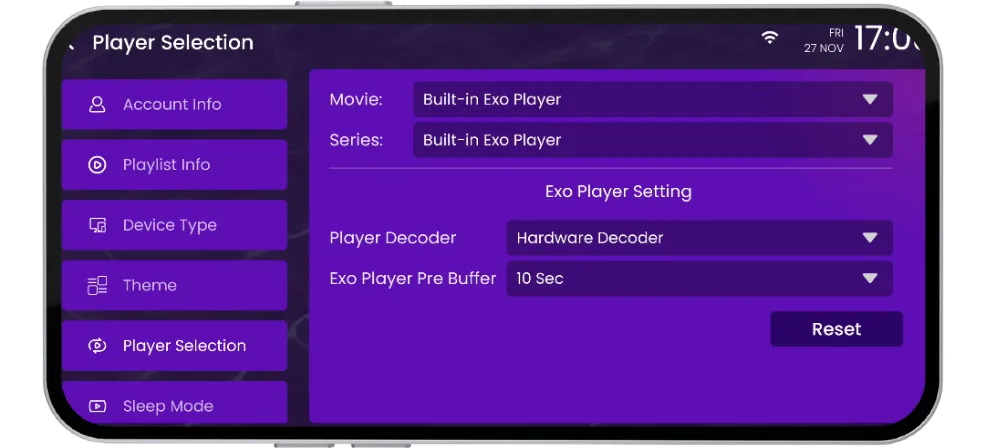
Select Player Selection from the Settings menu to customize your video player preferences.
- Movie: Select your preferred movie player.
- Series: Select your preferred series player.
- Player Decoder: Configure the video decoder.
- Exo Player Pre Buffer: Adjust the buffering duration.
Select Reset to restore the default player settings.
Step 5: Configure Sleep Mode
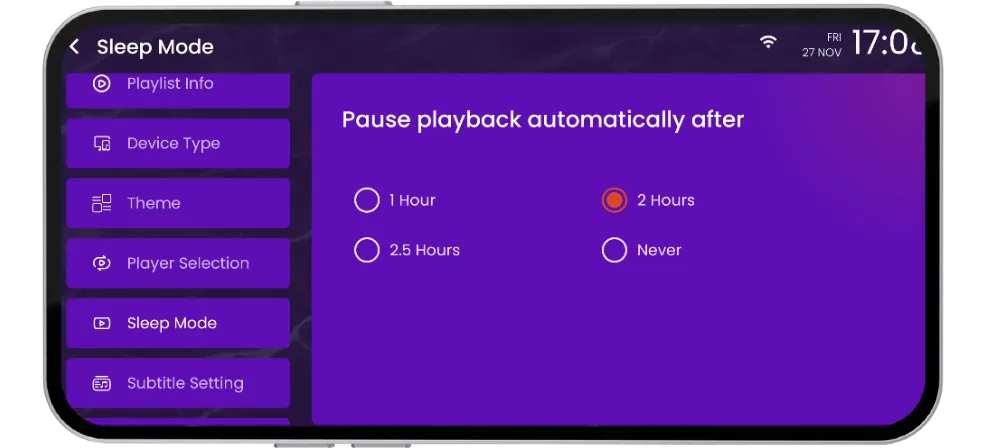
Select Sleep Mode from the Settings menu to automatically pause playback after a specified duration.
Choose your preferred option:
- 1 Hour: Pause playback after one hour.
- 2 Hours: Pause playback after two hours.
- 2.5 Hours: Pause playback after two and a half hours.
- Never: Disable automatic playback pause.
Step 6: Enable Automatic Subtitle Download
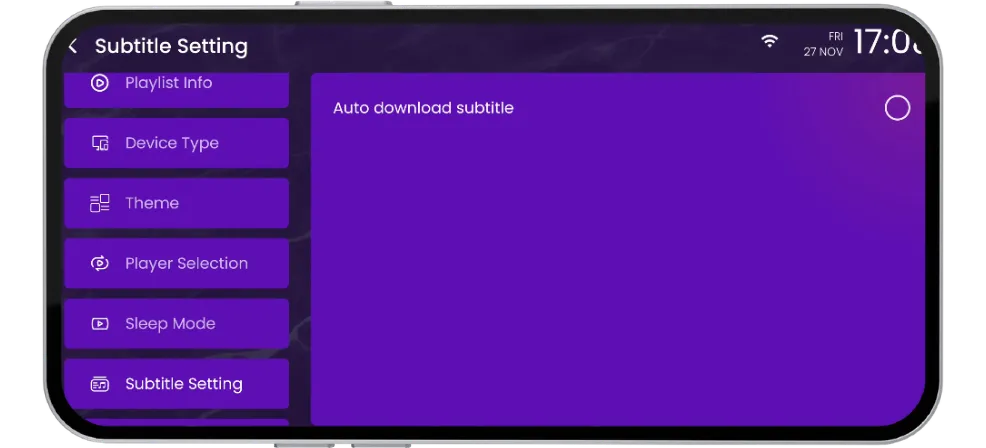
Select Subtitle Setting from the Settings menu. Enable the Auto download subtitle option to automatically download subtitles when available.
Step 7: Configure Time Format and Time Zone
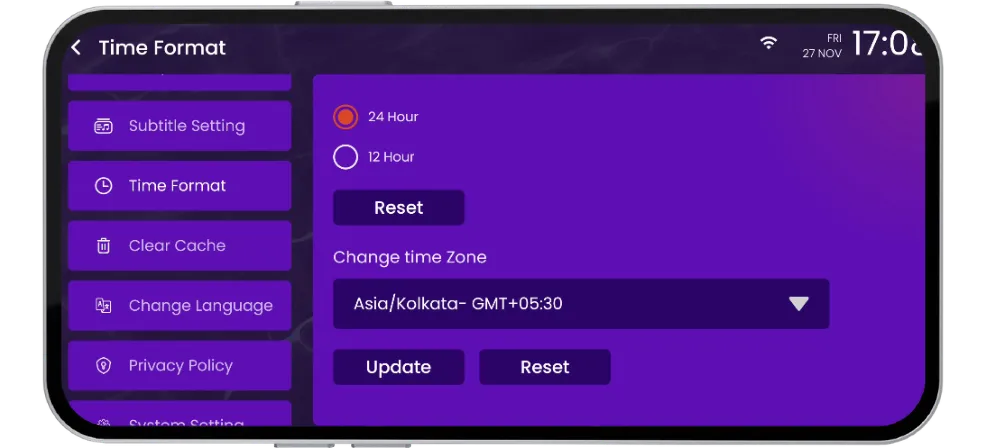
Select Time Format from the Settings menu to customize your time preferences.
- 24 Hour: Display time in 24-hour format.
- 12 Hour: Display time in 12-hour format.
- Change Time Zone: Select your preferred time zone from the dropdown menu.
Select Update to apply the time zone changes or Reset to restore the default preferences.
Step 8: Clear Application Cache
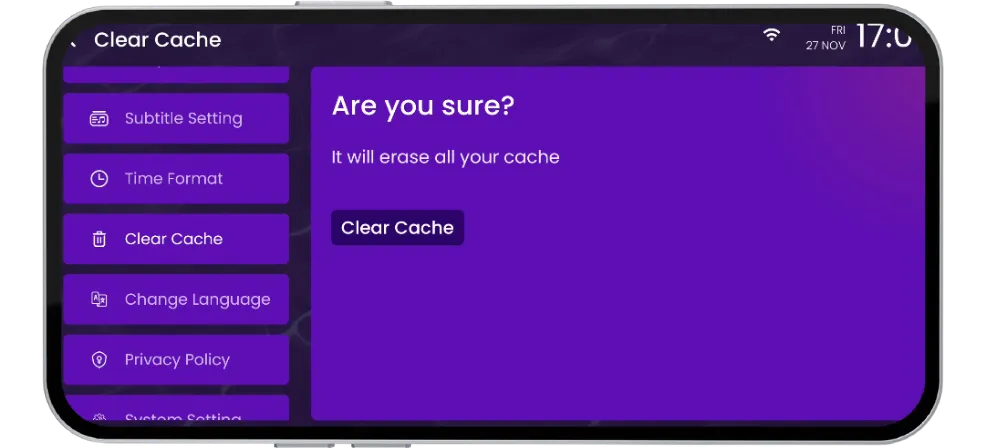
Select Clear Cache from the Settings menu. Review the confirmation message and select Clear Cache to remove cached application data.
Step 9: Select Your Preferred Language
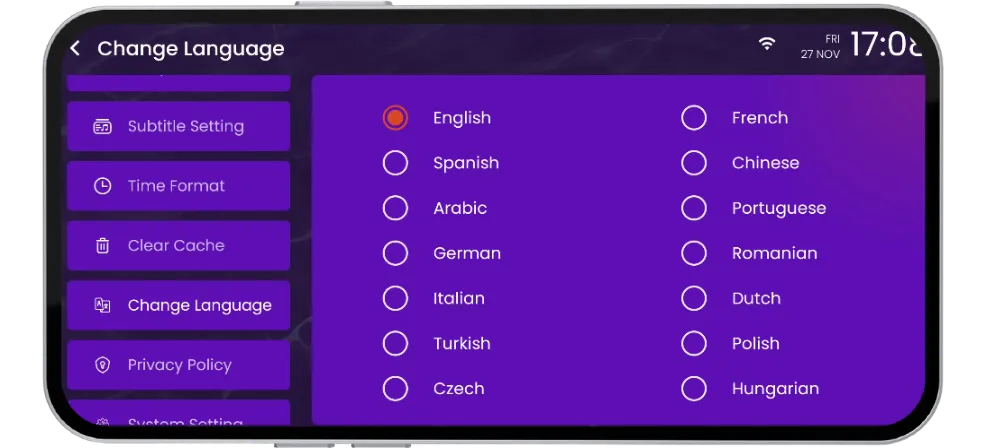
Select Change Language from the Settings menu and choose your preferred application language from the available options, including English, French, Spanish, Chinese, Arabic, Portuguese, German, Romanian, Italian, Dutch, Turkish, Polish, Czech, and Hungarian.
Step 10: Access Privacy Policy
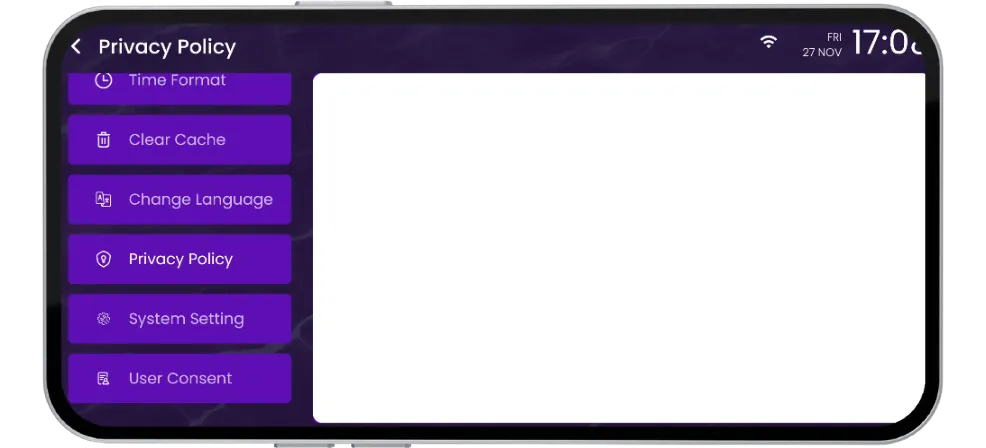
Select Privacy Policy from the Settings menu to access the application's privacy policy.
Step 11: Access Device Settings
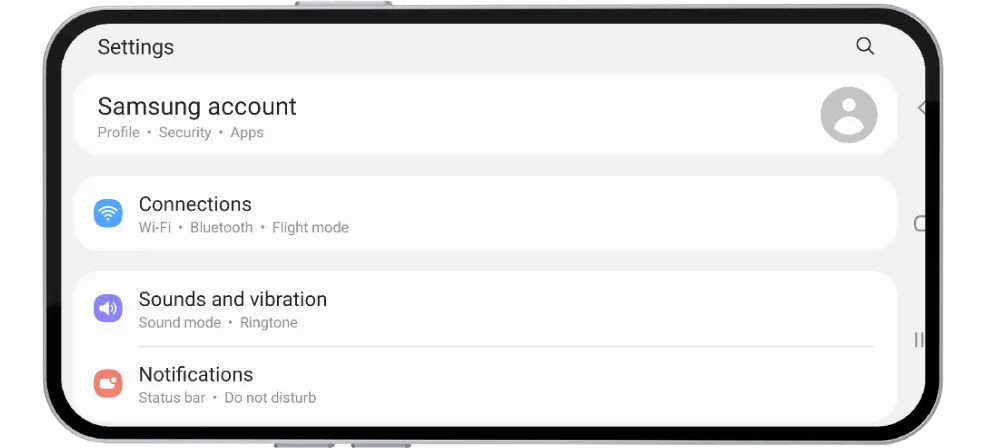
Select System Settings from the Settings menu to open your Android device settings. Manage available device preferences, including Connections, Sounds and Vibration, Notifications, and other system-related options.
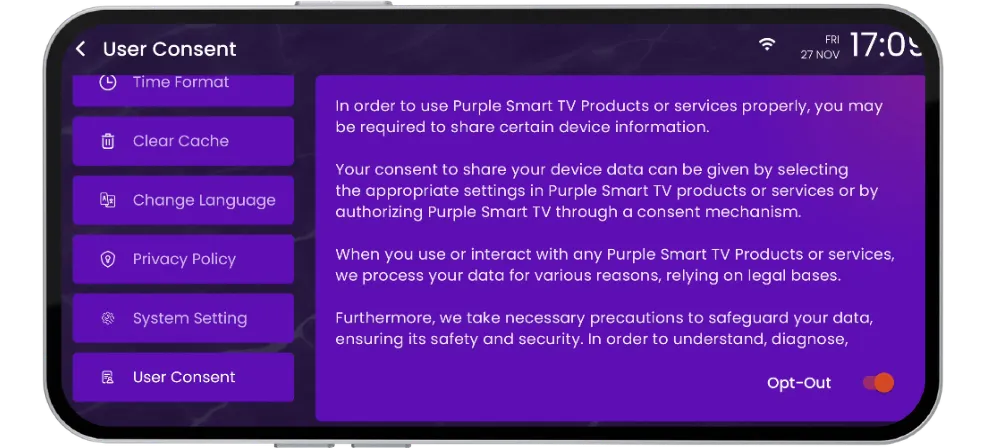
Step 12: Manage User Consent
Select User Consent from the Settings menu. Review the information regarding device data sharing, data processing, privacy, and security. Use the Opt-Out toggle to manage your data-sharing consent preferences.