Screen Saver
1 min
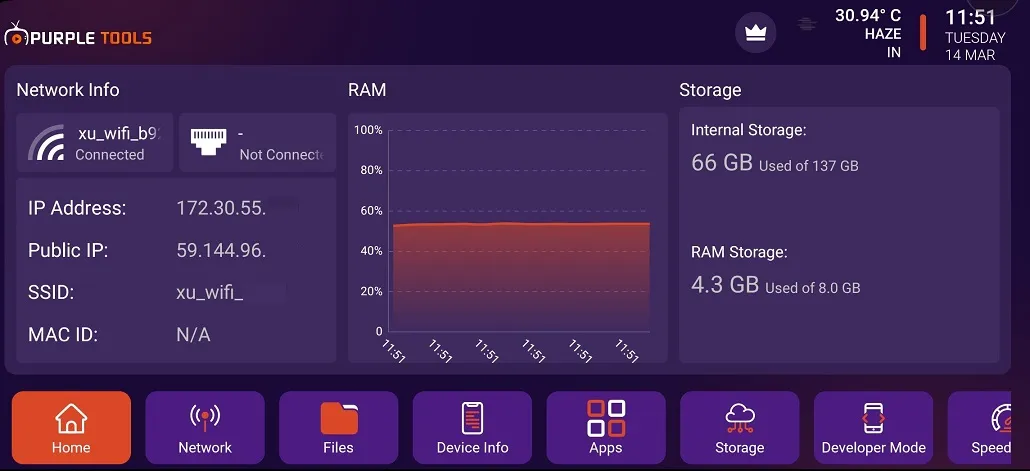
1- After successfully installing the application, you will be welcomed by the Home Screen of Purple Tools.
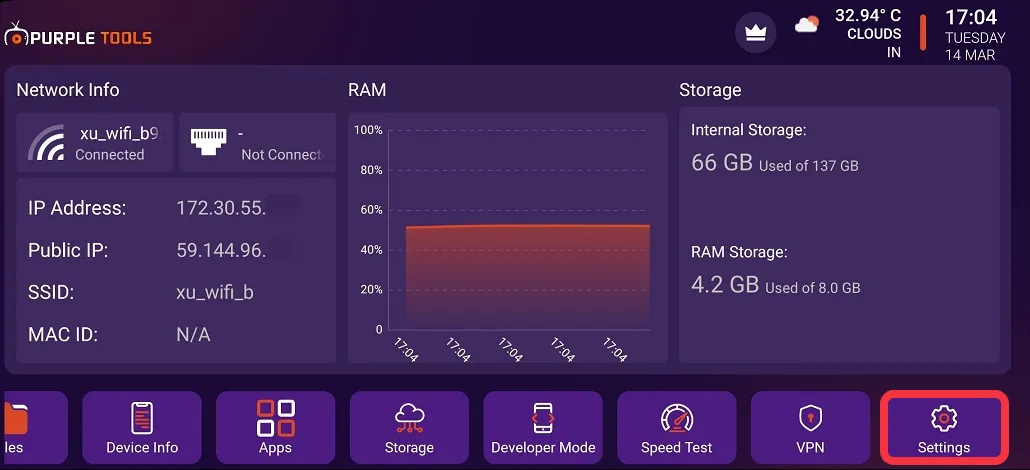
2- Click on "Setting", as seen in the below image (marked in red)
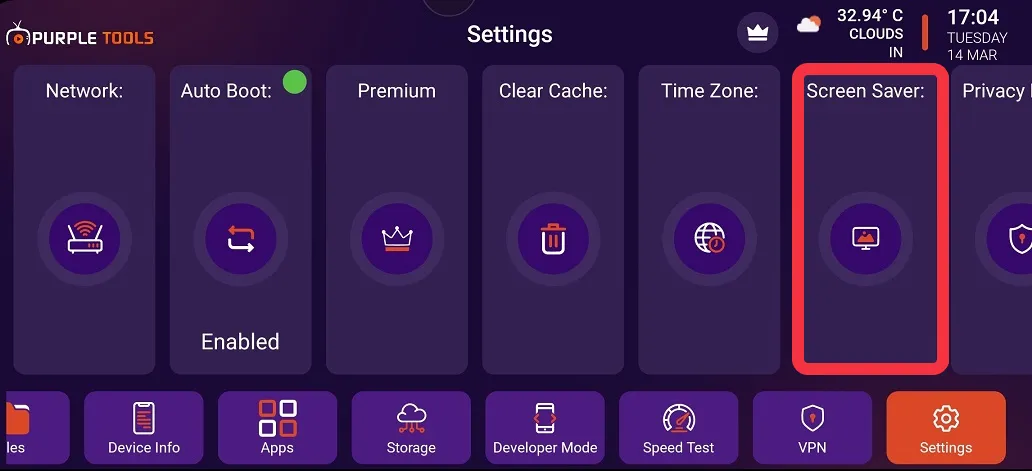
3- Click on "Screen Saver", as seen in the below image (marked in red)
4- Click on "Screen Saver/Sound" to switch it ON/OFF, as seen in the image below
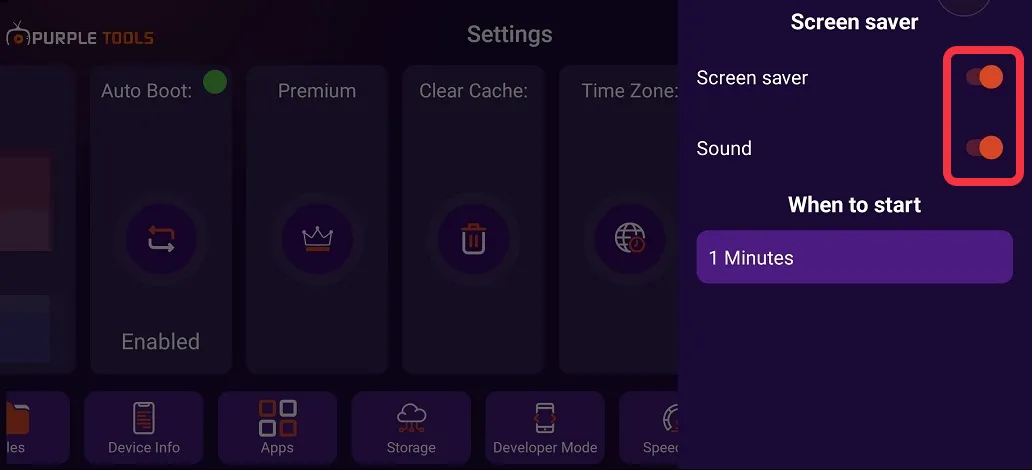
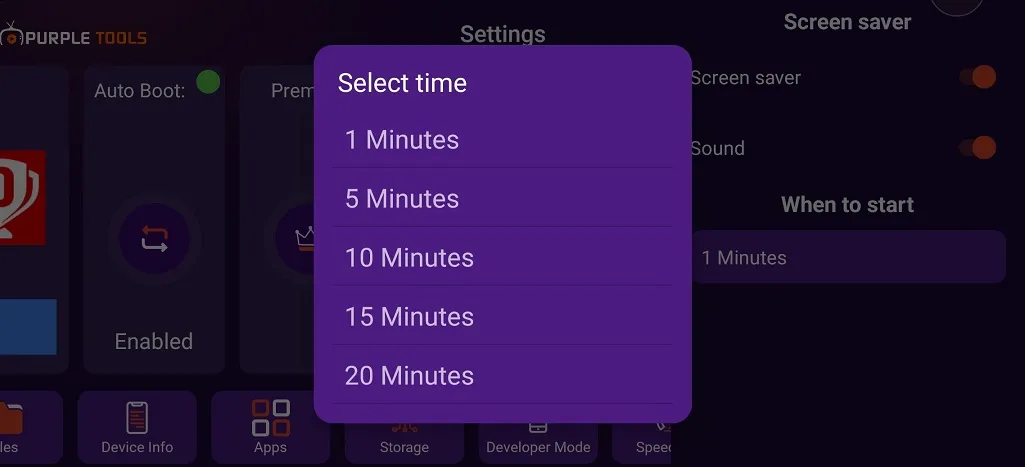
5- Select the time you want the "Screen Saver" to start from the drop-down menu, as seen in the below image