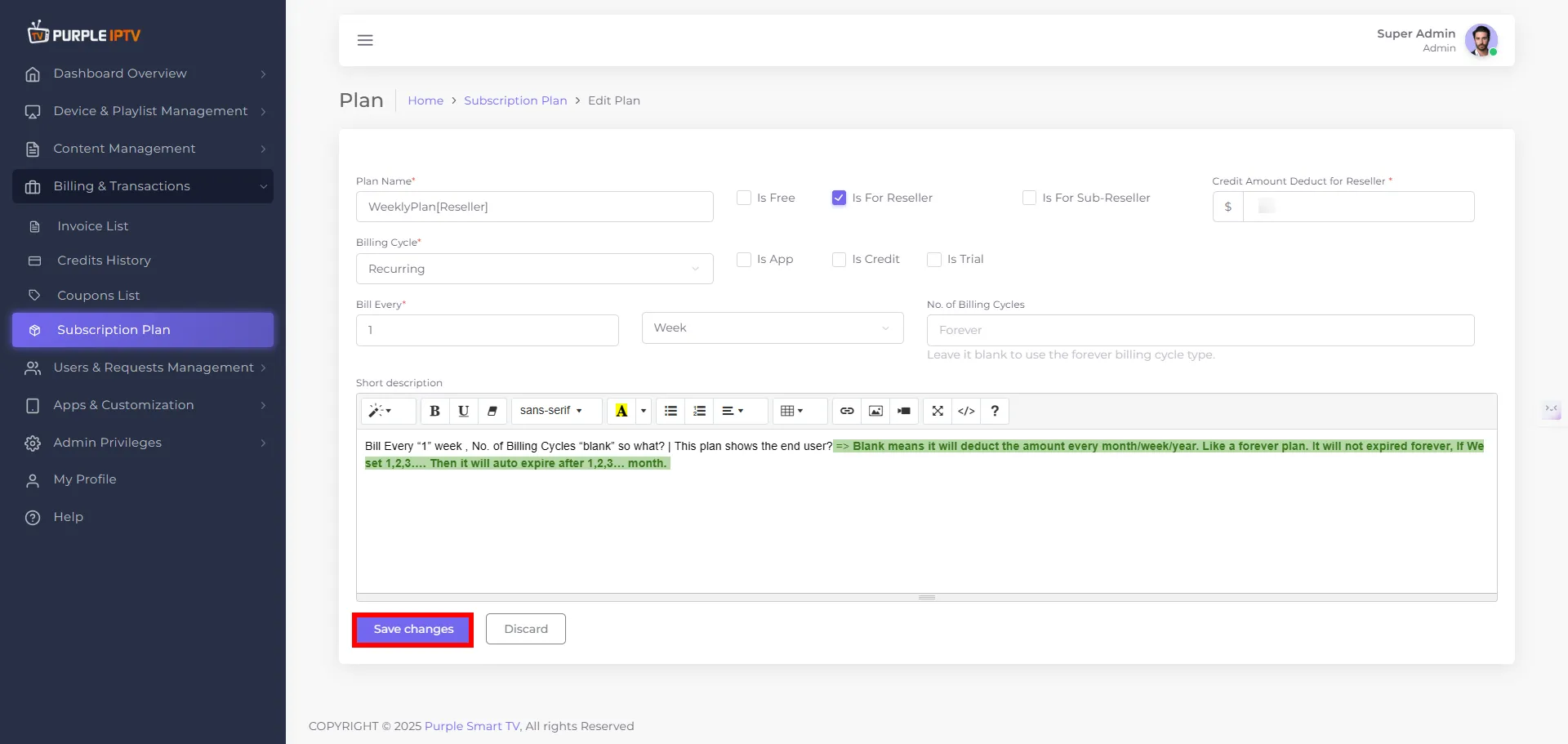
How to edit subscription plan
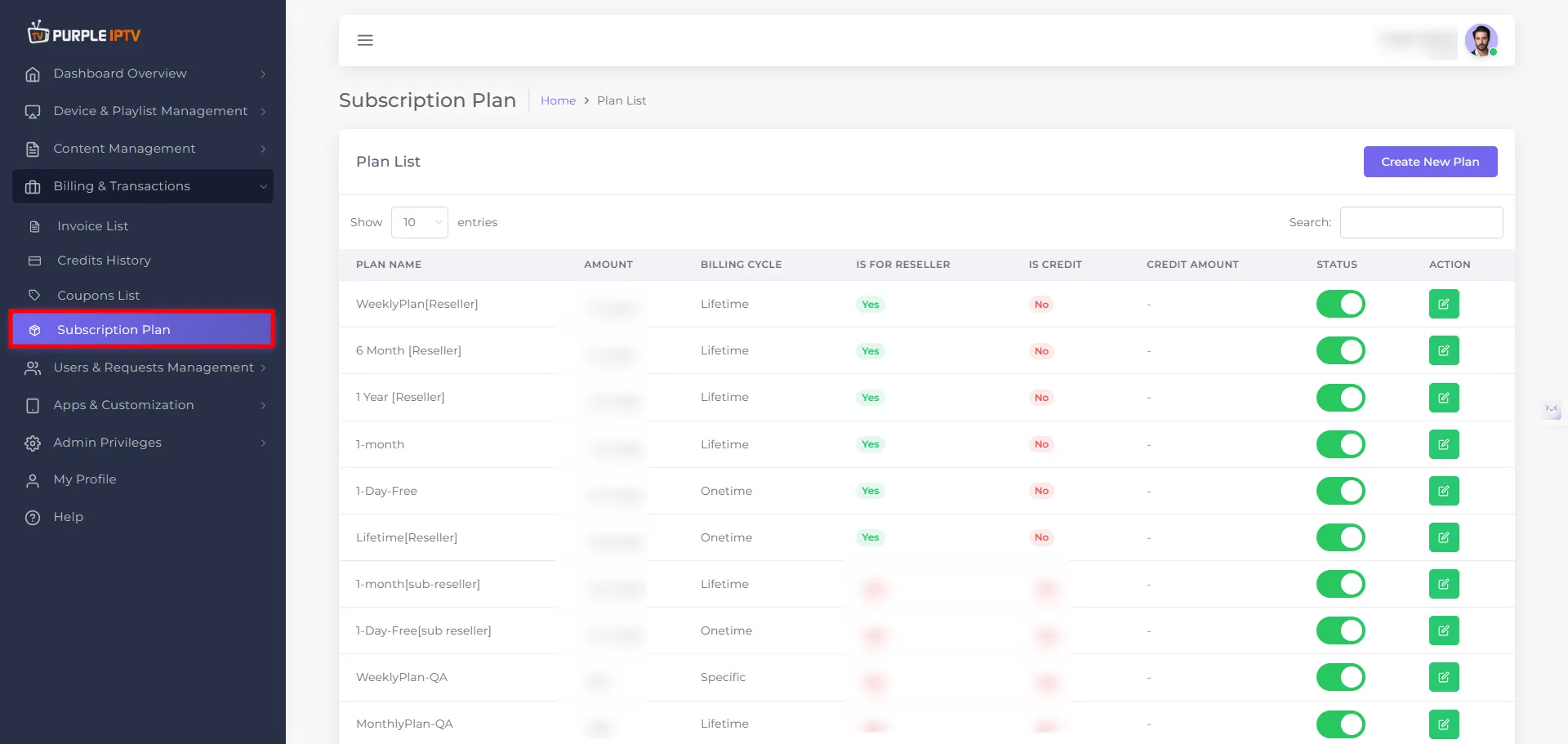
Step: 1 Go to the Billing & Transactions → Subscription Plan
After successfully Login into Purple Admin Panel, Click on "Billing & Transactions → Subscription Plan", as seen in the below image.
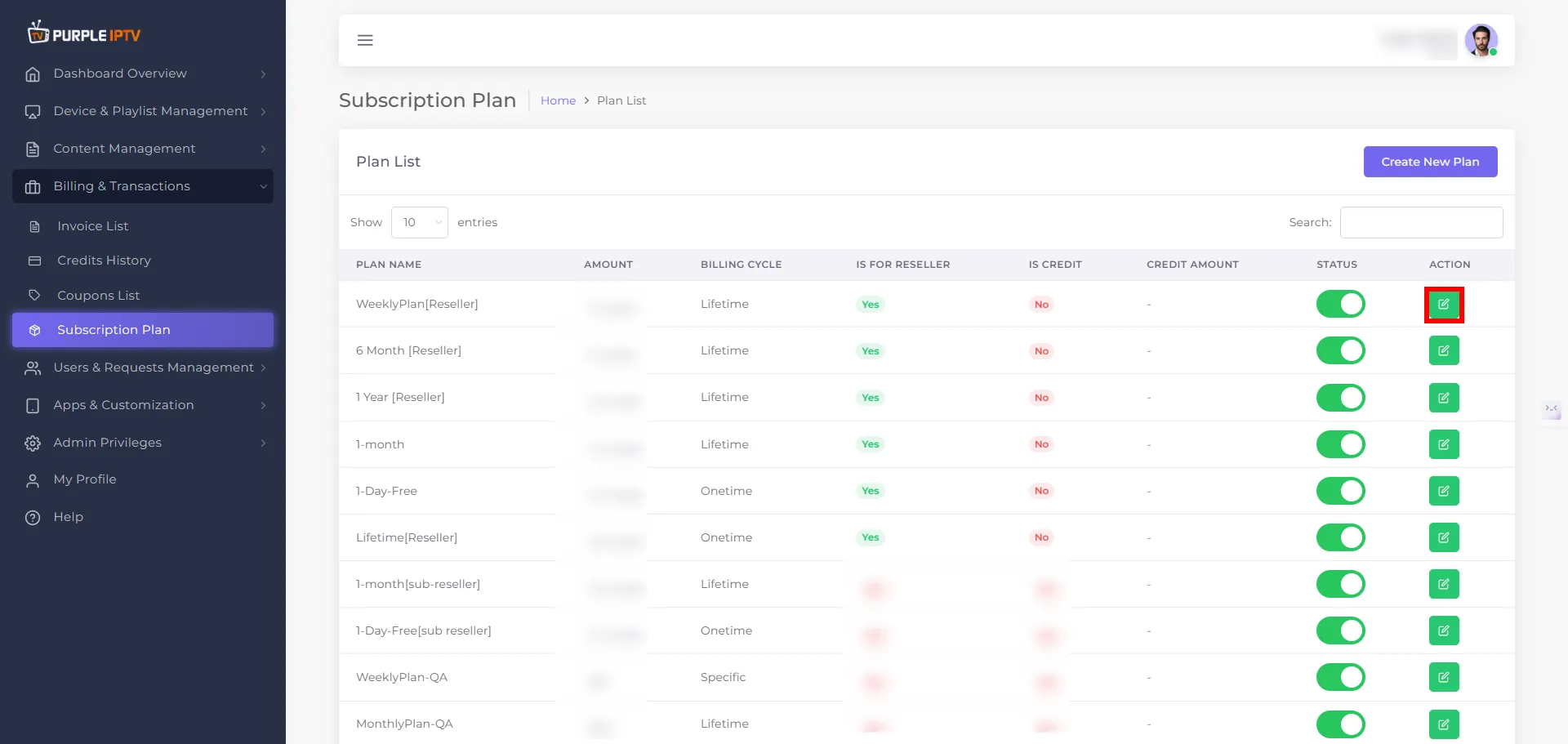
Step: 2 Edit Icon
Click on the EDIT icon ✏️, as shown in the image below, marked in red.
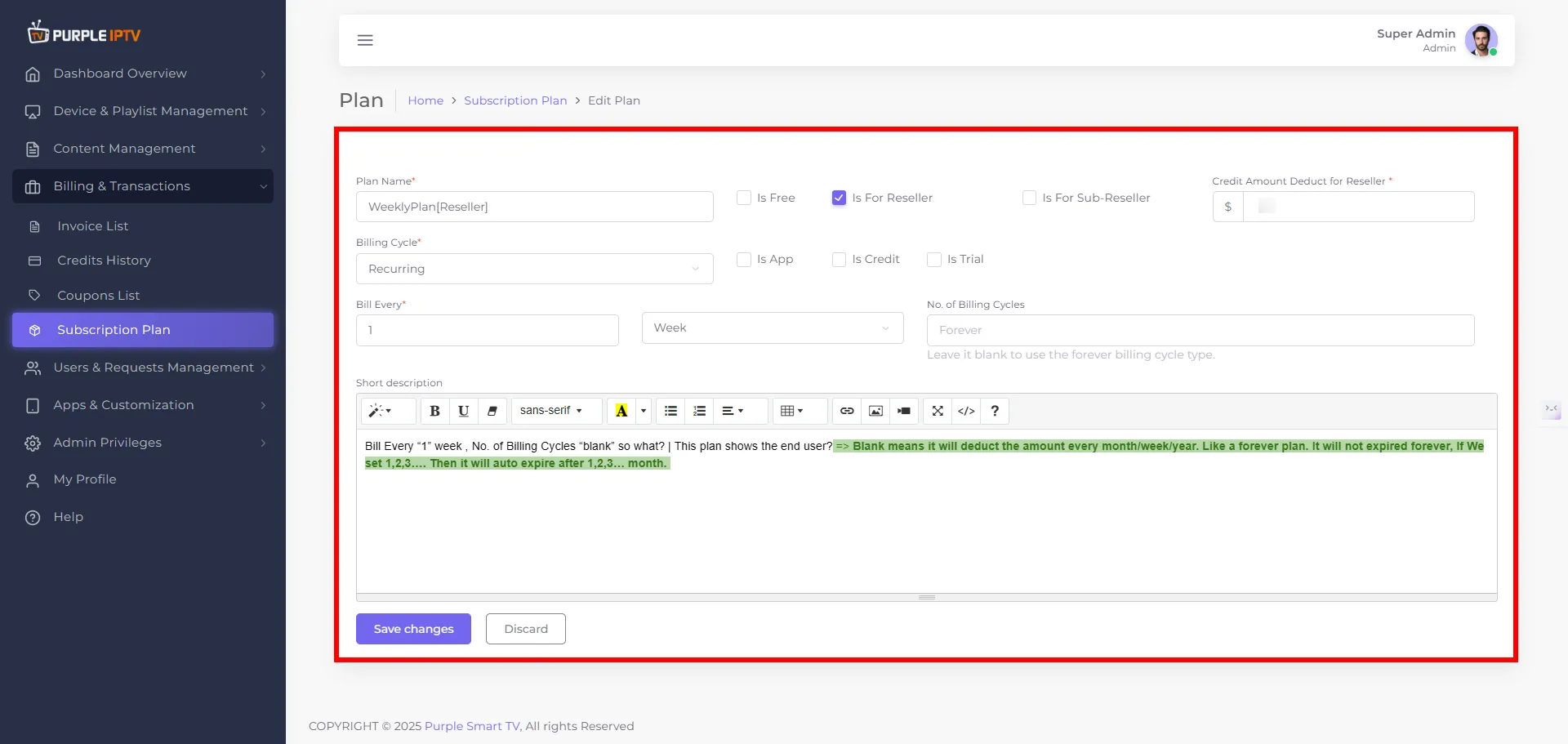
Step: 3 Edit Subscription Plan
Edit Subscription Plan
Plan Name
Enter or update the name of the plan (for example: Monthly Basic, Reseller 100 Credits, Sub-Reseller Starter). This is the label that will show in the Subscription Plan list and in selection dropdowns.
Check Boxes – Type of Plan
At the top of the form, there are tick boxes to define the purpose of the plan:
- Is Free – Tick this if the plan should be free (no amount charged).
- Is for Reseller – Tick this if the plan is intended for resellers.
- Is for Sub-Reseller – Tick this if the plan is specifically for sub-resellers. You can combine these as per your business rules (for example, a free trial for resellers).
Billing Cycle (dropdown)
Choose the main billing behavior from a dropdown:
- One Time – The plan is charged only once.
- Recurring – The plan renews automatically based on a set interval.
Tick Boxes under Billing Cycle
Below the billing cycle, there are additional tick boxes to define how the plan behaves:
- Is App – Mark this if the plan is specifically for app-based access/licensing.
- Is Credit – Mark this if the plan should give credits (credit-based package).
- Is Trial – Mark this if the plan is a trial plan (usually limited duration or usage).
Bill Every
First field - enter any number (for example - 1, 3, 6, 12). Next field - dropdown to choose the unit: Week, Month, or Year. Together this defines how often the plan is billed, e.g. 1 Month, 3 Months, 1 Year, etc.
No. of Billing Cycles
Enter how many times the recurring charge should run (for example - 12 for 12 cycles). You can also set it to something like Forever (or leave it as per your panel’s logic) to make the plan renew without a fixed end.
Short Description (optional) Enter a brief summary of the subscription plan (for example - main features, duration, or who it is for). This text helps you and other admins quickly understand what the plan includes when viewing it in the list or in plan details.
Step: 4 Save Changes
Click on the "Save Changes" button to make the necessary changes. Your plan will be successfully updated.