How to Add a New Device
6 min
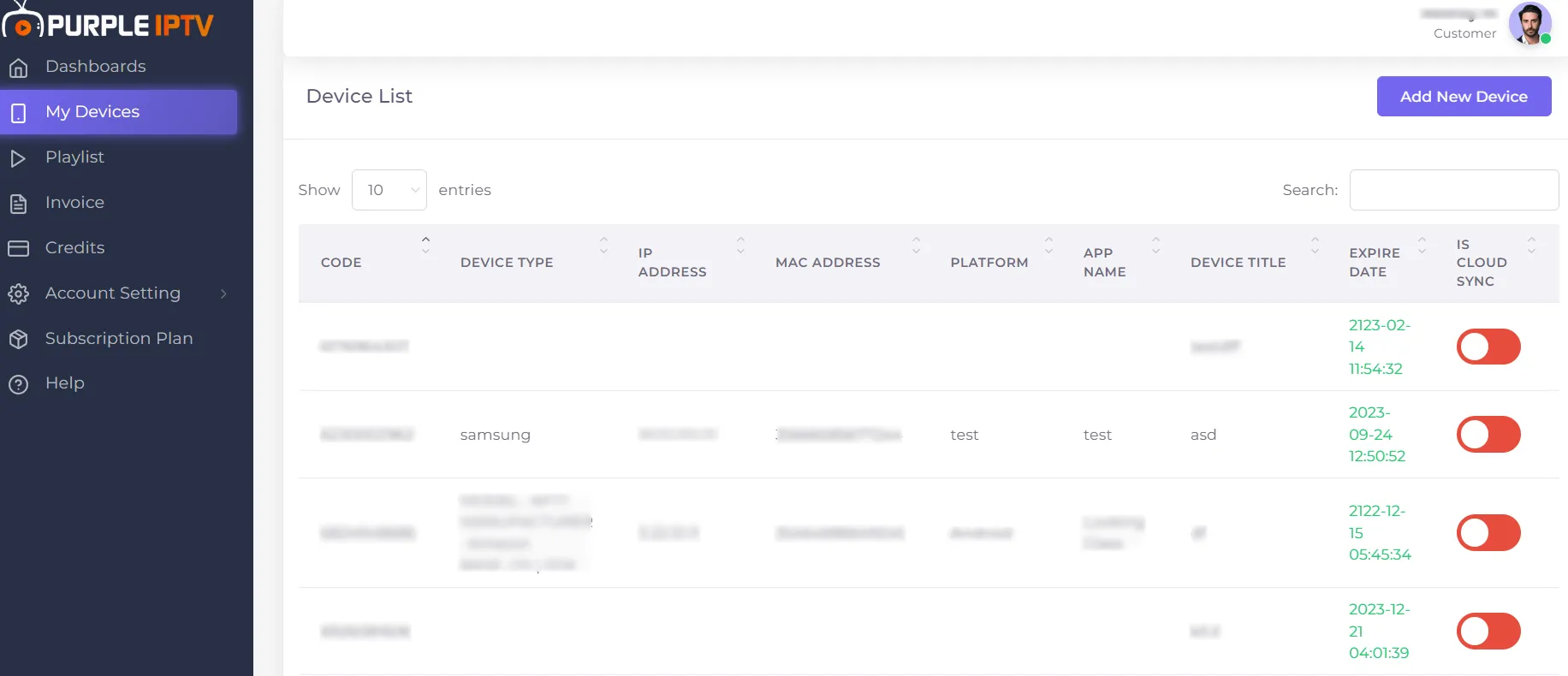
Step 1- Go to My Devices
Go to my 'Devices' tab under the Dashboard section.
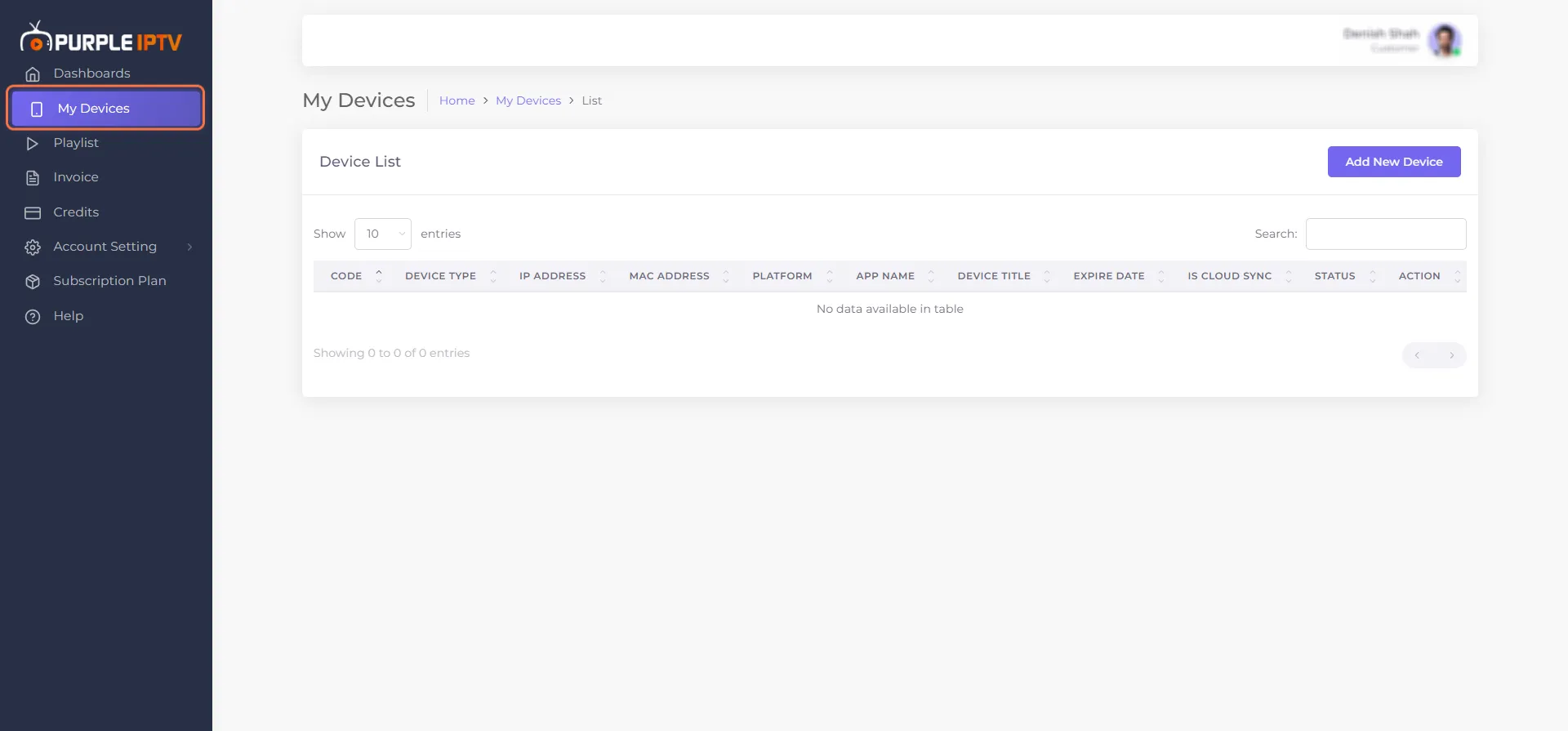
Step 2- Add New Device
Click on 'Add New Device', on the right side of the screen.
Step 3 - Fill in the Details
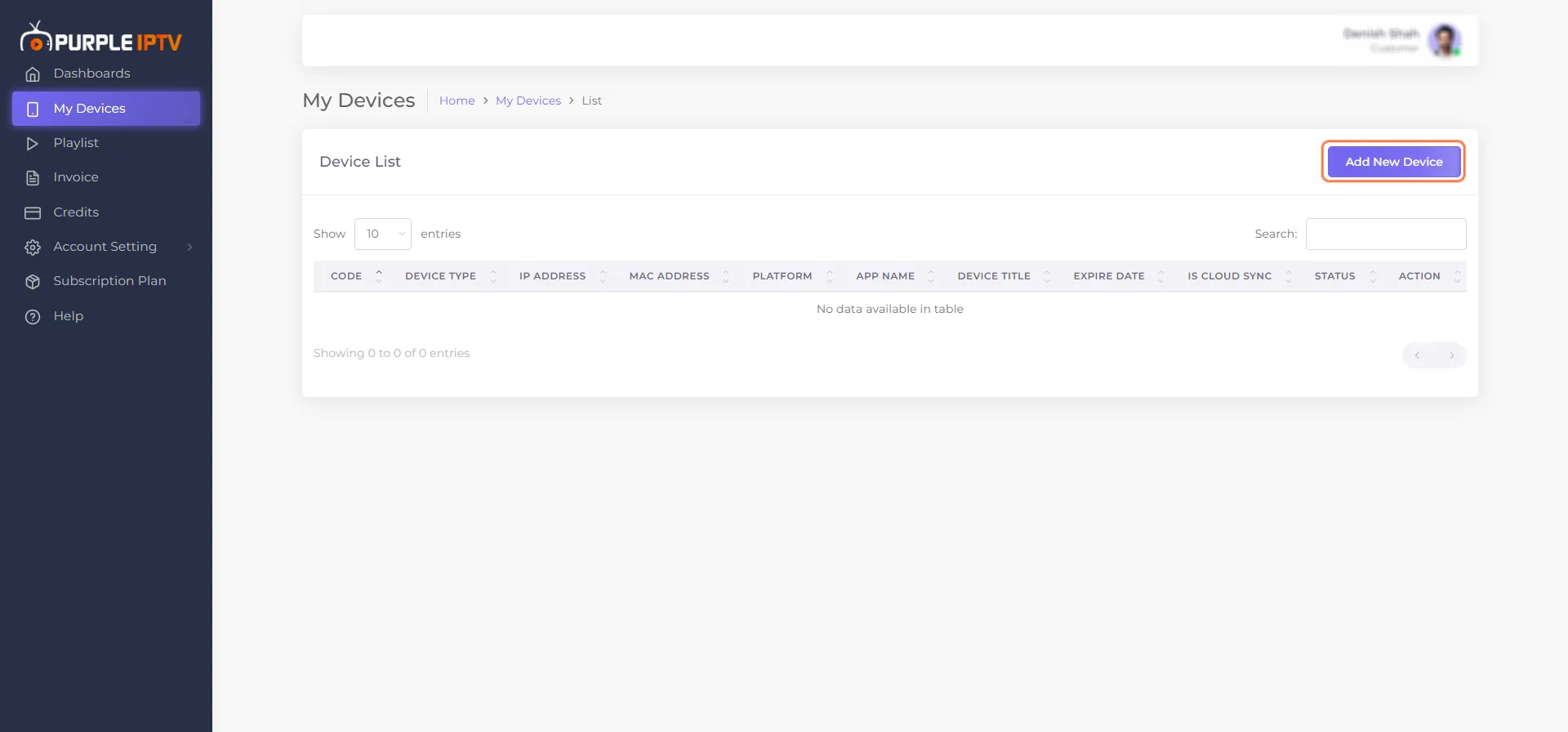
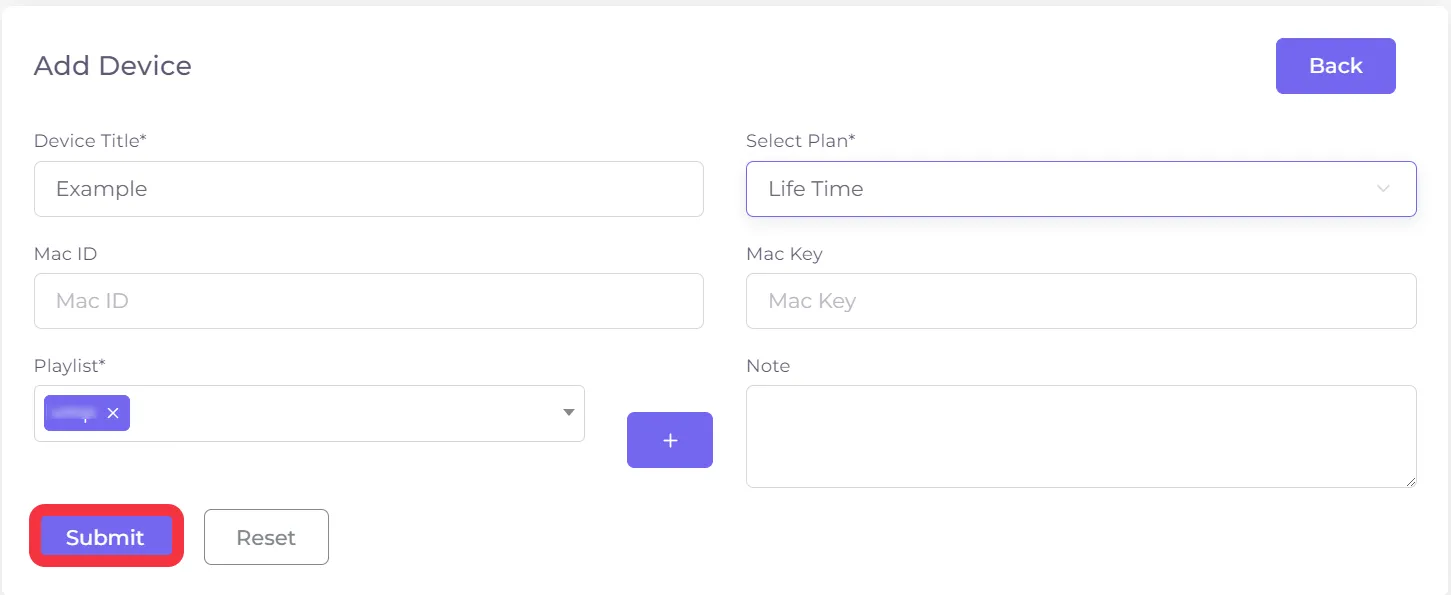
After clicking on Add New Device, you will be redirected to the next screen, fill in the necessary details as per your preferences, as seen in the image below
- Device Title - "Mandatory" Filling
- Select Plan - "Mandatory" Filling (select any plan according to your preference)
- Mac ID - Filling is "Optional"
- Mac Key - Filling is "Optional"
- Playlist - "Mandatory" Filling"
- Notes - Filling is "Optional"
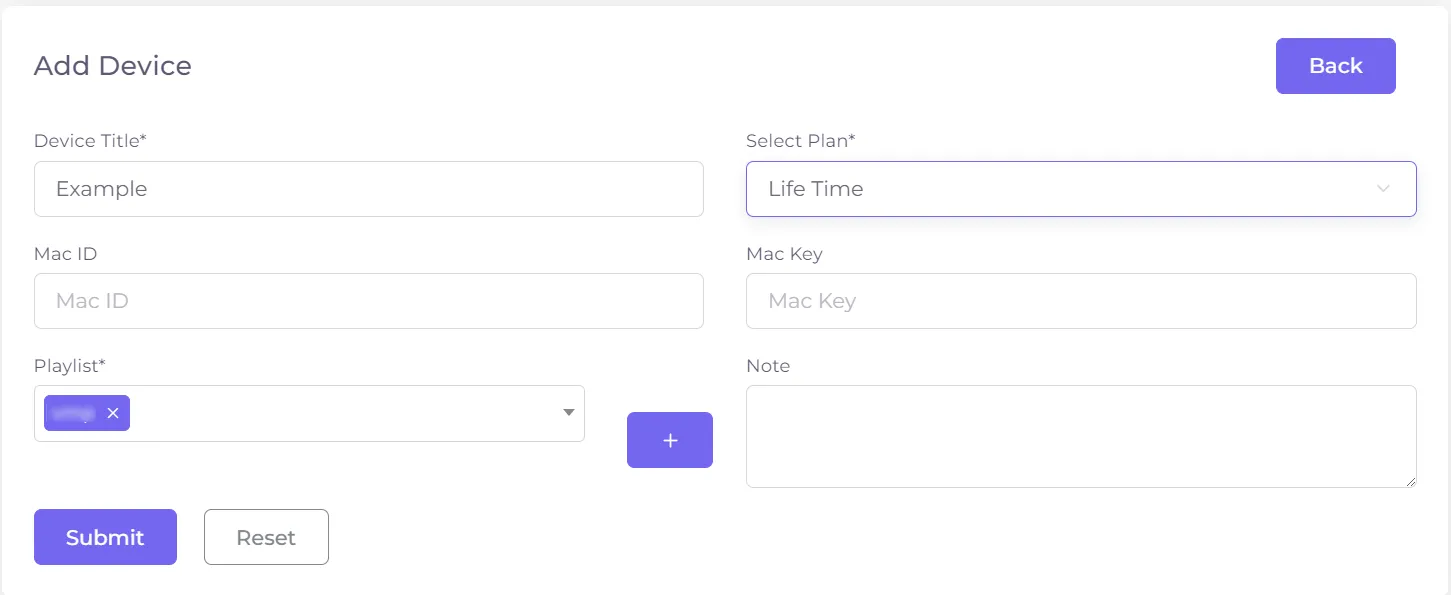
Step 4 - Click on Submit Button
Finally, click on the 'Submit Button', as seen in the below image (marked red)
Step 5 - Successfully Device Added
After clicking on Submit, your playlist will be successfully added, as seen in the below image (marked in red)