What Are the Functionalities of the Icons on Series Page in IPTV Purple VOD Player?
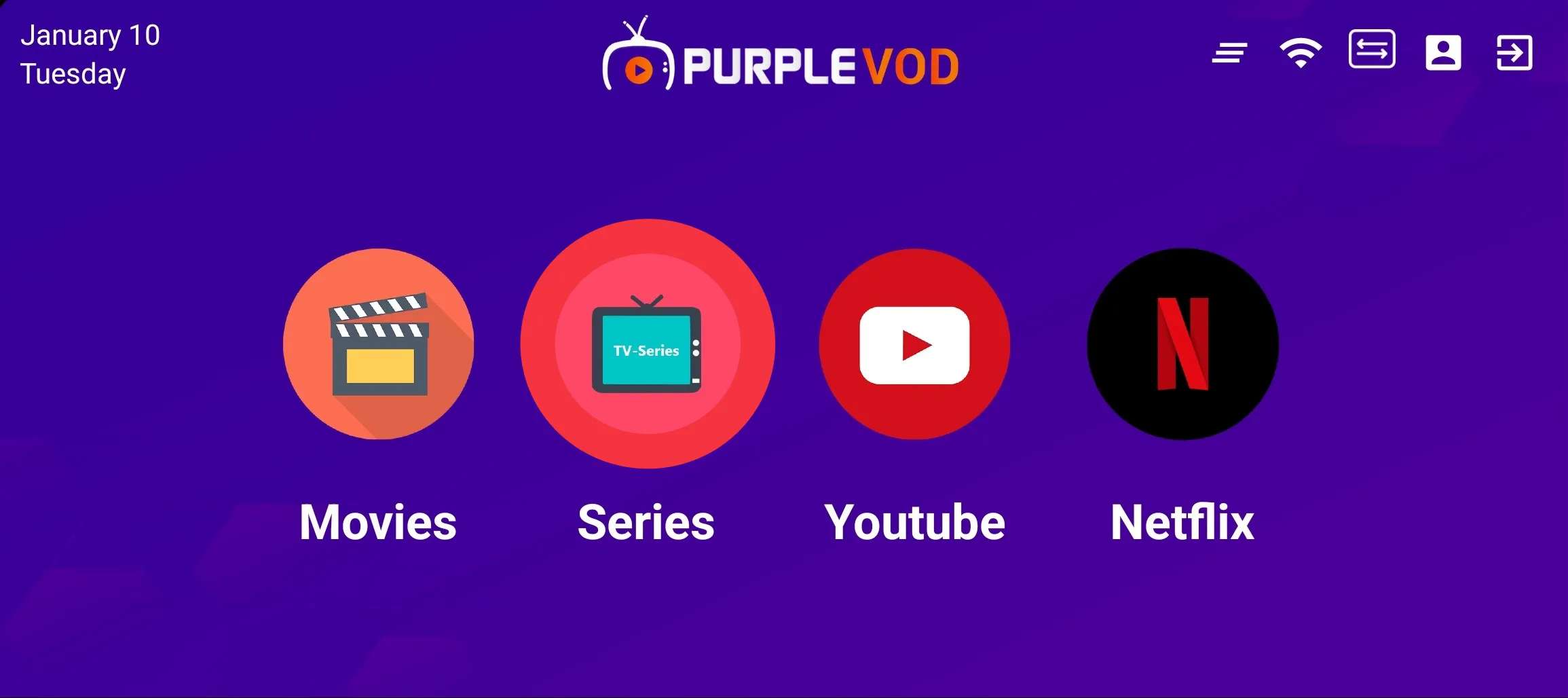
Step 1: Home Page
After a successful installation of the Application, Click on the 'Series' on the Home Page of the IPTV Purple VOD Player
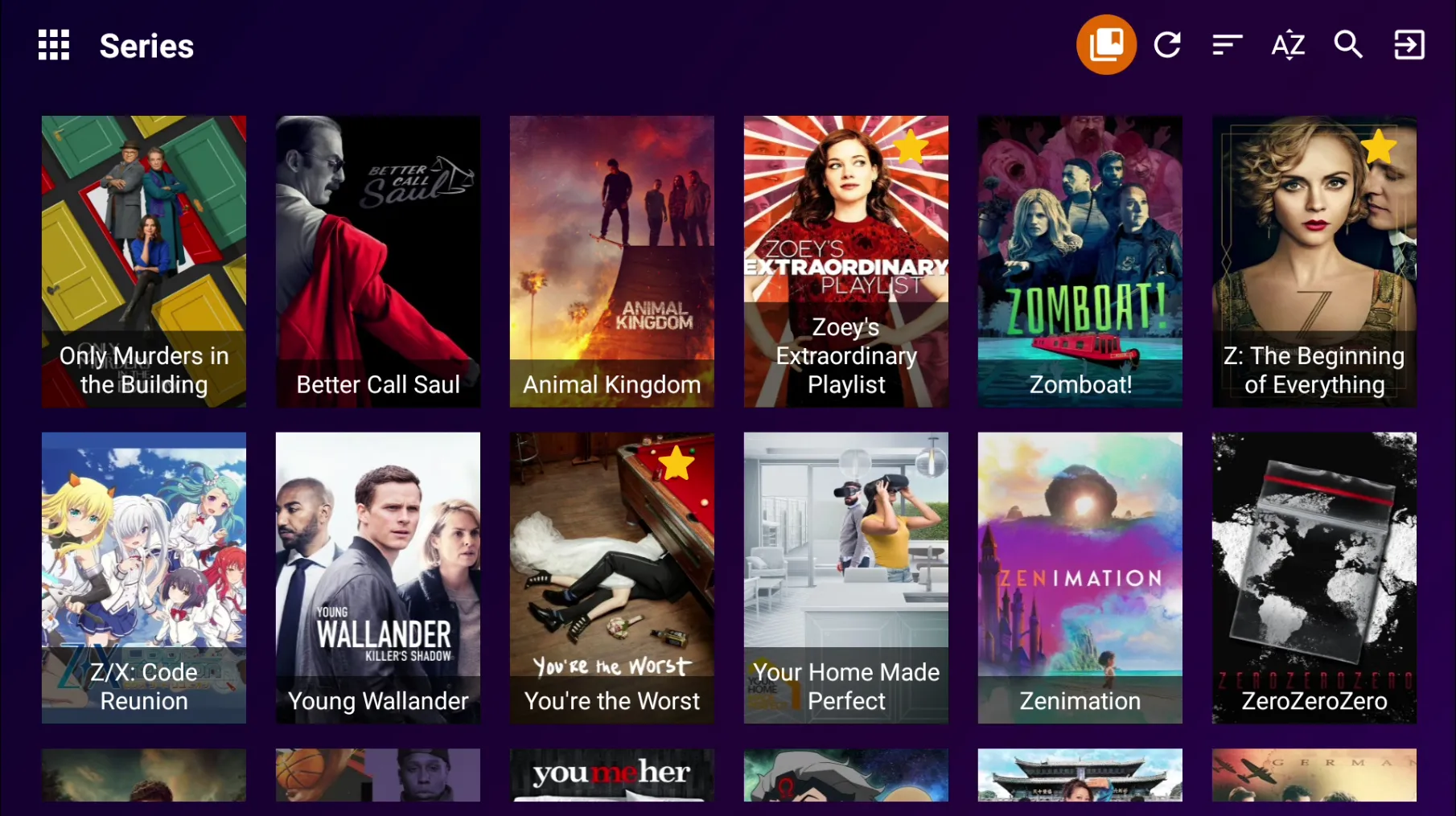
Step 2: Change Module
Click on the 'Change Module' icon to switch swiftly from Series to Movies
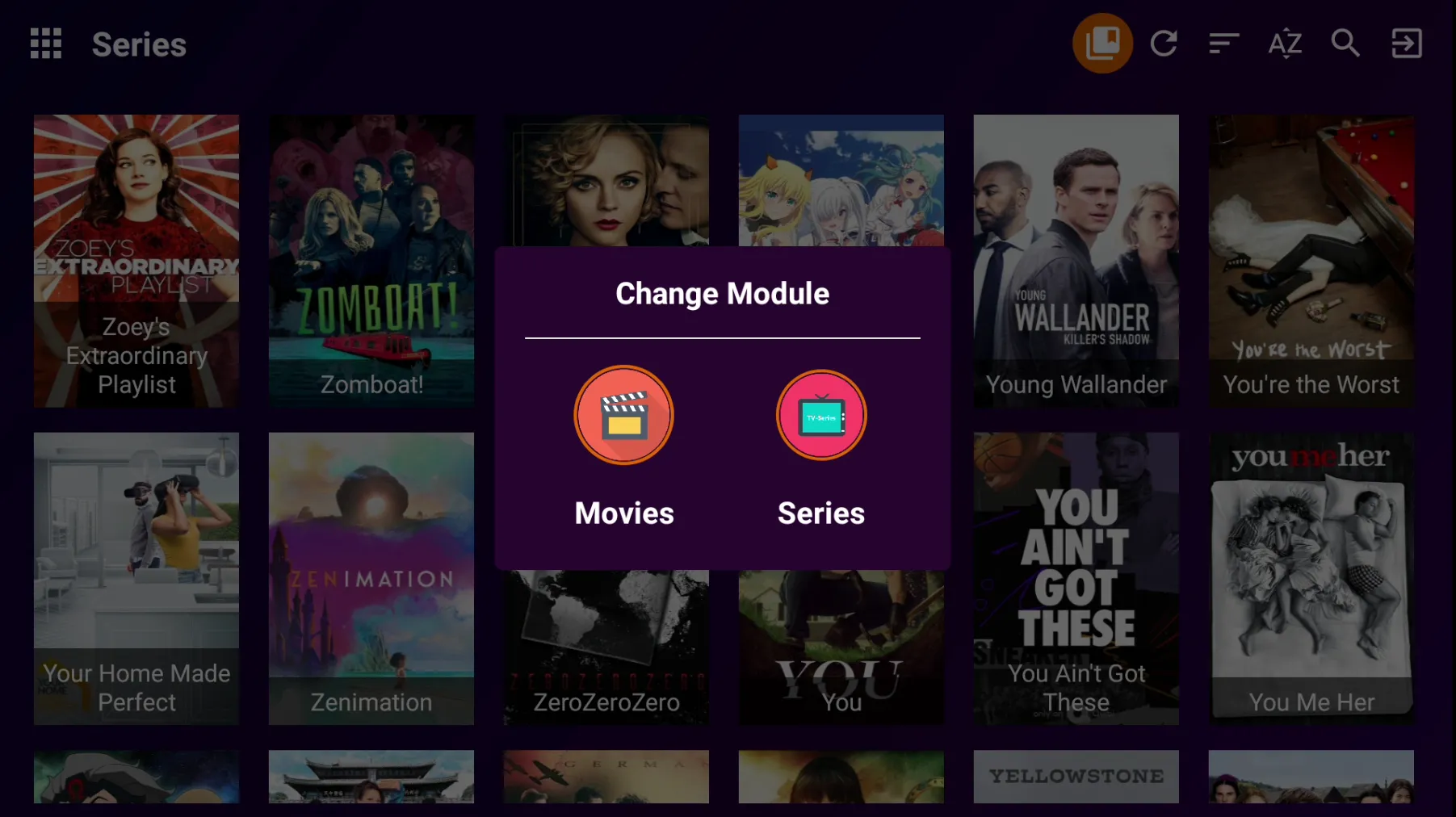
Step 3: Switch Movies
Click on 'Movies' if you want to switch to Movies directly without the need to visit the Home Page
Step 4: Refresh
Click on the 'Refresh Button
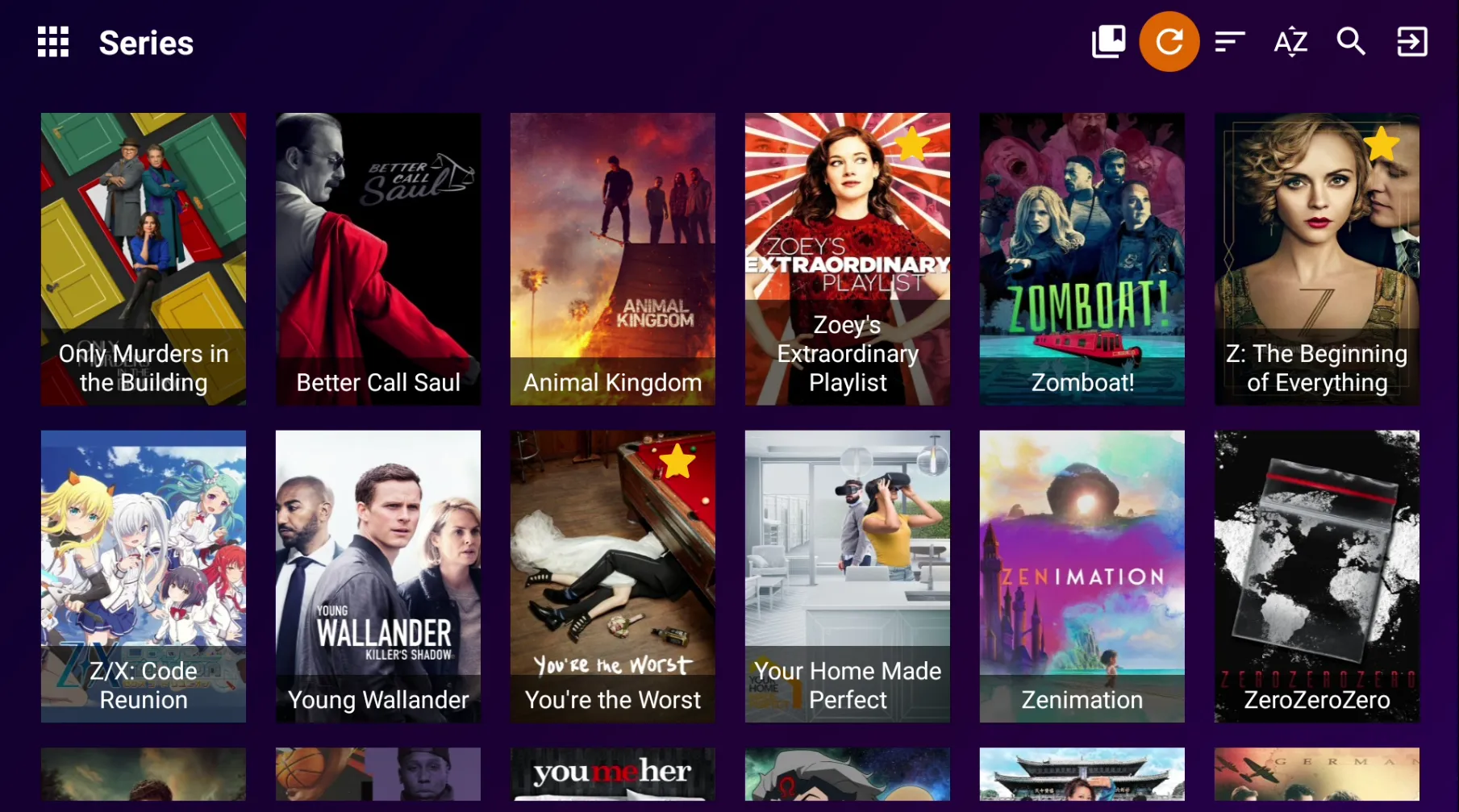
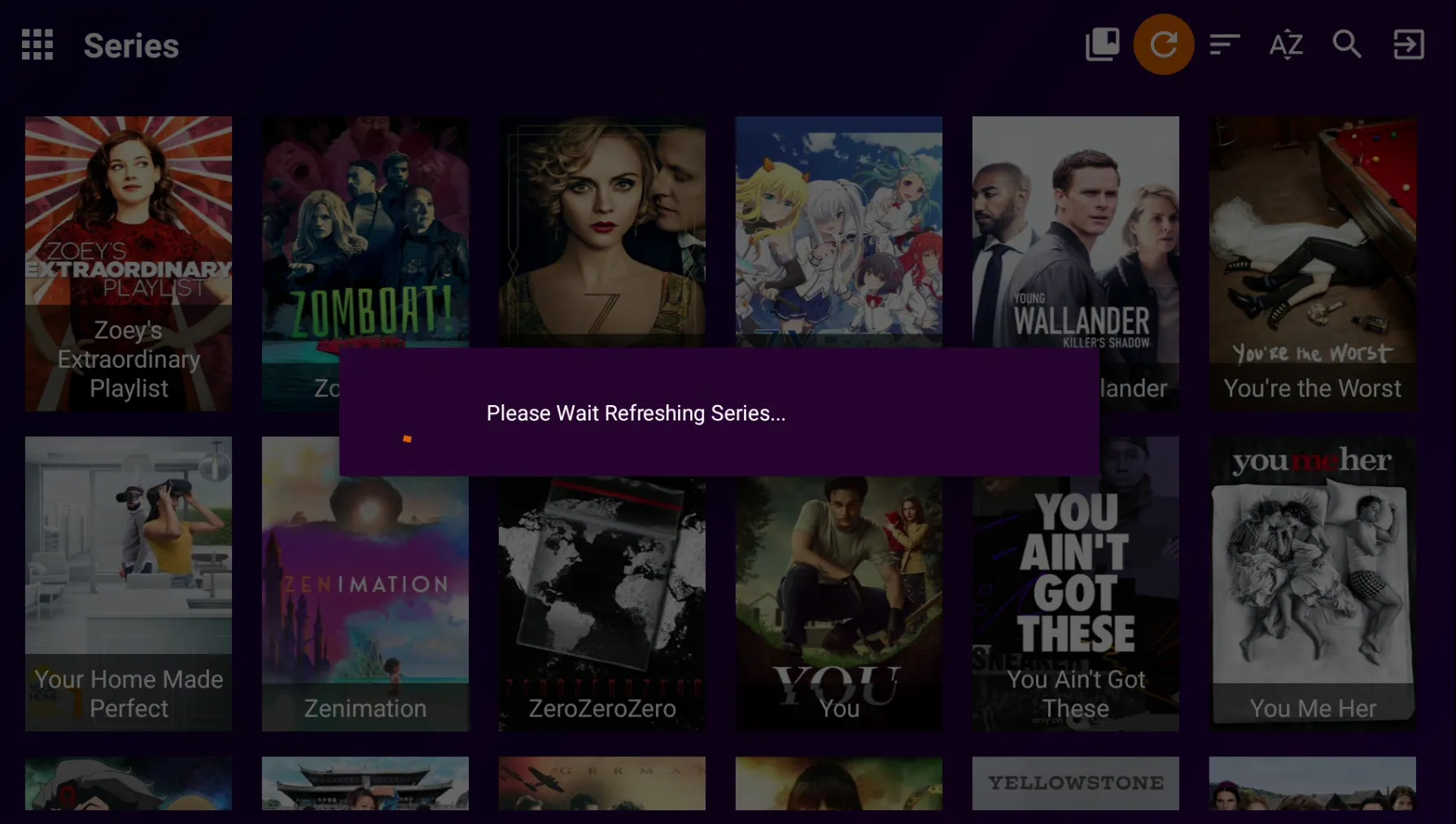
Step 5: Refresh Series
Refresh 'Series' Data
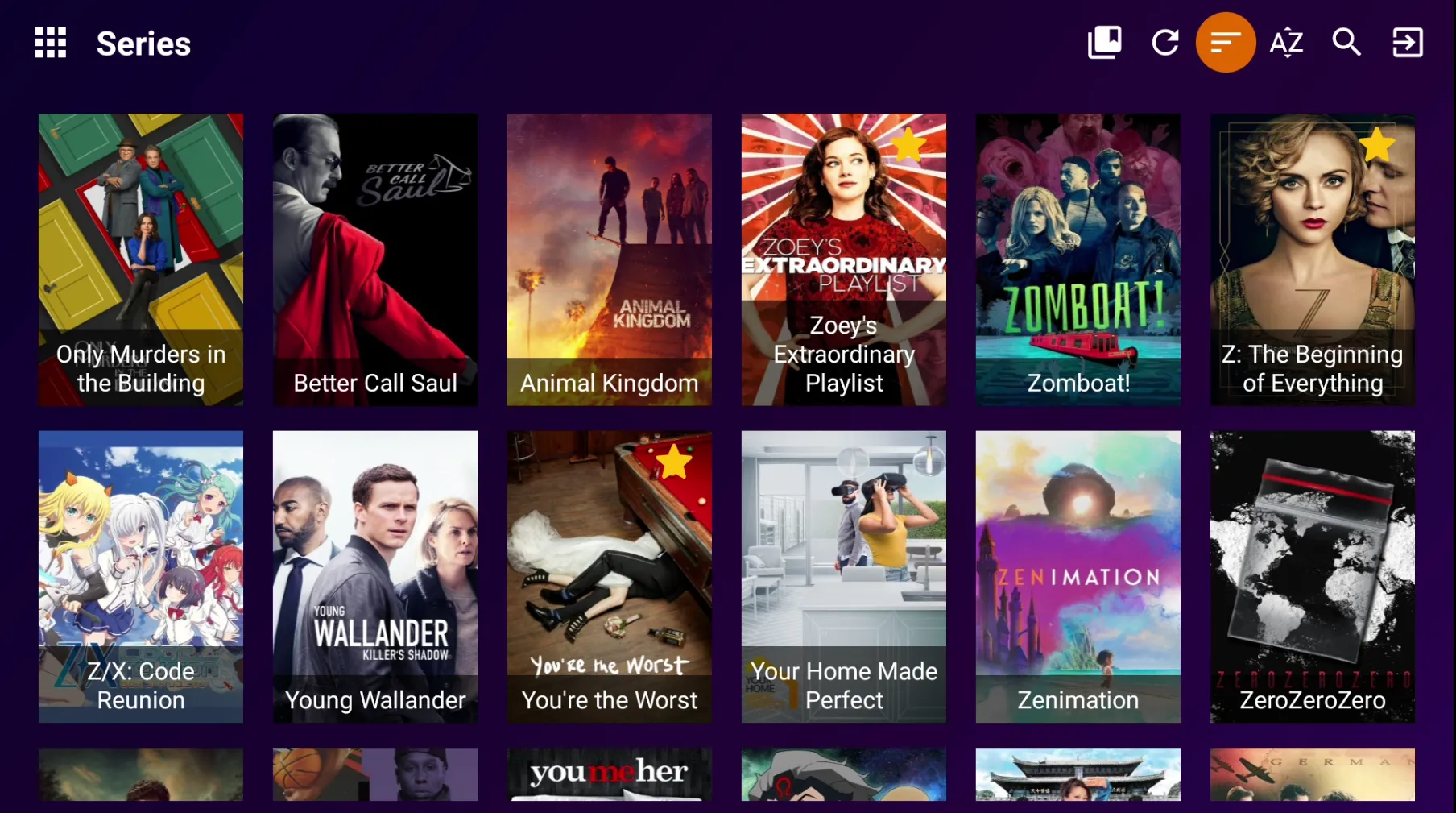
Step 6: Category
Click on the 'Category' Button
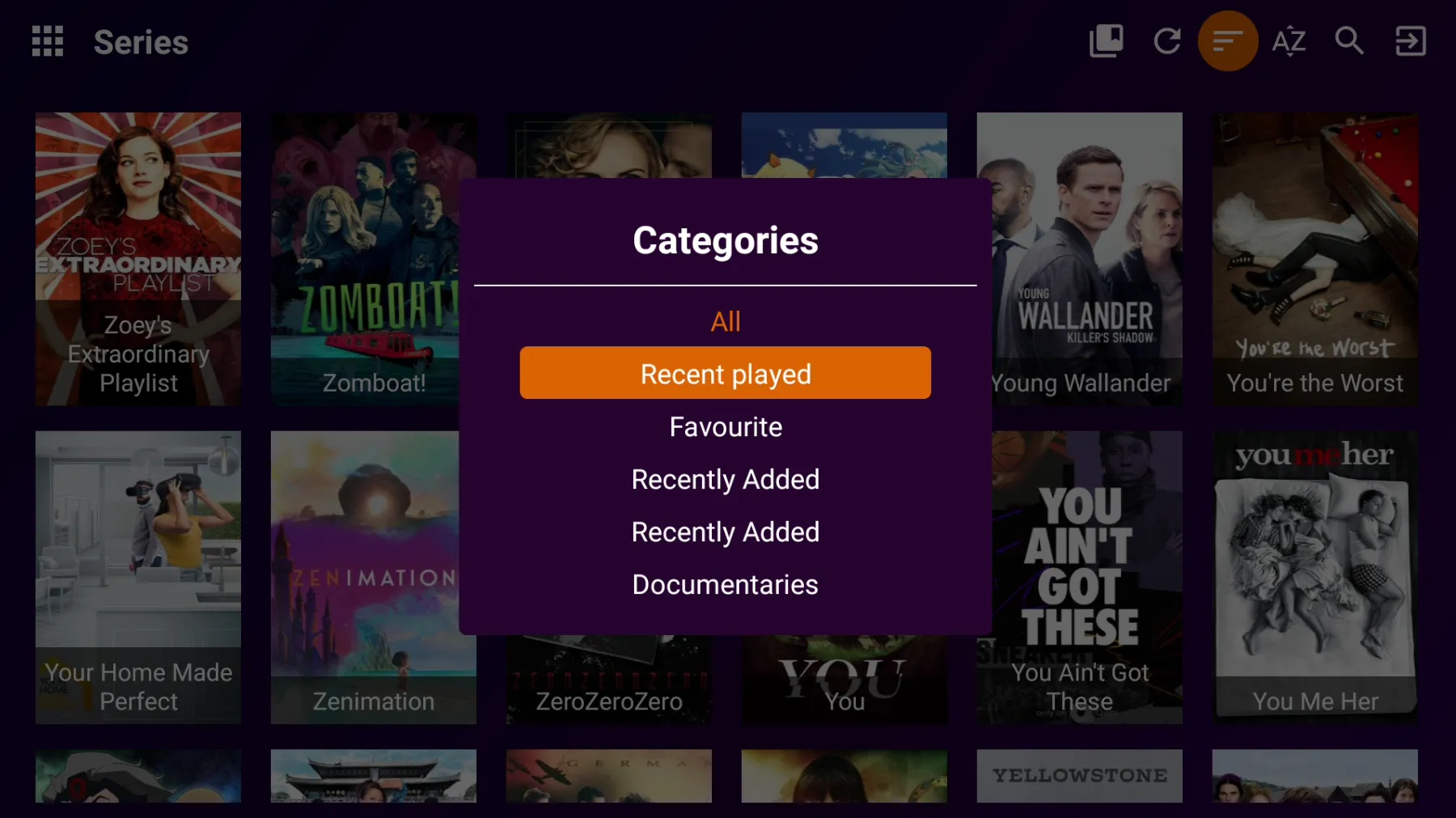
Step 7: List of Series
Display of List of Series Categories
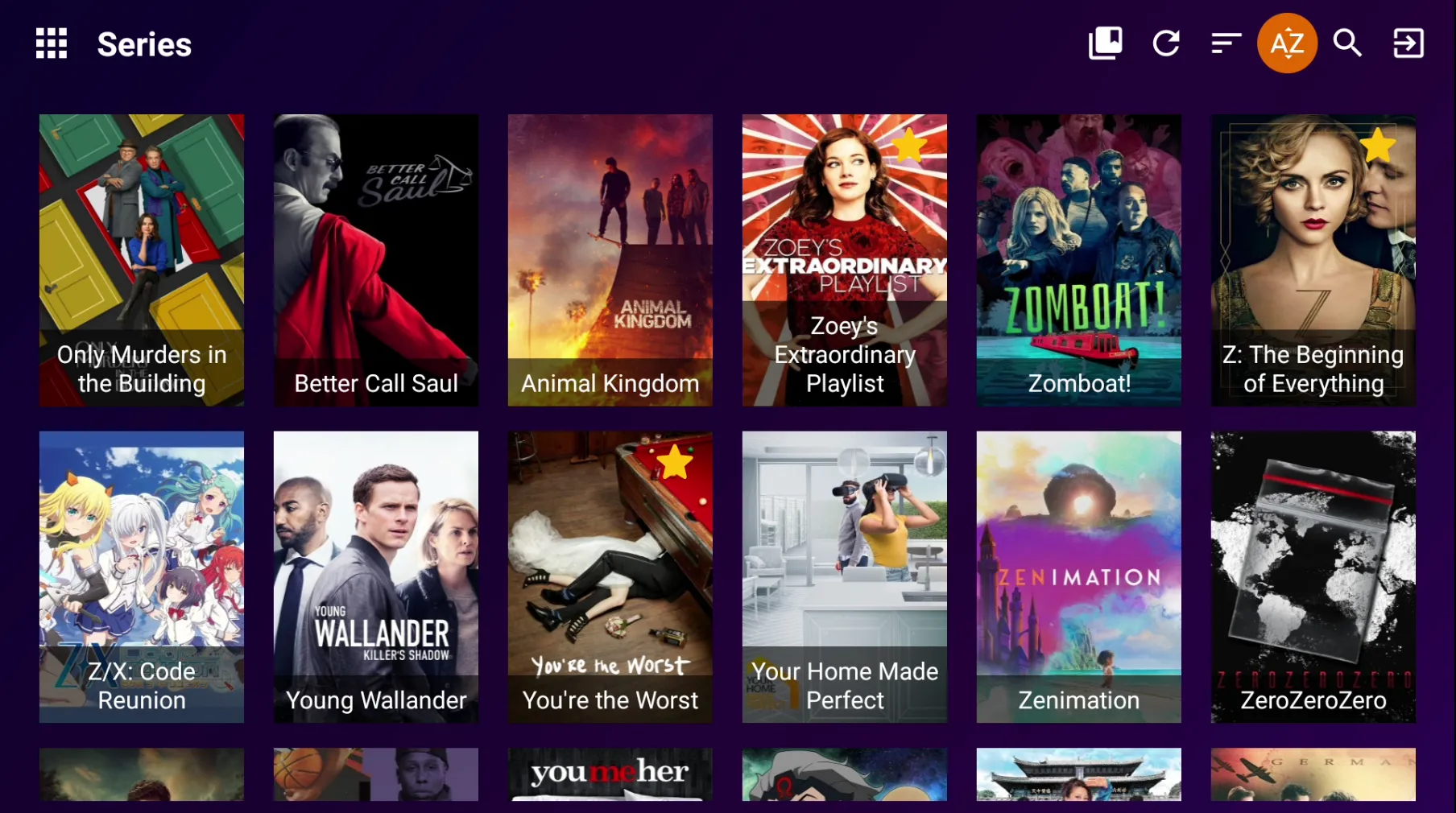
Step 8: Sort Button
Click on the 'Sort By' Button
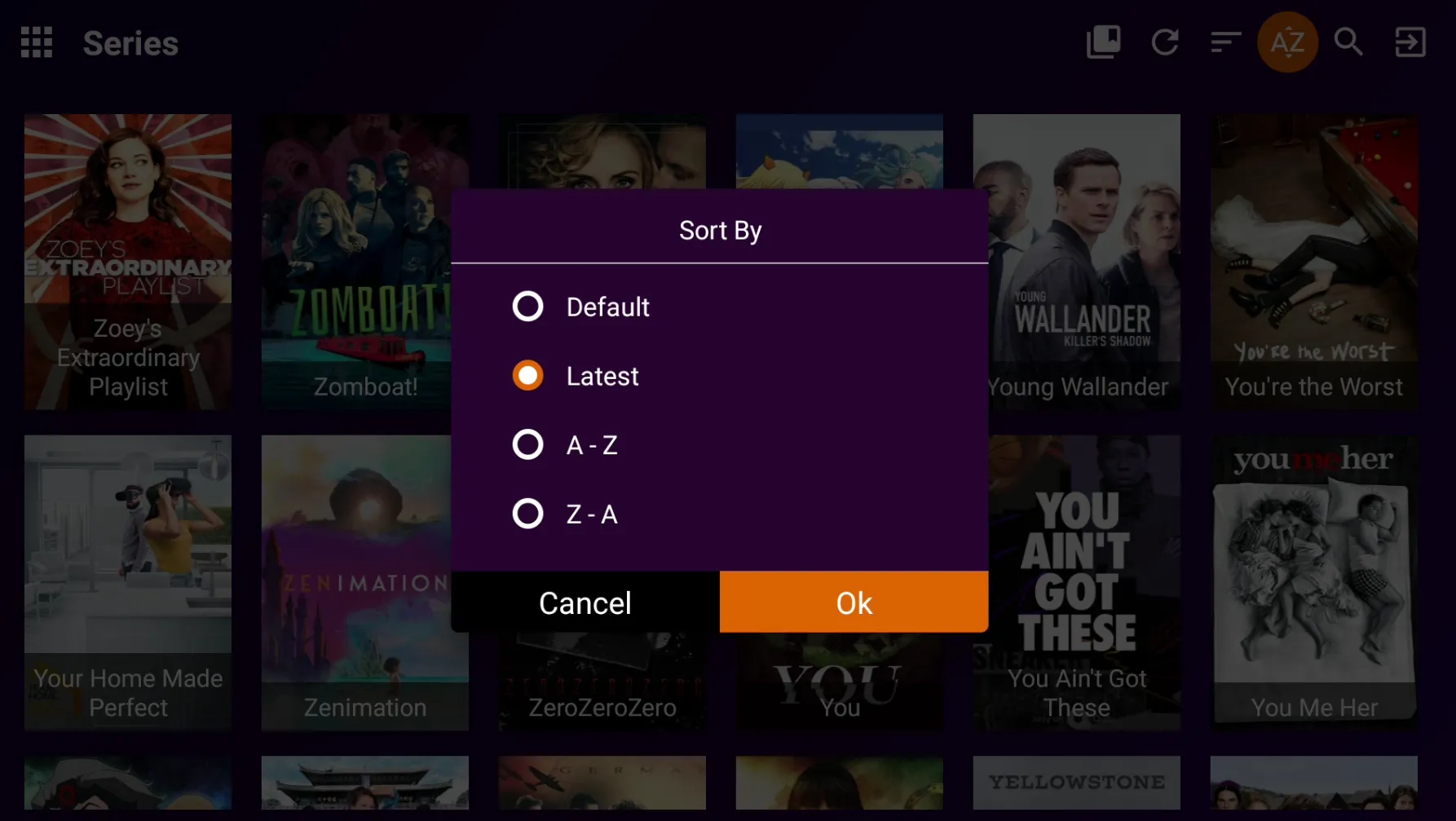
Step 9: Sort By
You can select any of the 'Sort By' options for showing the Movies Category List Sort By allows to re-arrange the search results order or product list of a collection order to view them in their preferred order.
Step 10: Search
Click on the 'Search Button
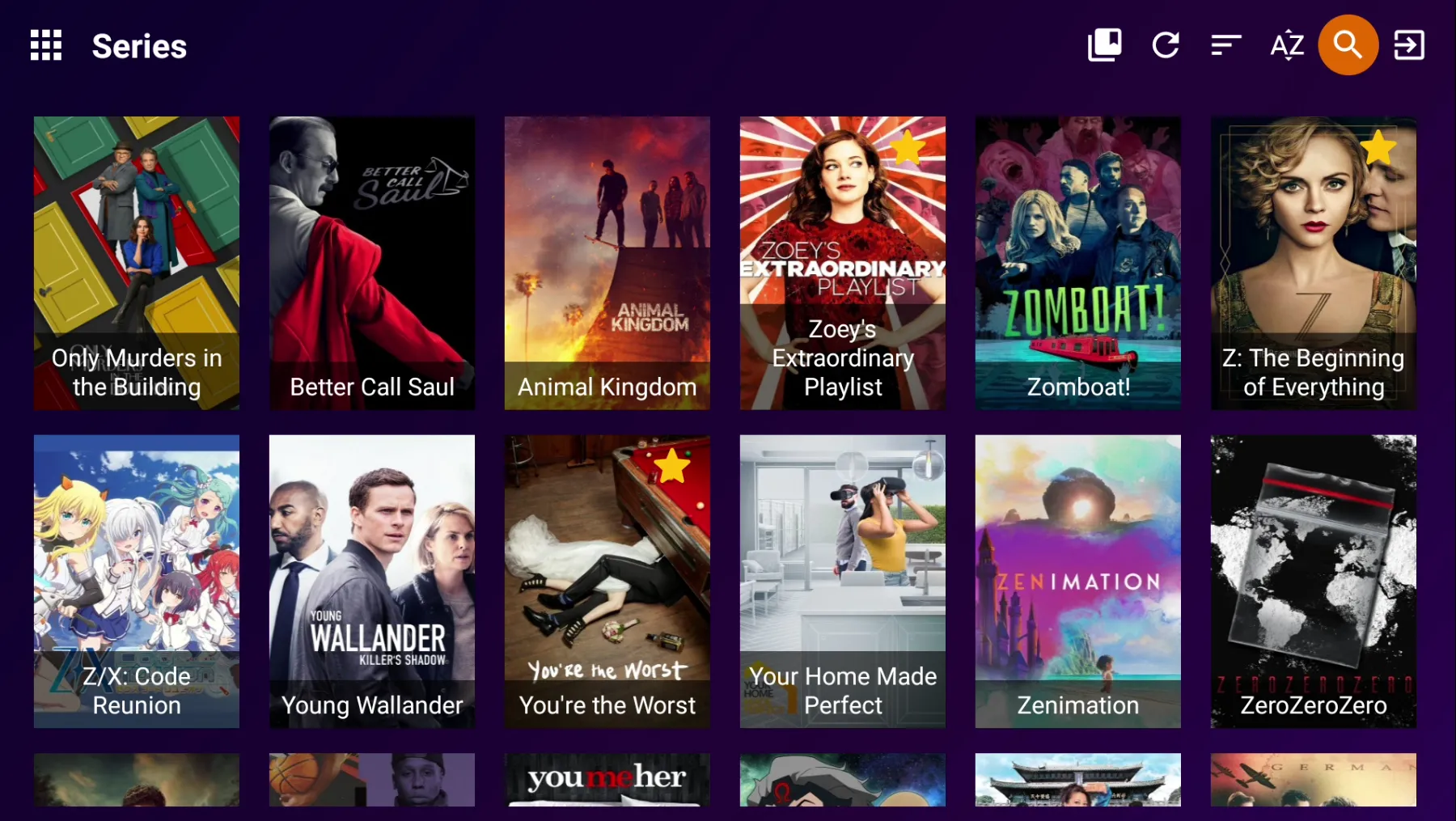
Step 11: Search Bar
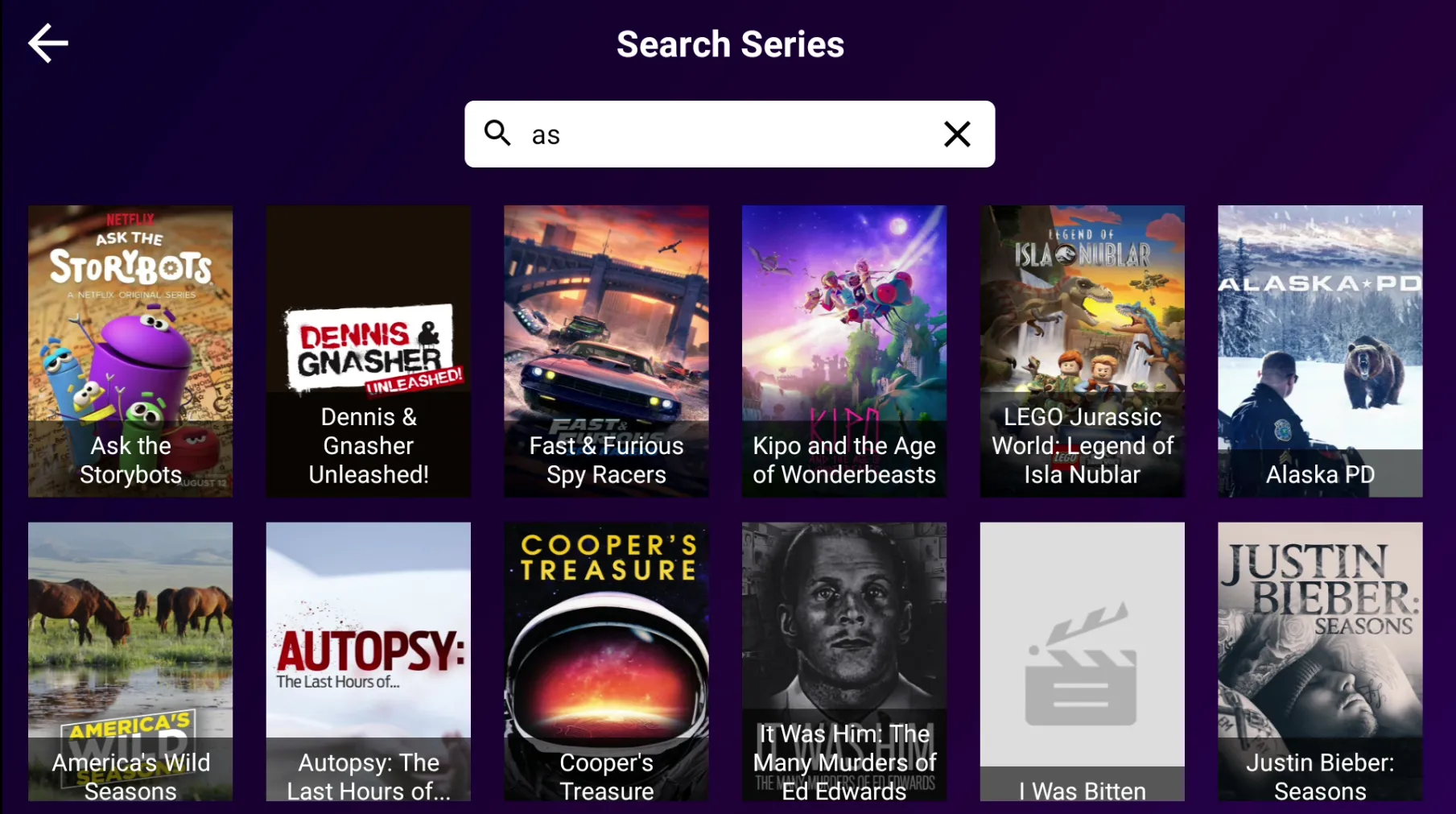
Type the first few letters of the Series to search the Series by name in the search bar