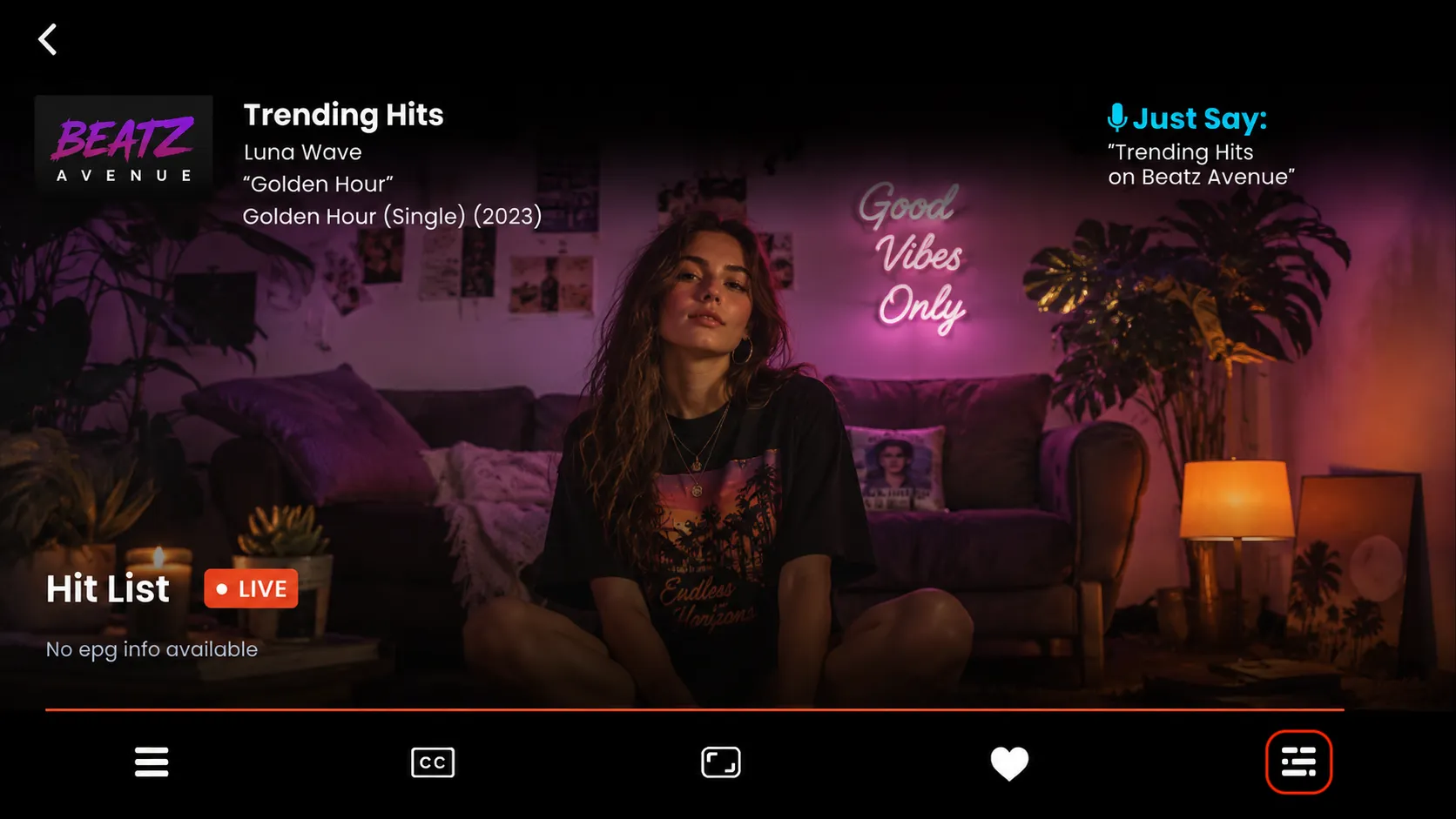
How To Use Different Functions in Live TV
5 min
Step 1: Start Streaming
The chosen channel will start playing.
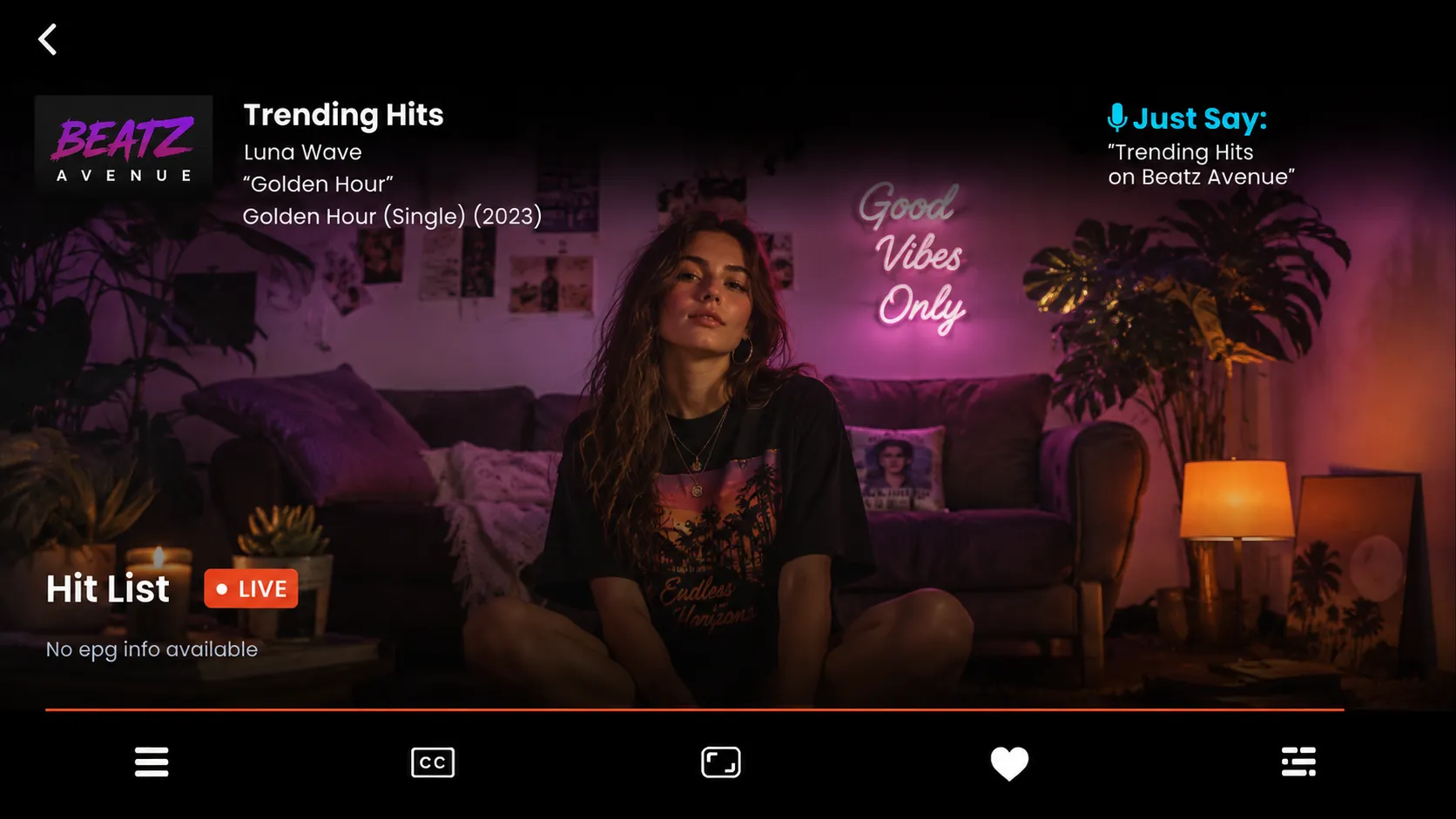
Step 2: Switch Channels
Click on the highlighted menu icon at the bottom-left corner to open the channel list while watching Live TV.
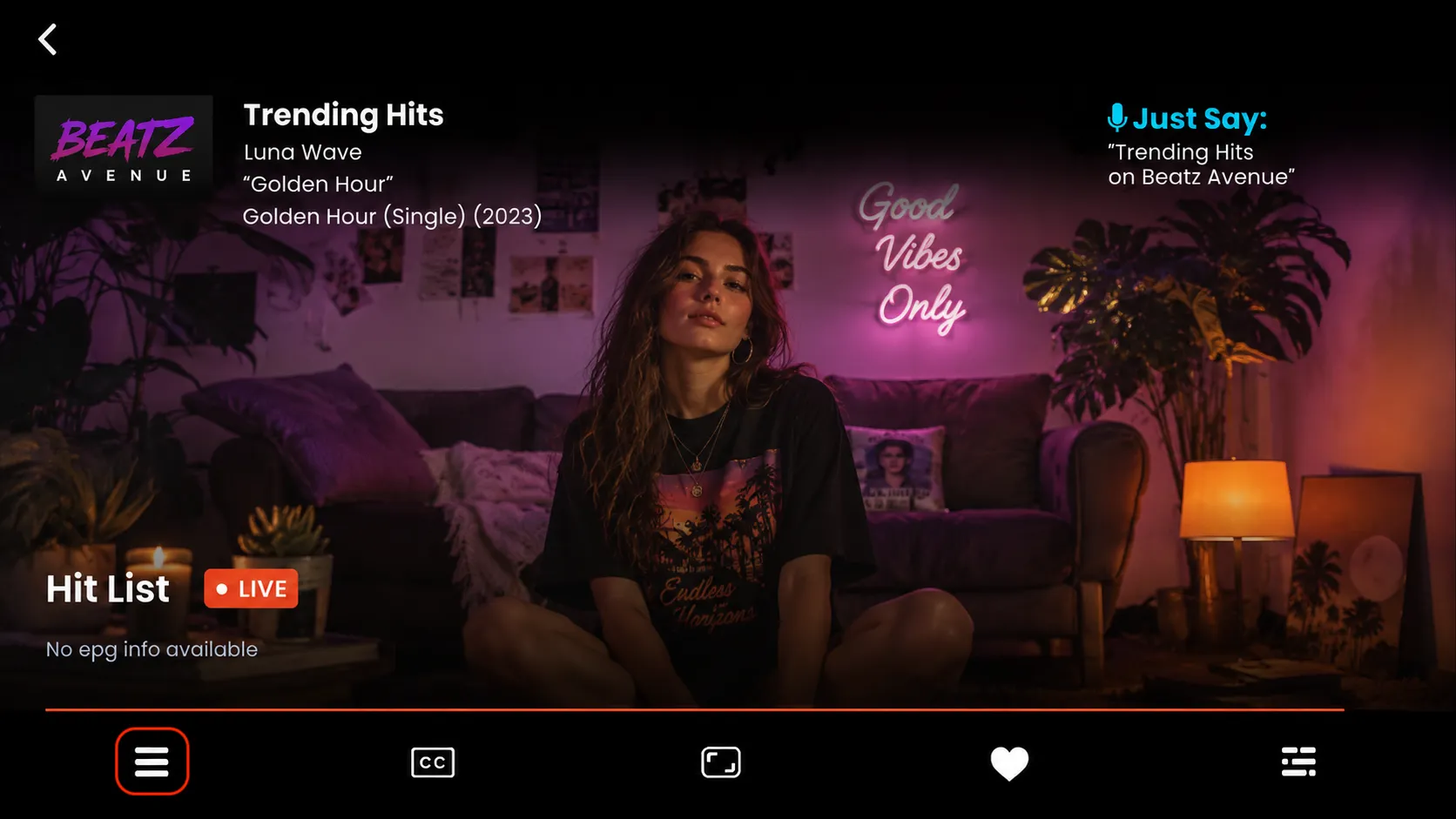
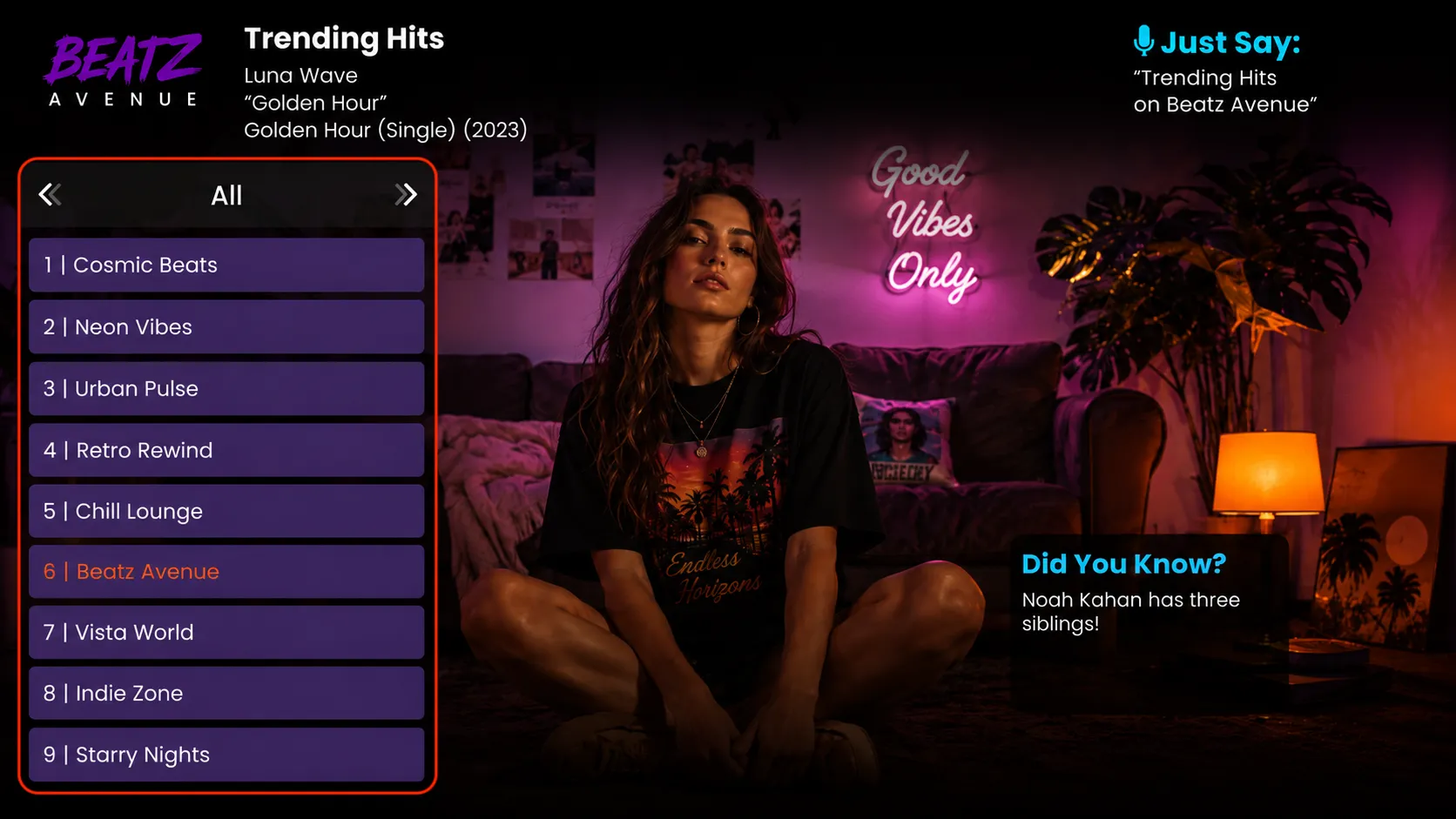
After clicking on the channel switch option, the complete channel list will appear on the left side of the screen.
Step 3: Enable Subtitles
Click on the Subtitles (CC) icon in the player controls to turn on captions.
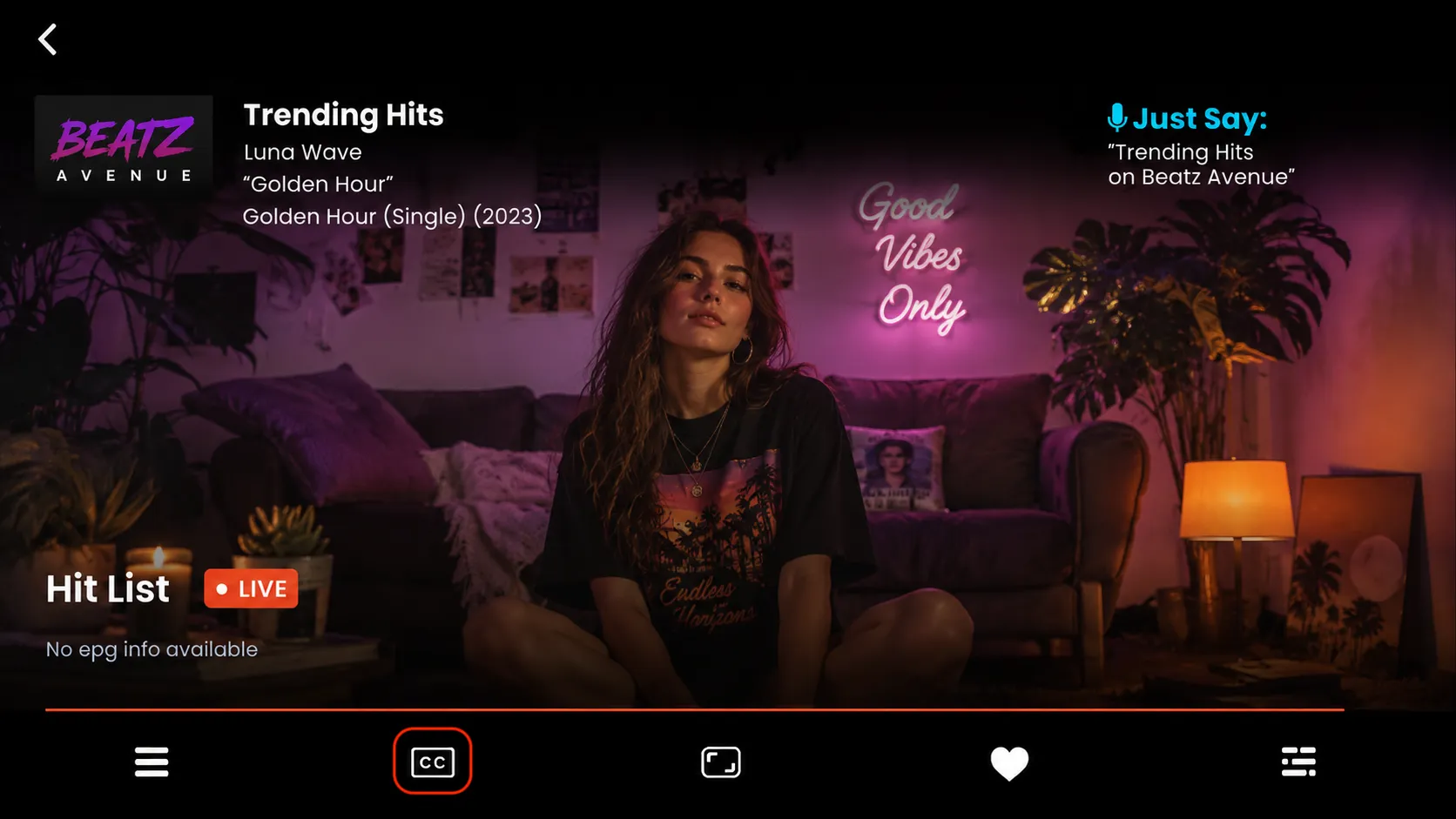
Click on the highlighted settings option to open the subtitle and track selection menu.
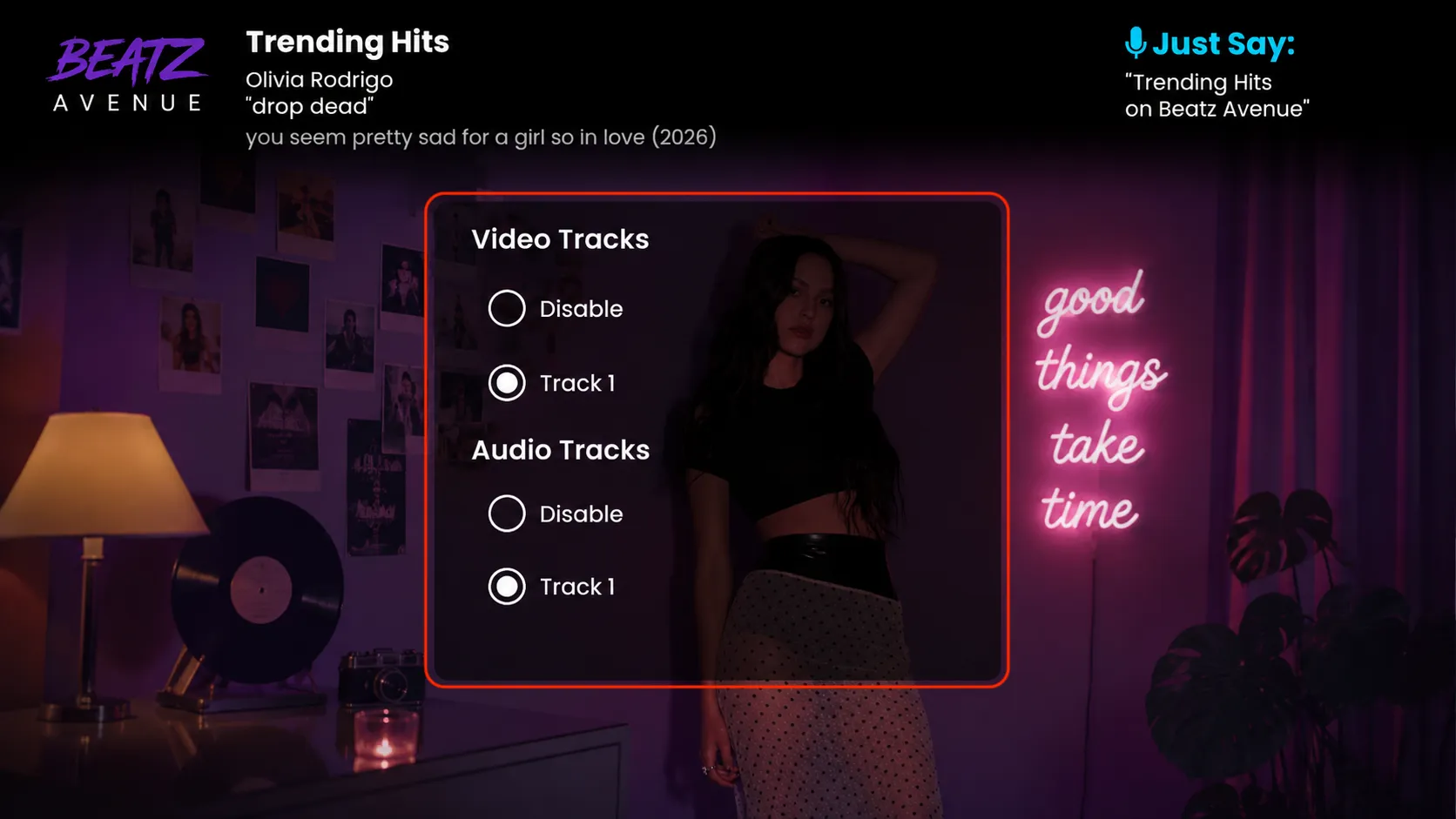
Step 4: Change Aspect Ratio
Click on the aspect ratio icon in the player controls to adjust the screen size and viewing format. (e.g., Zoom, Fit, Fill)
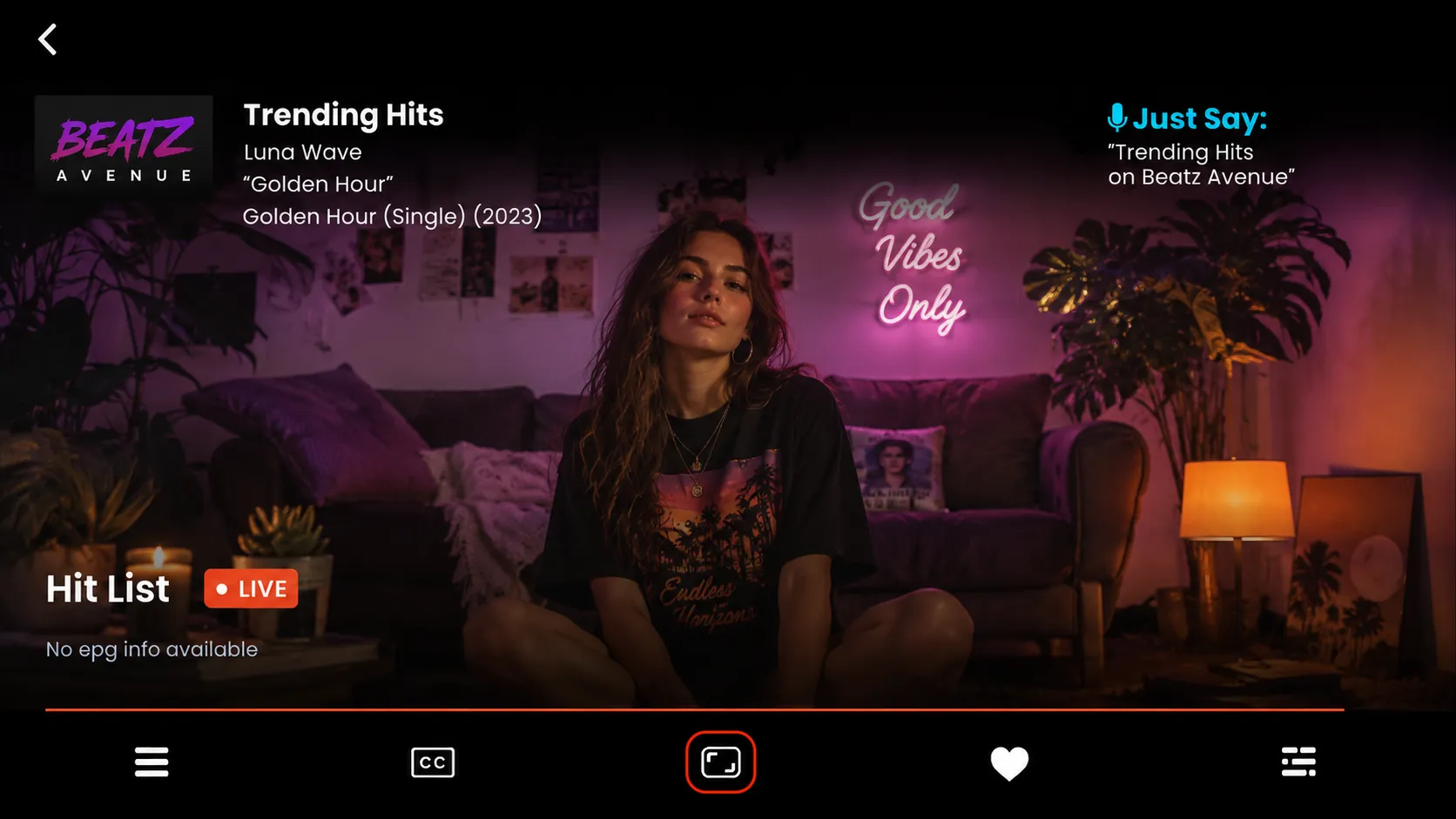
Step 5: Add to Favorites
Click on the Favorite icon to save the channel for quick access later.
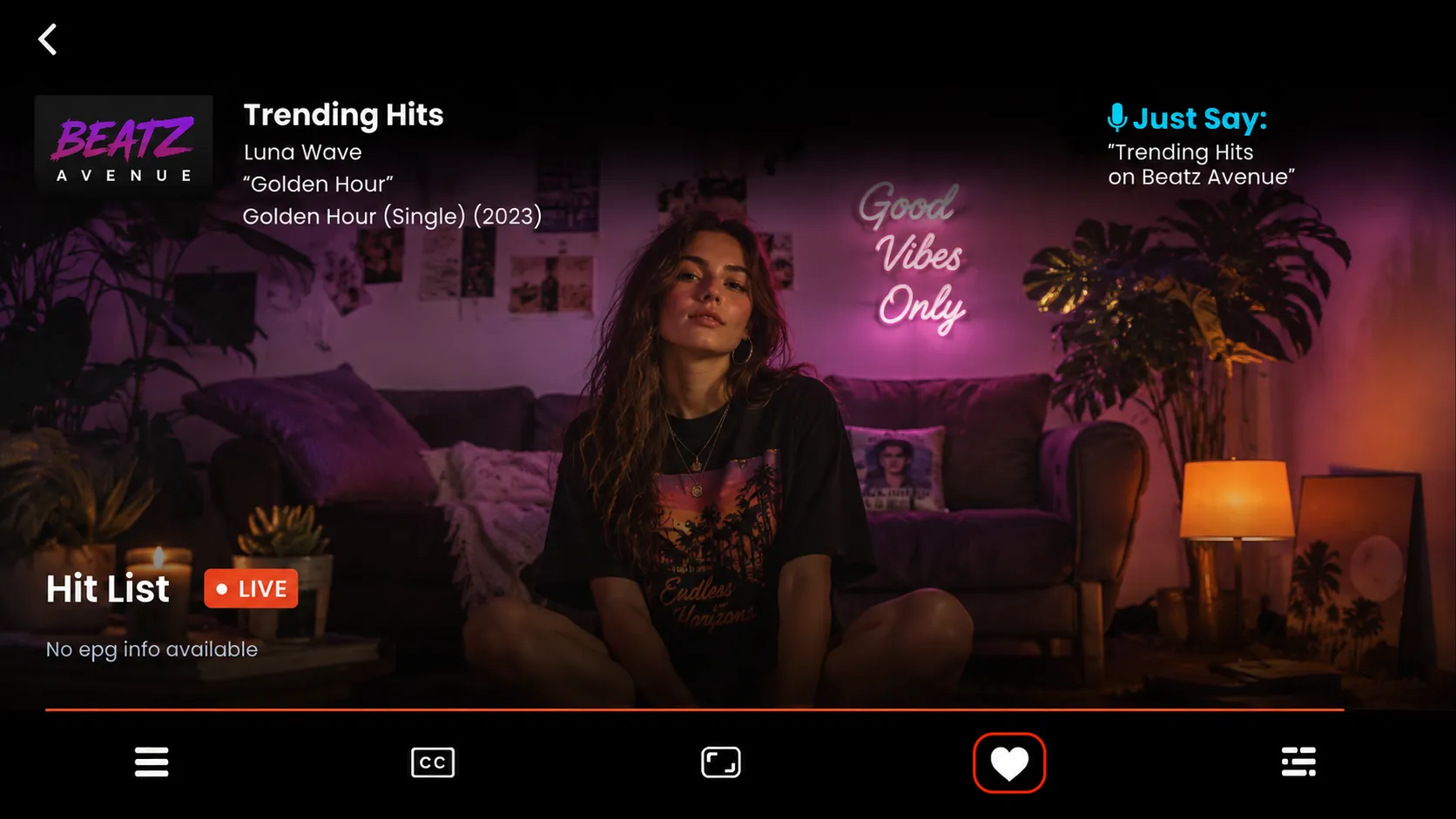
Step 6: Open EPG
Click on the EPG option while playing a channel to view the program guide.