
How to Add a New Device
8 min
Do Check Our Guide On - How to Register or Login in Admin Panel - Click Here
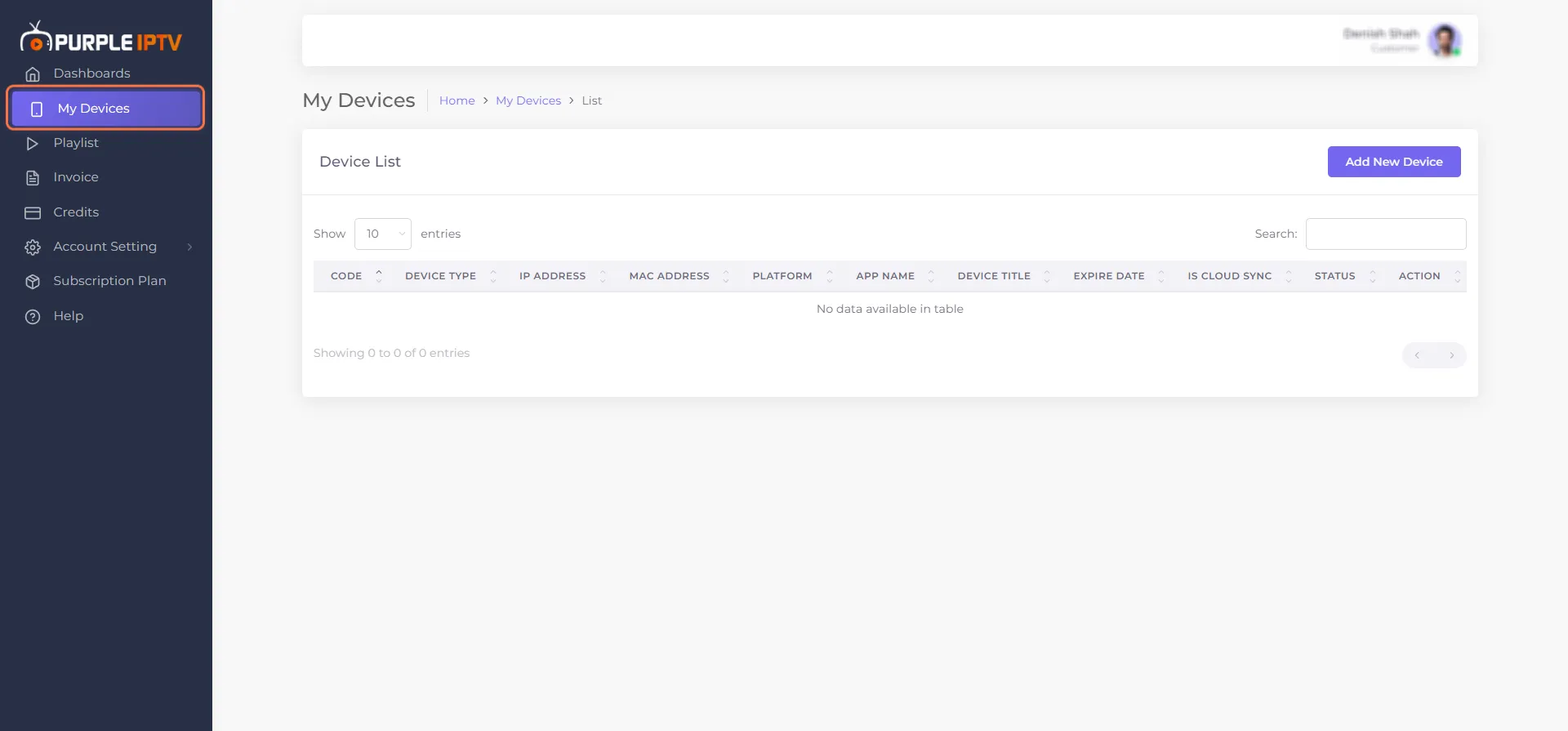
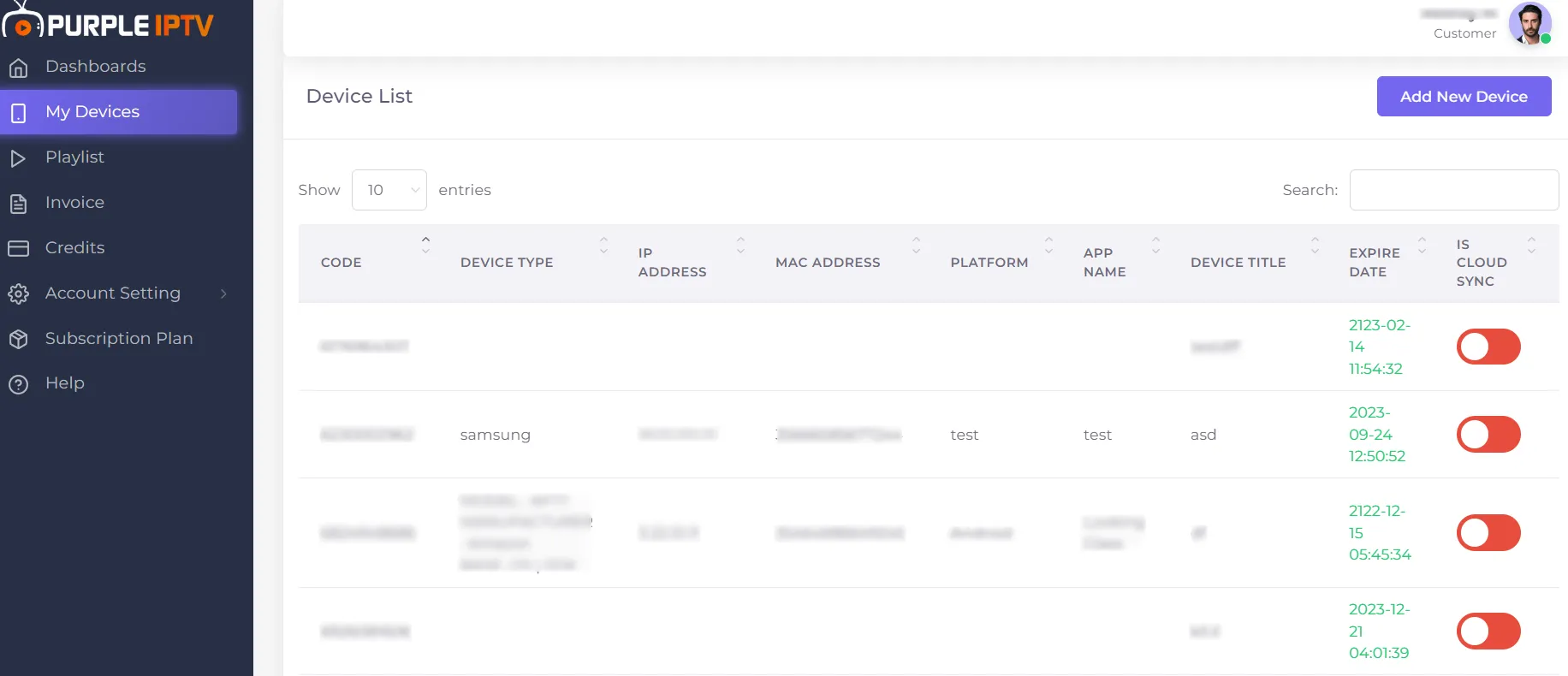
Step 1 - Go to My Devices section
After successfully Login into Purple Admin Panel, Click on "My Device", as seen in the below image
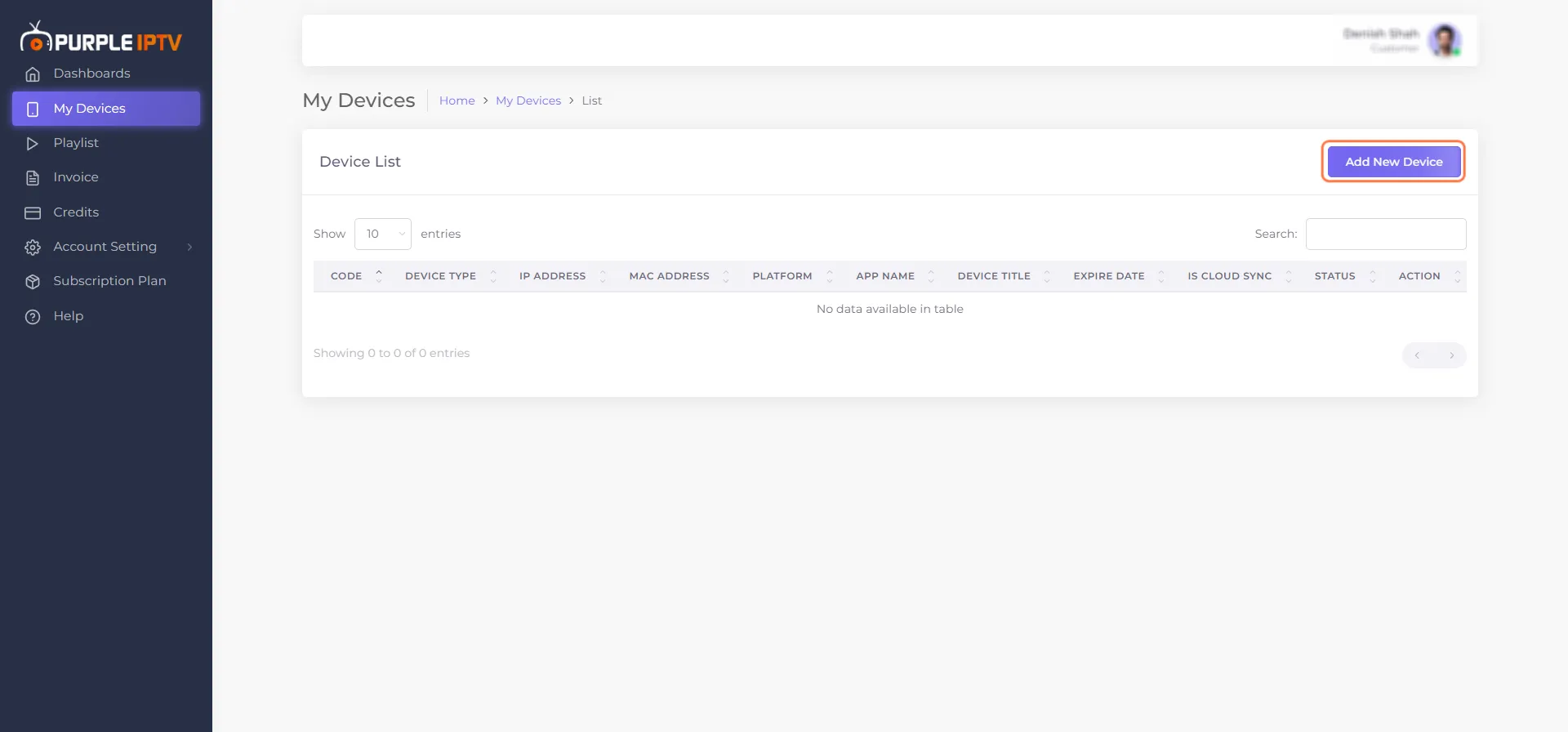
Step 2 - Add New Device
Click on "Add New Device", as seen in the below image
Step 3 - Fill in the Details
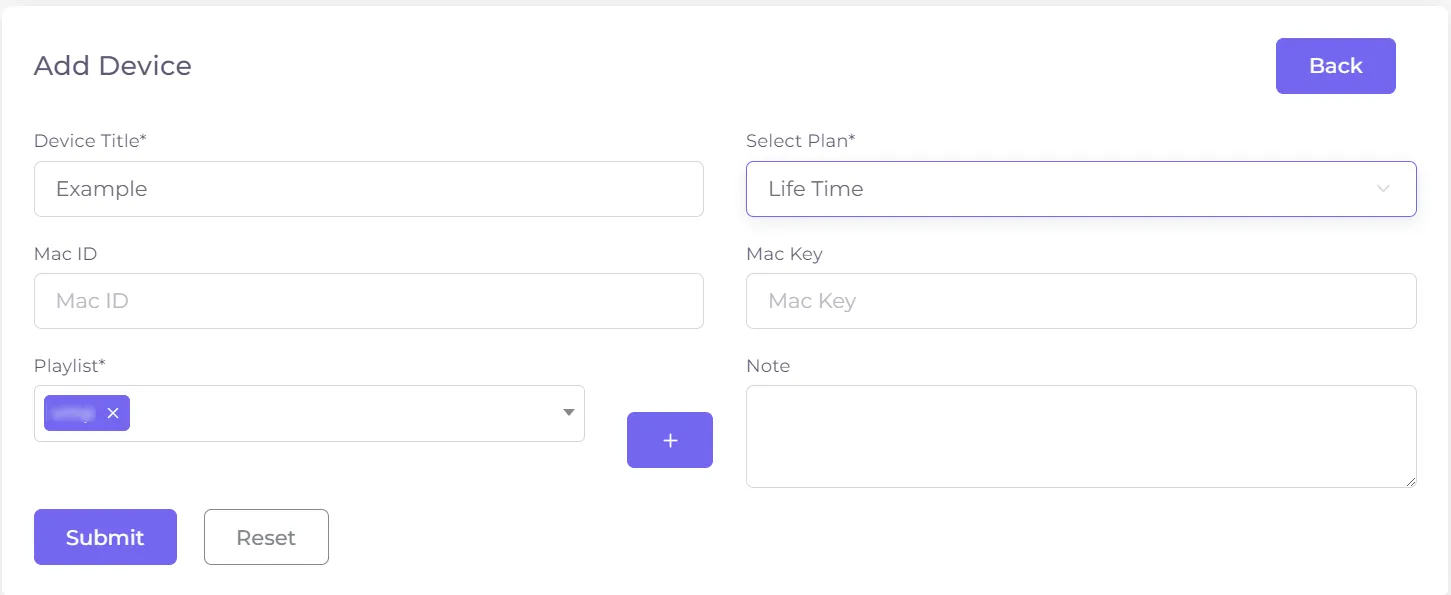
After selecting "Add New Device," a pop-up will appear. Fill in the required details, as seen in the below image
- Device Title - "Mandatory" Filling
- Select Plan - "Mandatory" Filling (select any plan according to your preference)
- Mac ID - Filling is "Optional"
- Mac Key - Filling is "Optional"
- Playlist - "Mandatory" Filling
- Notes - Filling is "Optional"
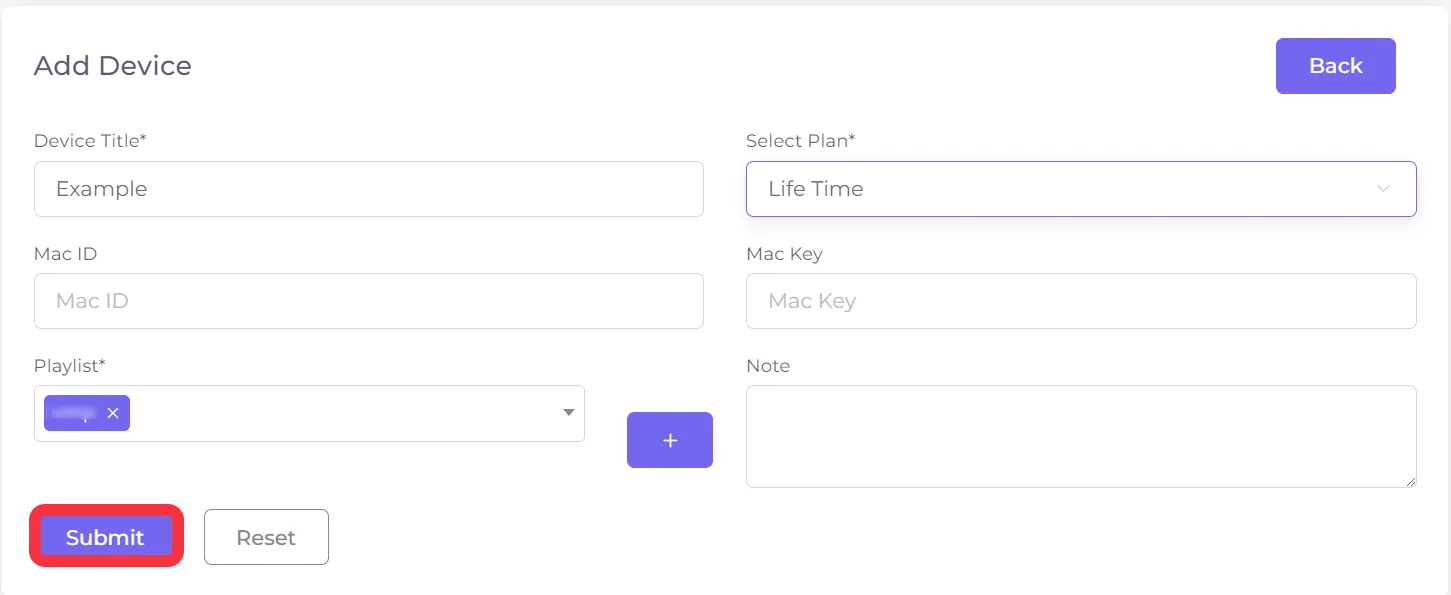
Step 4 - Click on Submit Button
Finally, click on the 'Submit Button', as seen in the below image (marked red)
Step 5 - Successfully Device Added
After clicking on Submit, Your Device will be Successfully Added, as seen in the below image (marked in red)
Note: Purple Smart TV Products and services do not provide any content or playlists